Introduction
Reportana's standard integration with WhatsApp uses an unofficial API. This method is primarily recommended for businesses in their initial phase or validating operations, as it offers a practical and accessible way to centralize customer service and automate customer communication.
Although easy to use, it's important to note that this integration is not approved by WhatsApp and is therefore subject to limitations such as instability, disconnections, and the risk of blocking, especially if used inappropriately.
To ensure greater security, reliability, scalability, and compliance with Meta's policies, Reportana strongly recommends adopting the Official WhatsApp API, especially for growing companies or those with more structured operations.
The Official API offers:
- Stable and continuous connectivity
- Higher message volume per minute
- Support for approved message templates
- Lower risk of account blocks
- More advanced monitoring and analytics
In short, the unofficial API can be useful as a starting point, but migrating to the Official API is ideal for those looking to professionalize communication and scale service safely. When opting for the standard integration, it's important to follow recommended best practices. This helps avoid blocking, minimize instability, and maintain a continuous and reliable connection.
How it Works
How to Connect
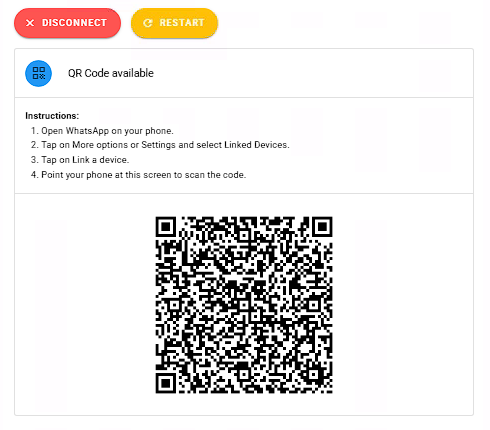
The connection is unofficial: you scan the QR Code generated on our platform using your WhatsApp app. Once connected, the number becomes available in Reportana for automations and internal chat support. For detailed instructions, see the article: How to Connect WhatsApp
Preparing the Number
As this is an unofficial integration, it's crucial to follow the steps below to reduce the risk of being blocked.
Warm up the number before using it in automations: For 3 days, join groups and message contacts manually (without automation).
From the 5th day onwards, start using automations with the following settings:
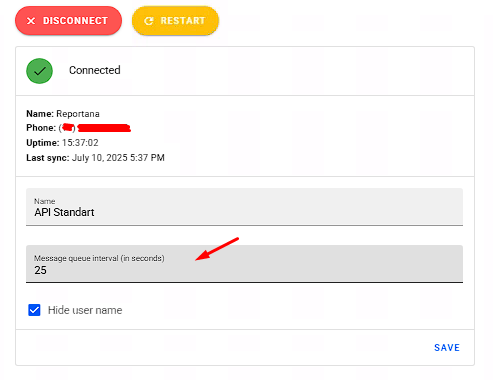
- Message interval: Go to Settings > Connect WhatsApp > set to 25 seconds. Or access: WhatsApp
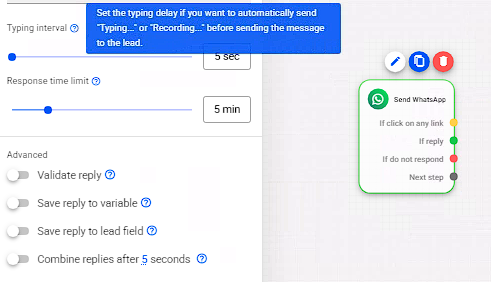
- Typing delay enabled: In the automation > click on the message > activate it in the side menu.
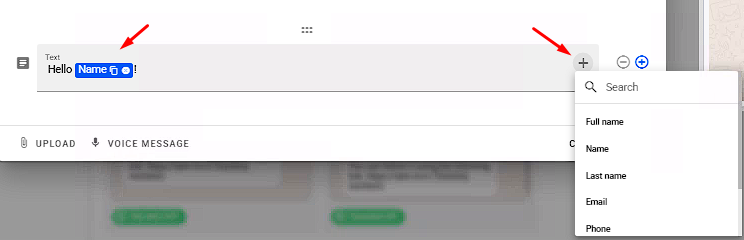
- Personalized messages: Use variables to customize messages (e.g., {{first_name}}). Example of a recommended message:
- (Optional) Clear the chat: Clear previously synced conversations before starting automations at Settings > Remove data > Chat. Or access: Settings - Remove Data
Best Practices
To avoid instability, disconnection, or possible penalties from WhatsApp, follow these recommendations:
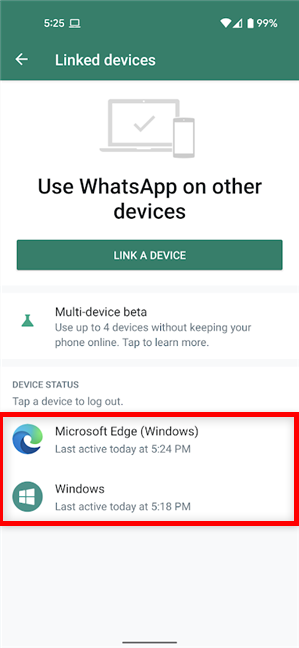
Only keep Reportana connected as a linked device on WhatsApp. Avoid using WhatsApp Web or connecting the number on multiple devices. Learn how to disconnect from WhatsApp's official page.
Do not go many days without opening the WhatsApp app on your phone. Inactivity can cause the session to disconnect automatically.
Inform all team members of these recommendations, as misuse by one person can affect everyone.
Keep your WhatsApp app updated and restart the Reportana connection if needed.
Clear your browser's cache regularly to avoid connection conflicts.
Avoid mass messaging. WhatsApp monitors usage patterns and may block suspicious numbers.
Use the Typing Delay feature to make messages seem more natural.
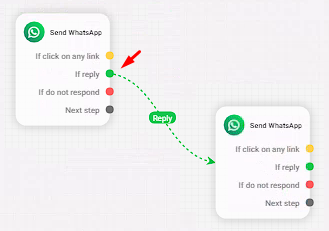
Use the Reply sub-trigger (available on Enterprise plans or higher) for automated interactions after customer responses.
Whenever possible, centralize your support through the Reportana chat, reducing reliance on WhatsApp Web.
What Not to Do
Avoid the practices below, as they can lead to serious problems like instability or account suspension:
Using WhatsApp Web simultaneously with Reportana.
Connecting the number on multiple devices at the same time.
Sending large volumes of mass messages without personalization.
Using browser extensions that interfere with the connection.
Spamming or sending repetitive messages without the recipient's consent. WhatsApp can automatically block numbers based on sending behavior. This process is independent of Reportana and follows WhatsApp’s policies. If your number gets blocked frequently, your device may be flagged — in that case, try using a different phone.
If your number is blocked, contact WhatsApp support to try recovering it and understand the reason. We do not have access to internal WhatsApp data to determine why blocks happen.
Connection Issues
If your WhatsApp connection is lost, slow, or unstable, follow this step-by-step guide:
Restart the connection: Disconnect and reconnect WhatsApp by scanning the QR Code again at Settings > Connect WhatsApp. Or access: Connect WhatsApp.
Update the WhatsApp app on your mobile device.
Check your internet connection and firewall settings (try another network if needed).
Clear your browser cache and open Reportana in an incognito window.
Make sure no other device (including WhatsApp Web) is using the same number.