Introduction
At Reportana, you can configure the Financial Dashboard to automatically organize essential information such as product costs, fees, taxes and financial transactions, obtaining a complete view of the financial health of your business.
How It Works
Product Costs
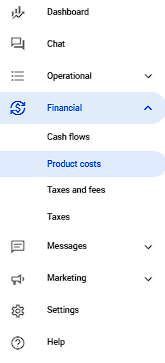
To get started, simply go to Finance → Product Cost. Or access: Product Cost
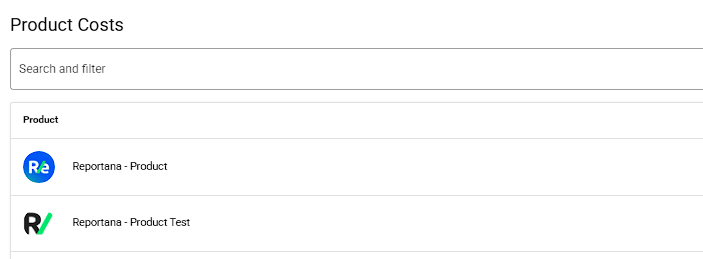
Here you will be able to view all the products registered in your business, and their variants.
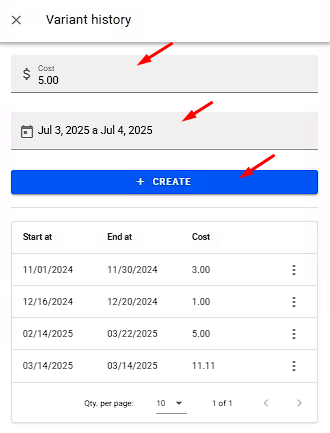
When selecting a product, you can view its variants, the price, and set the standard cost of the item, as well as select several variants to Bulk Edit. If this cost has varied in a certain period, you must register it using the option with the 3 dots → Edit.
If you are configuring a cost per period, simply indicate the value and the corresponding date, and finish by selecting the +Create button.
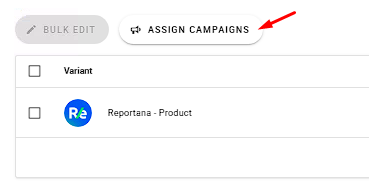
In the next step, we can Assign Campaigns from your ad accounts to the desired products.
You must then select one or more campaigns related to the product and click Save Changes. You can also connect other ad accounts you may have by clicking + Connect Account.

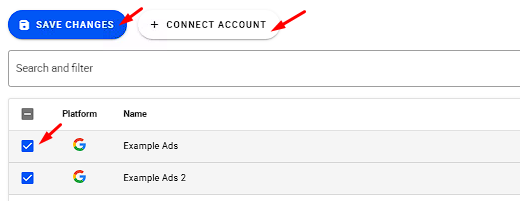
Note: To assign campaigns to other products, you will need to repeat the steps.
Taxes and Fees
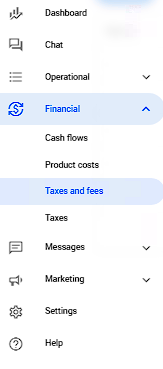
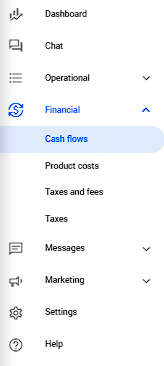
For the next configuration, simply go to Financial → Taxes and Fees. Or access: Taxes and Fees
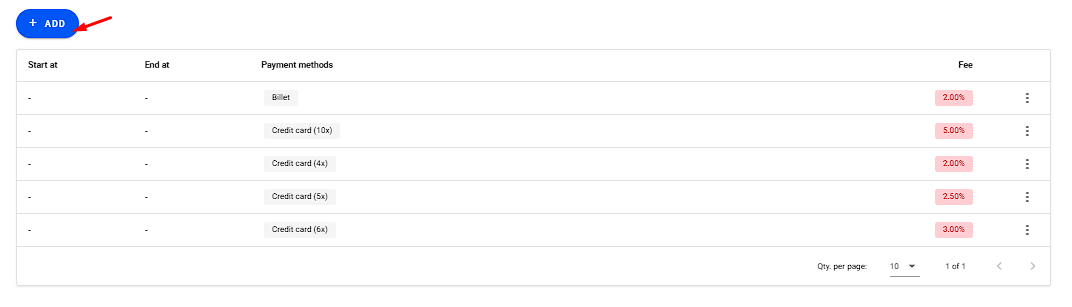
Here you can register the fees you pay for each sale by selecting the +Add button.
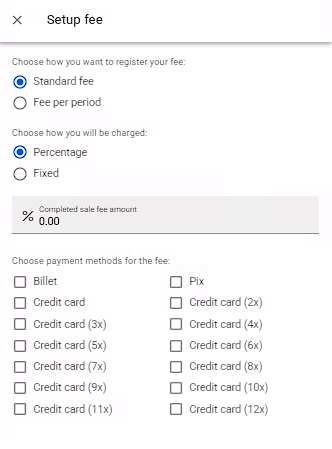
The fee can be standard for the entire period of your store, or for a particular period. Enter the amount of the fee, whether it is flat or percentage. And finally the payment methods that apply to the fee. Multiple fees can be created.
Tax
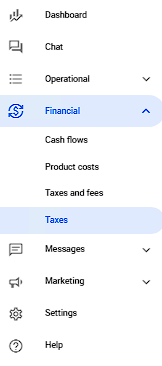
To register your taxes, go to Finance → Taxes. Or access: Taxes
Select the +Add button to register a new tax.
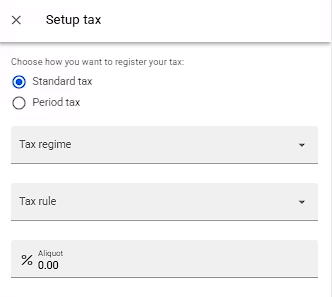
Define whether your tax will be standard, or for a specific period, and then the following settings:
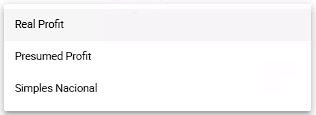
- Tax regime: It can be Real Profit, Presumed Profit or Simples Nacional.
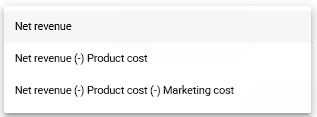
- Tax rule: It can be Net revenue, Net revenue minus (-) product cost, or Net revenue minus (-) product cost minus (-) marketing cost, depending on which one is currently being used in your company.
- Aliquot: Finally, the aliquot, the average can be checked with your accountant to properly register this information.
Cash Flows
To register your transactions, go to Financial → Cash flows. Or access: Cash Flow
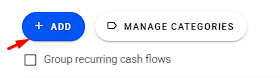
In this tab, you can check your business transactions, sorted by date and value, and you can also group transactions by recurrence to make them easier to view. Select the +Add button to register a new transaction.
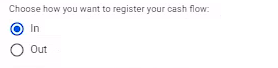
Define whether this movement is an Input or an Output of values;
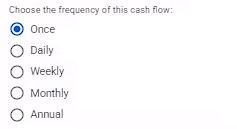
Define a frequency for this movement, so that it is replicated based on your configuration by our system on your dashboard automatically;
Set a value for the movement in question.
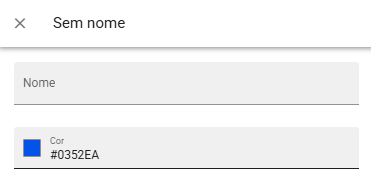
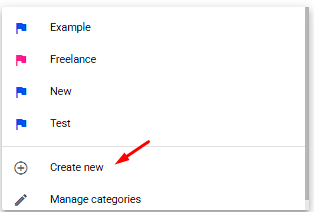
Define a category for the movement, which will be used to identify and segment the movement you created. You can create new categories and apply a color of your choice.
Add a description to explain what this movement is about;
And apply the date referring to the movement;
After saving the changes, your Dashboard will be fully configured to display your business metrics.