Introduction
The platform's chat is a tool that allows direct and personalized customer service. Ideal for support, sales, and marketing, it helps improve customer relationships and boost business results. It also offers various features.
How it works
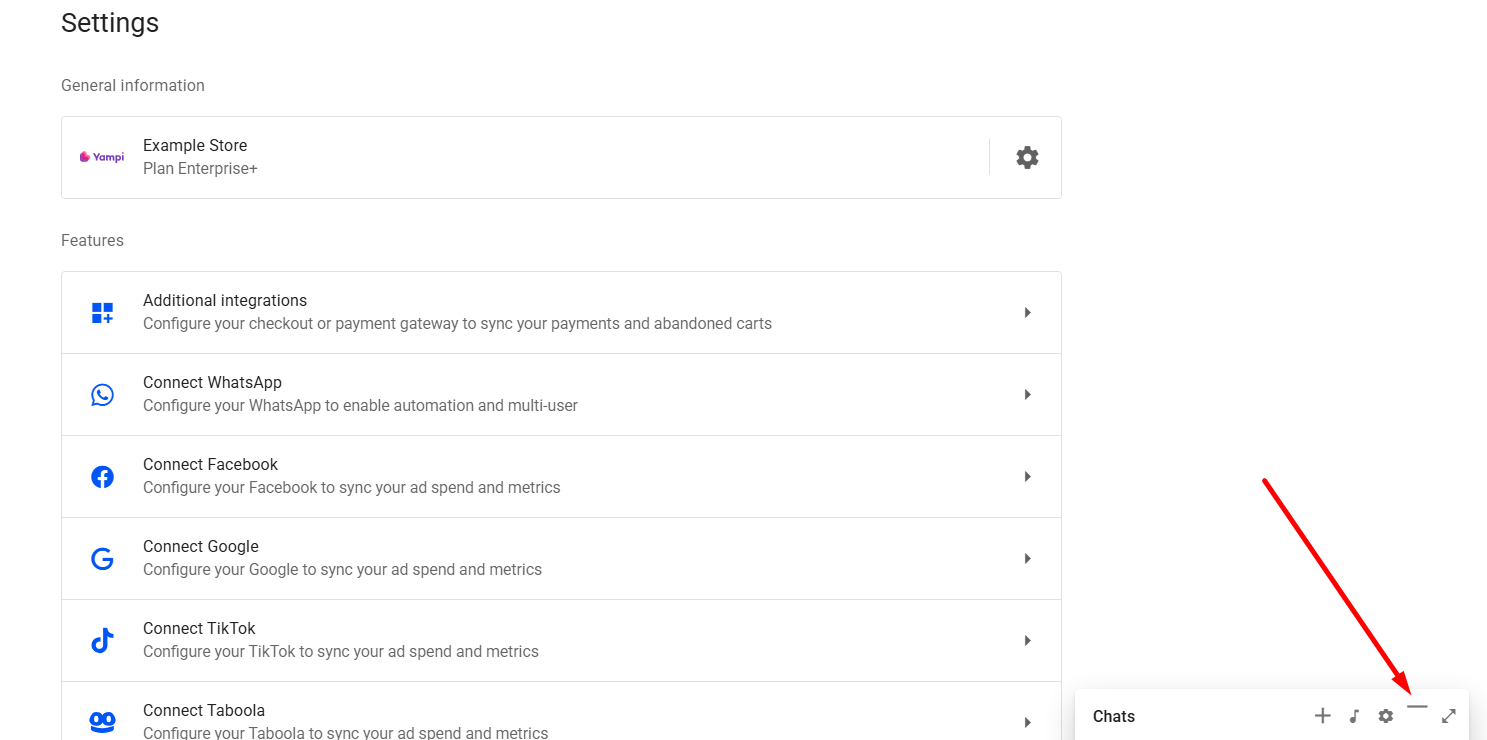
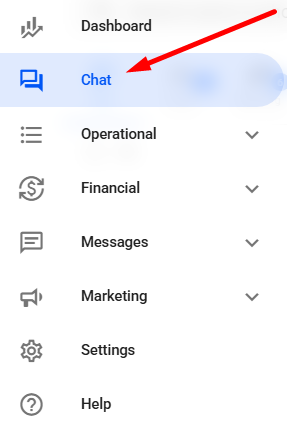
First, in your Reportana account, go to Chat in the sidebar menu. Or access: Chat.
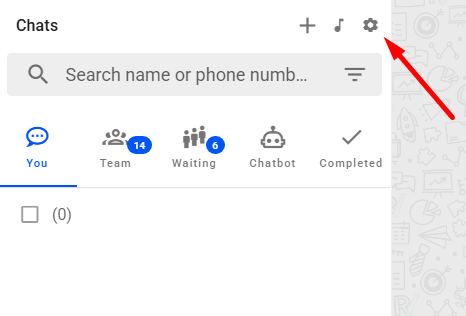
We’ll first check if there’s a WhatsApp number connected to Reportana. To do this, click the gear icon (⚙️) located at the top right corner of the chat sidebar menu.
On this tab, you’ll see all WhatsApp profiles that are connected or disconnected from the account. For the chat to function, at least one WhatsApp number must be connected. This way, we can receive and send messages.
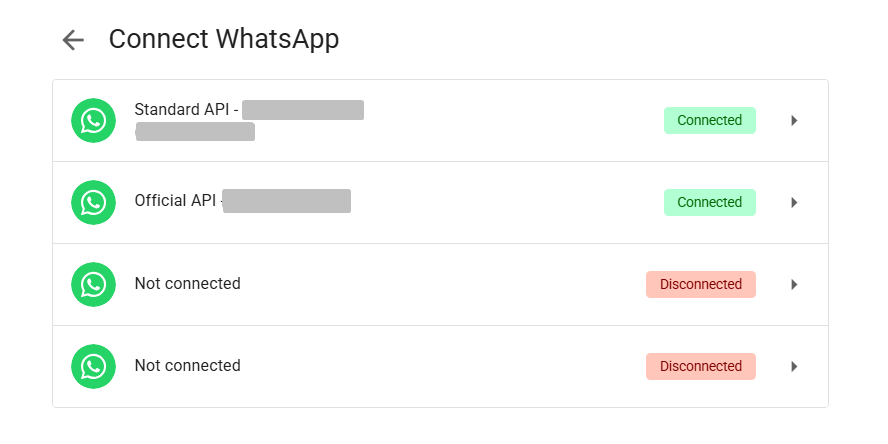
Note: To properly connect WhatsApp to your account, we recommend watching our tutorial: How to Connect WhatsApp
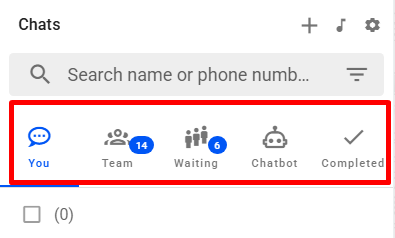
Returning to the support tab, you can view five tabs (this may vary depending on your plan and permissions if you're not the account owner): You, Team, Waiting, Chatbot, and Completed.
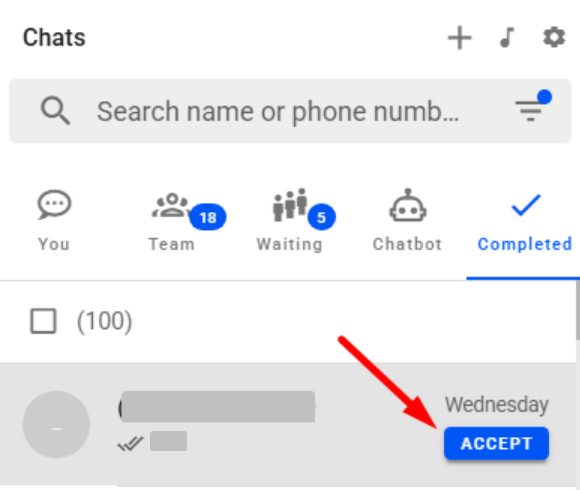
- You: This tab displays conversations under your responsibility. They appear here when you manually accept a chat (by clicking the “accept” button next to a conversation in the Waiting, Chatbot, or Completed tabs) or when the conversation is automatically assigned to you, either by another user or via automation.
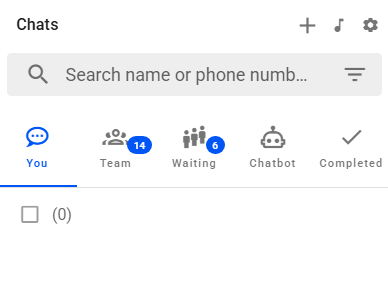
- Team: This tab shows chats that have been assigned to your team members. These are conversations that were manually accepted by a team member (by clicking the accept icon next to the conversation) or automatically assigned to a specific user.
- Waiting: This tab lists all leads that haven’t yet been attended by any team member. To take over the chat, simply click the accept button next to the conversation.
- Chatbot (Available on Enterprise plans or higher): This displays ongoing chatbot conversations triggered by automations using the Conversation created trigger. It shows leads who haven’t yet replied to the chatbot, and the automation is waiting for a user interaction.
- Completed: This tab gathers all finished conversations, whether closed by automation or manually. To move a conversation here, click the archive button to indicate that the chat is completed.
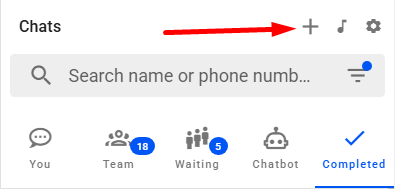
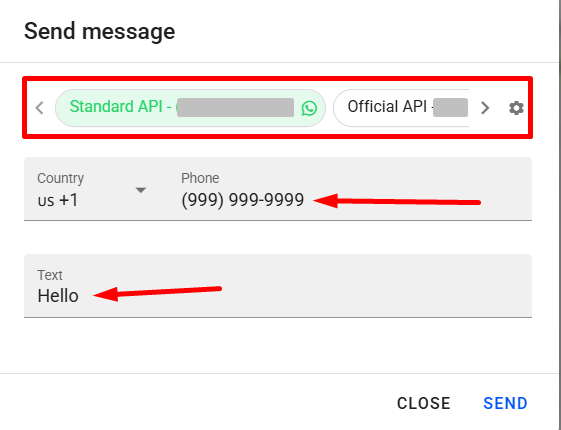
To send a message to a contact who hasn't started a conversation yet, click the + icon located at the top left corner of the chat tab.
Here you can select the WhatsApp profile you want to use to send the message, the WhatsApp number that should receive the message, and the message you want to send.
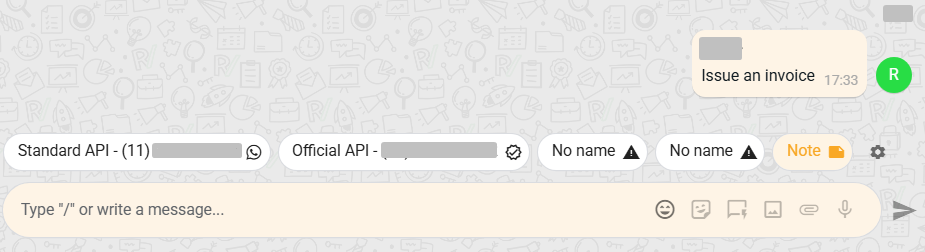
Inside a conversation, you’ll notice your account profiles are shown at the bottom, just above where you type your message. You can select which profile you want to use to send the message, then select it and send your message.
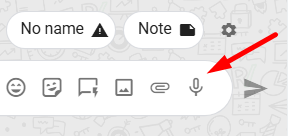
In the message box, on the right side, there are other options beyond text: emojis, stickers, quick replies, images, attachments, and voice messages.
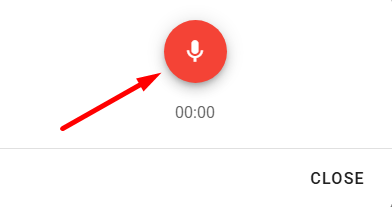
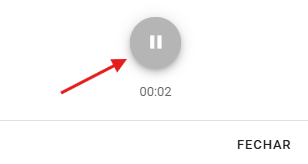
To send a voice message, click the microphone icon, then click the microphone icon that appears in the center of the screen to start recording your audio.
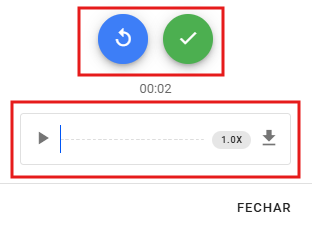
To finish, click the pause button. Your audio will then appear, allowing you to listen to it. If you want to re-record, click the blue button with the return icon to start again. If you're satisfied, click the green button to confirm.
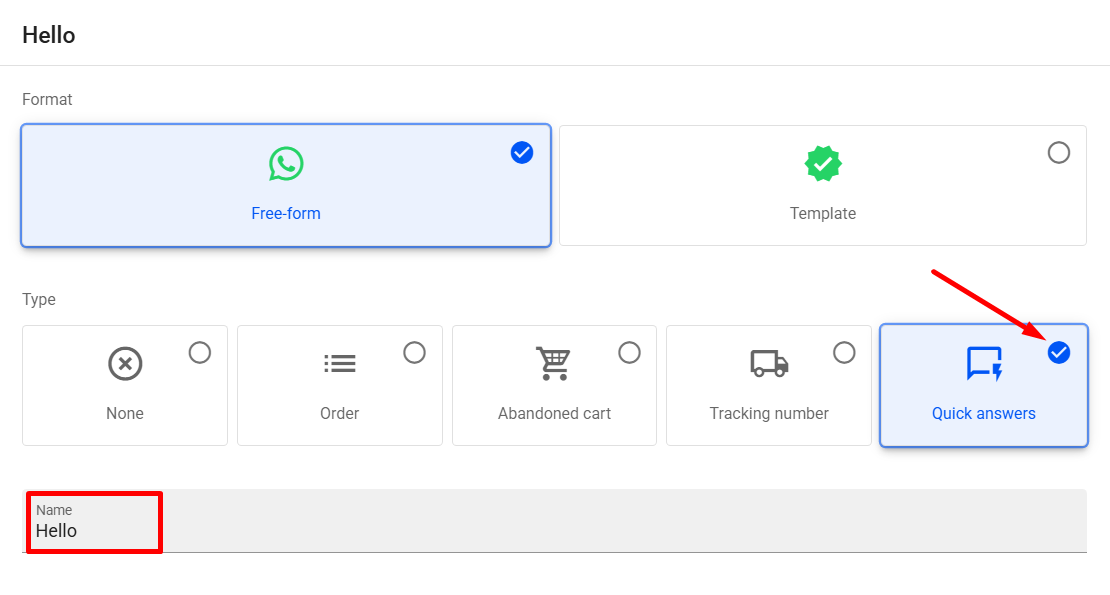
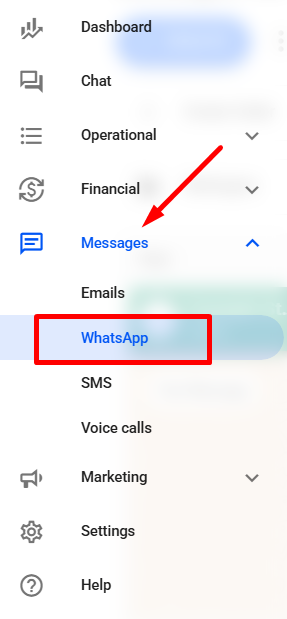
You can also create quick replies: Quick replies are created in the Messages → WhatsApp tab, selecting the quick reply option. Or access: Messages
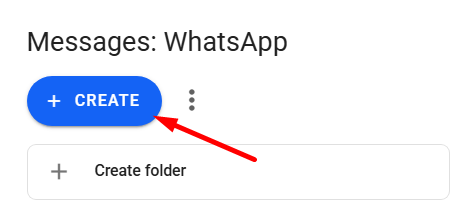
To use a quick reply, click the designated icon and choose it, or type in the chat: /(Message name).
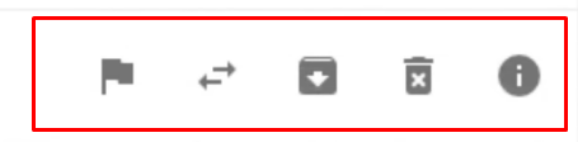
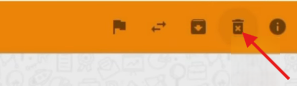
In the top right corner, you’ll see buttons with different functions:
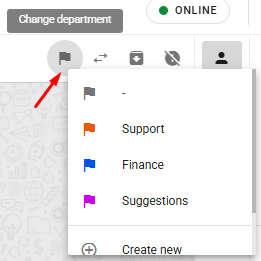
- Change department: Clicking this button lets you view all departments and transfer the conversation to the desired one.
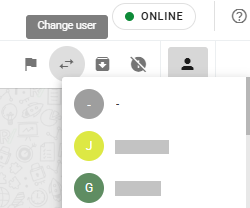
- Change user: Clicking this button lets you view all agents and assign the conversation to another team member.
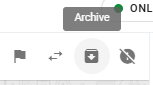
- Archive: Clicking the icon will archive the conversation and move it to the Completed tab.
- Delete (only available to the account owner): Clicking the icon will permanently delete the conversation.
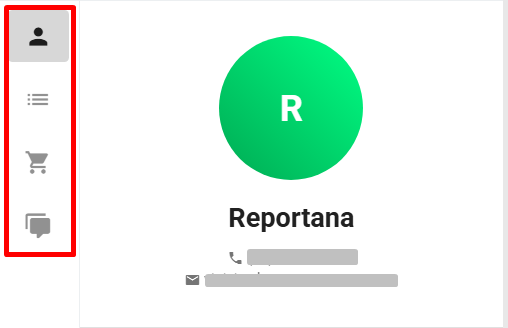
- Show/hide information: Clicking the icon will open a sidebar on the right, where you can view lead details such as:
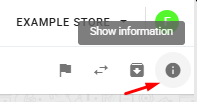
With Show information enabled, the following lead-related topics are visible:
- Profile: Shows contact information like name, phone, and email.
- Orders: Displays detailed order information made by the lead, including order number, date, status, items purchased, and more.
- Abandoned Carts: Lists abandoned carts, including cart number, date, status, and items added.
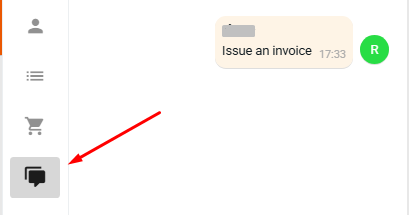
- Notes: Lets you view all notes recorded during the conversation with that lead, helping track the service history.
You can also add Notes to chats: To add notes, click the note button above the chat box.
Click the box, write the desired note, and send it. The note will appear in the chat and the Notes tab. Notes are visible only to the team, leads cannot see them. It’s very useful for internal reminders!

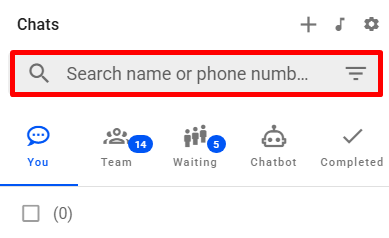
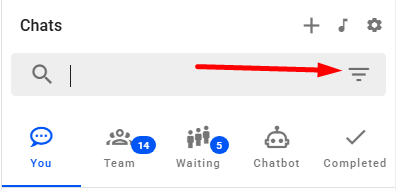
In the upper left corner, you’ll find the chat search tab, where you can search for conversations by phone number or name.
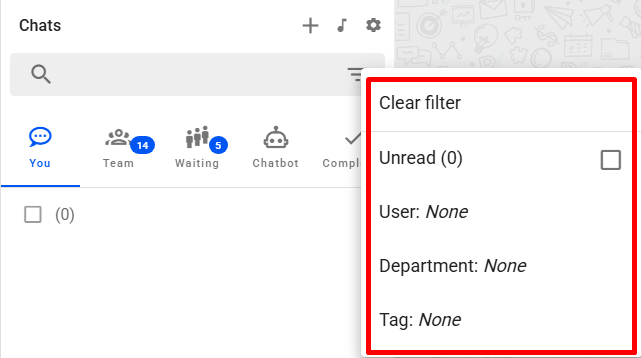
There are also filter options, allowing you to show only conversations from users, departments, or tags. You can also clear filters to remove any that are active, or check Unread to show only unopened conversations.
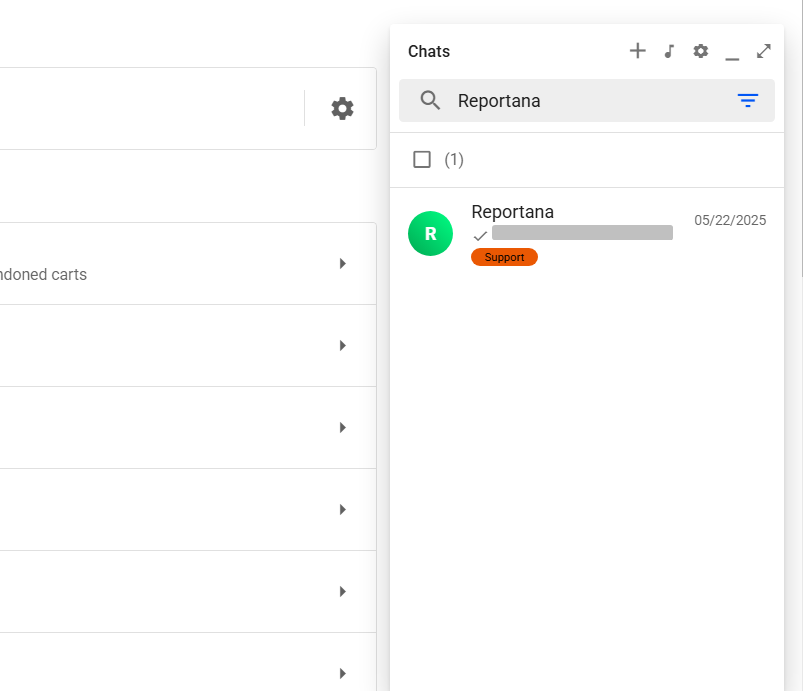
You can also access chat from other tabs by selecting the option to open chat. This allows you to view other pages while interacting with and sending messages in the chat.