Introduction
Reportana's shipping dashboard was created to facilitate the tracking of shipments, carriers, and delivery times in one place. With it, you have a clear and practical view of your business's shipping performance, quickly identifying delays, failures, and opportunities for improvement.
In this tutorial, you will learn how to use the dashboard to monitor key shipping indicators and make decisions with greater agility and accuracy.
How It Works
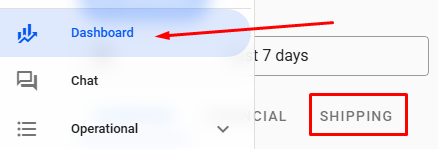
In your Reportana account, navigate to Dashboard in the side menu → Shipping. Or access: Dashboard — Shipping
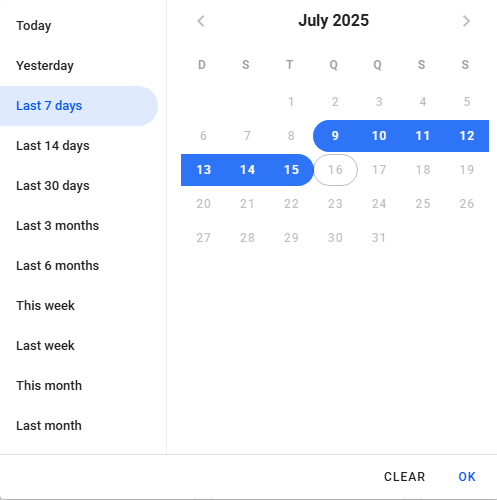
Select the period you want to filter in your Dashboard from the calendar.
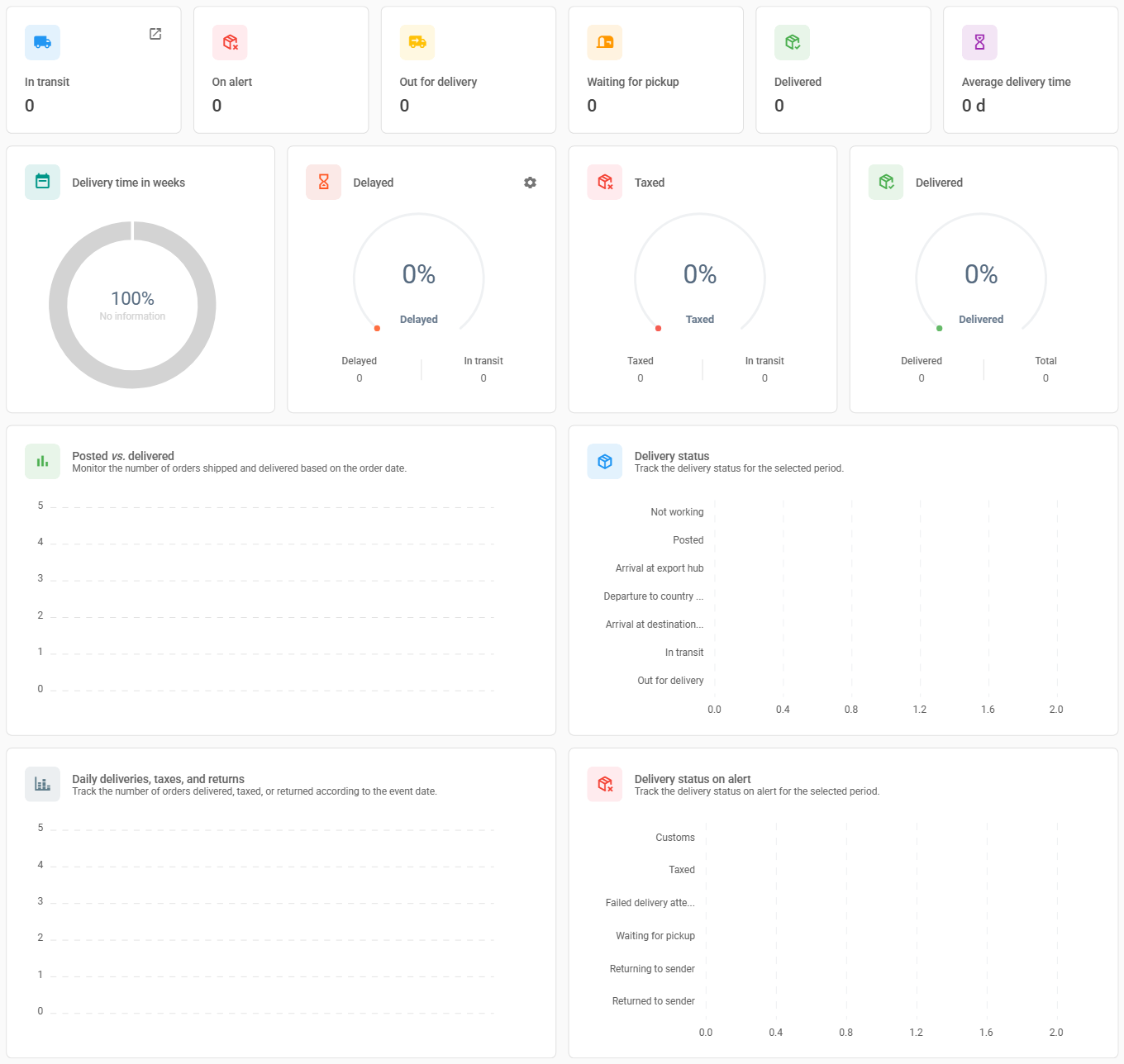
At the top of your Dashboard, with the period already filtered, you can view metrics for the categories In transit, On alert, Out for delivery, Waiting for pickup, Delivered, and Average delivery time as your account's tracking status is updated.
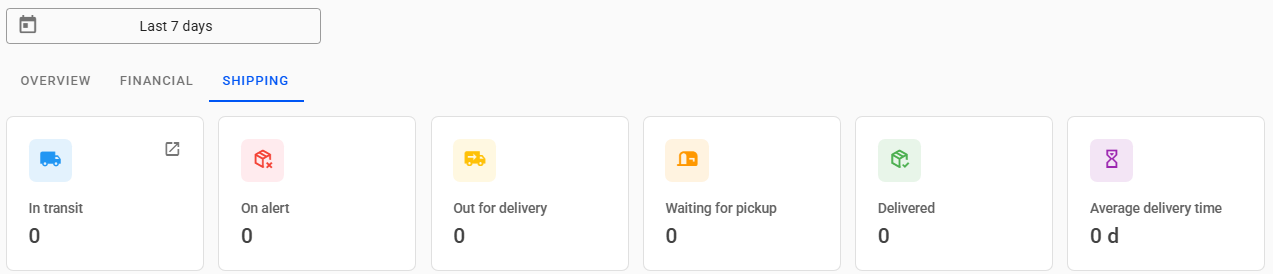
- In transit: This status indicates that orders are currently in transit or in the process of being shipped. It is the default status for orders that have already been posted and have not yet reached their destination.
- On Alert: The Alert status groups together various situations that may indicate a problem or a need for attention in relation to the delivery of an order. Order tracking can be marked as an alert if it has the status of:
- Customs: Indicates that the order is being held or inspected by customs. This is common for international shipments and may require additional documentation or payment of fees.
- Taxed: This means that the order has been taxed and, generally, a fee must be paid for delivery to take place.
- Failed delivery attempt: This means that a delivery attempt was made, but the order could not be delivered, possibly due to your customer's absence, an incorrect address, or other reasons. In these cases, new attempts can be scheduled or the order can be made available for pickup.
- Waiting for pickup: This means that the order is available for pickup at a collection point, post office, or carrier. This may occur after failed delivery attempts or if the chosen shipping method requires pickup.
- Returning to sender: This means that the order is being returned to the sender. This can happen for several reasons, such as an incorrect address, refusal to accept delivery, or failure to collect from the post office or carrier within the specified time frame.
- Returned to Sender: This means that the order has already been returned to the sender.
- Out for Delivery: Indicates how many orders have been sent out for delivery to the address specified by customers.
- Delivered: This status confirms that orders have been received by customers. It is the final status of the tracking process and indicates that the order has been delivered to your customer.. Average delivery time: Shows the average delivery time for all orders delivered within the selected period.
- Below, we can see the metrics in percentage of orders that appear in the categories Delivery time in weeks, Delayed, Taxed, and Delivered.
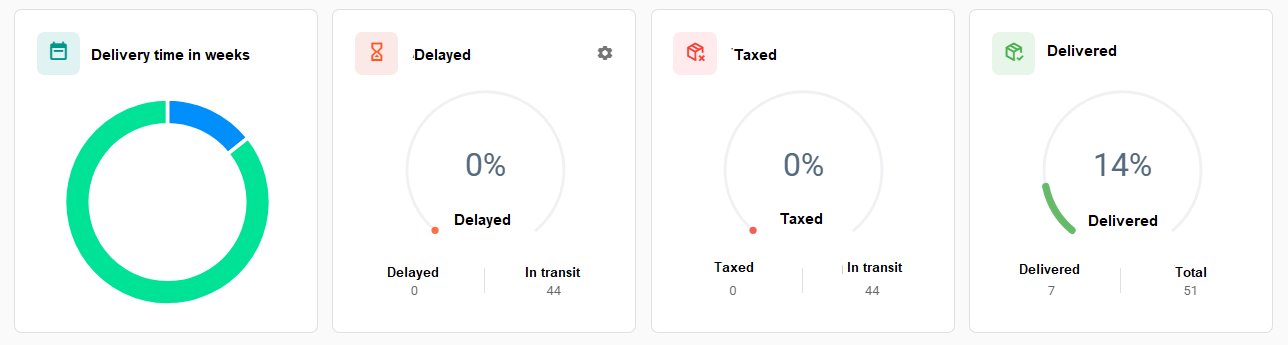
Note: In the shipping dashboard, the metrics displayed are based on the tracking post date and not the status update date.
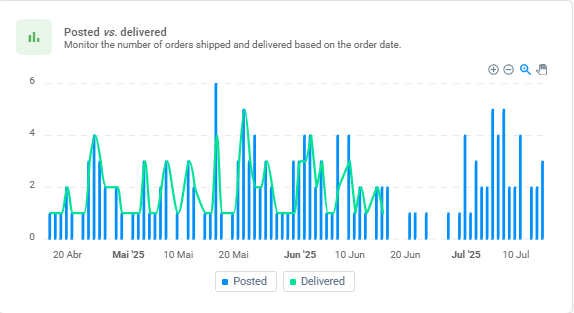
In the Posted vs. delivered chart, you can track the number of orders posted and delivered in relation to the date.
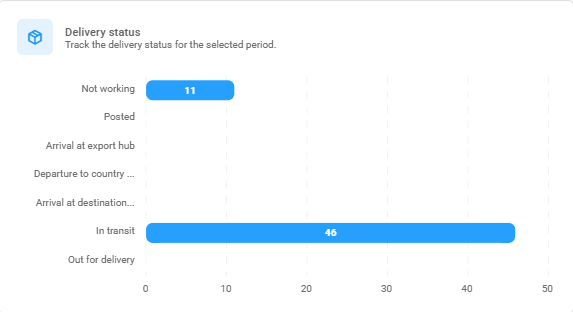
In the Delivery status chart, view the status of orders for the selected period.
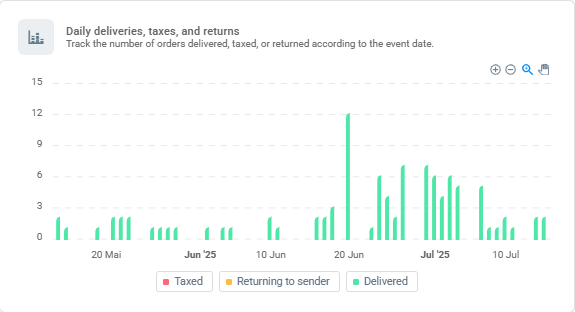
In the Daily deliveries, taxes, and returns chart, track the number of orders delivered, taxed, and returned in relation to the event date.
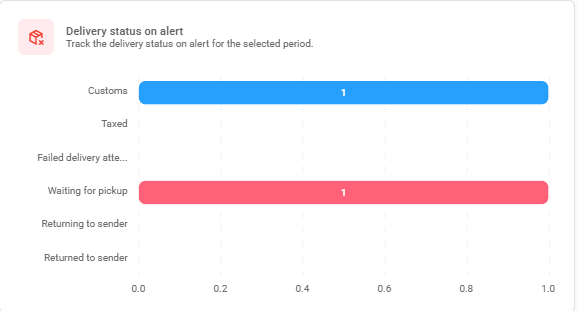
In the Delivery status on alert chart, you can track the status of orders that are on alert during the selected period.