Introduction
In Reportana, you can create and edit WhatsApp messages before sending them in automations or campaigns, improving communication with the customer and increasing the chances of conversion, such as declined cards, pending PIX or abandoned carts.
Messages can be of the Free-Form type, used in conventional sending, or Template, required by Meta's Official API and with specific formatting. This way, your messages follow Meta's rules and adapt to the needs of each business.
How it works
Creating a Free-Form Message
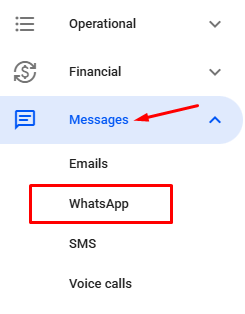
First, in your Reportana account, navigate to the messages section. In the side menu, click on Messages → WhatsApp. Or Access: Messages - WhatsApp
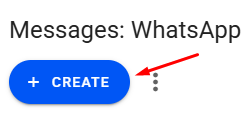
In the messages tab, you will find the option to create a new message. Click on the + Create button.
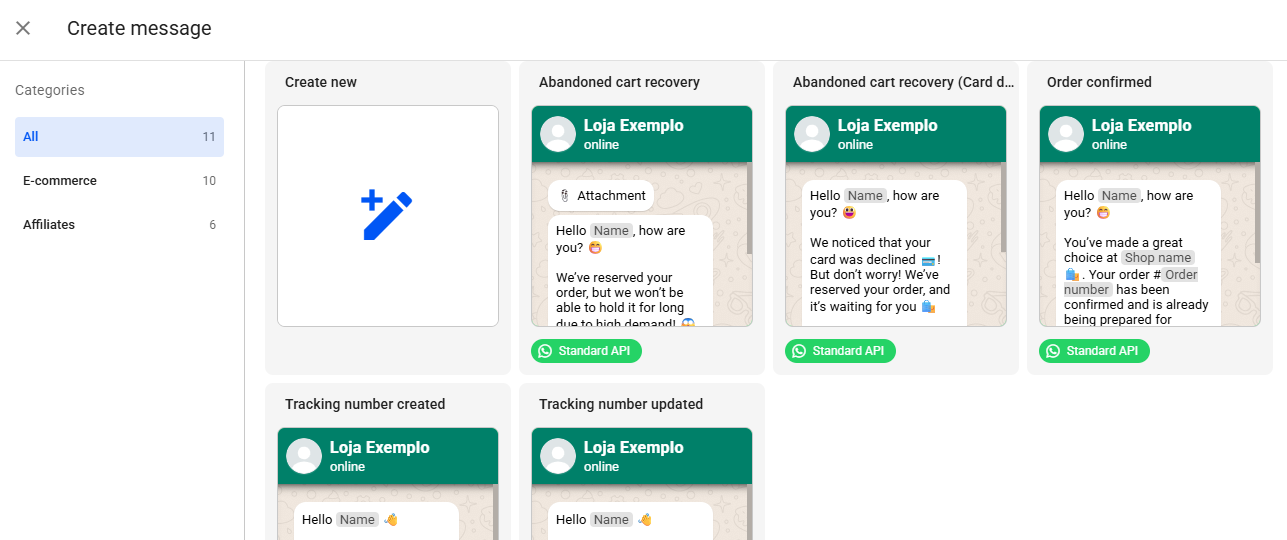
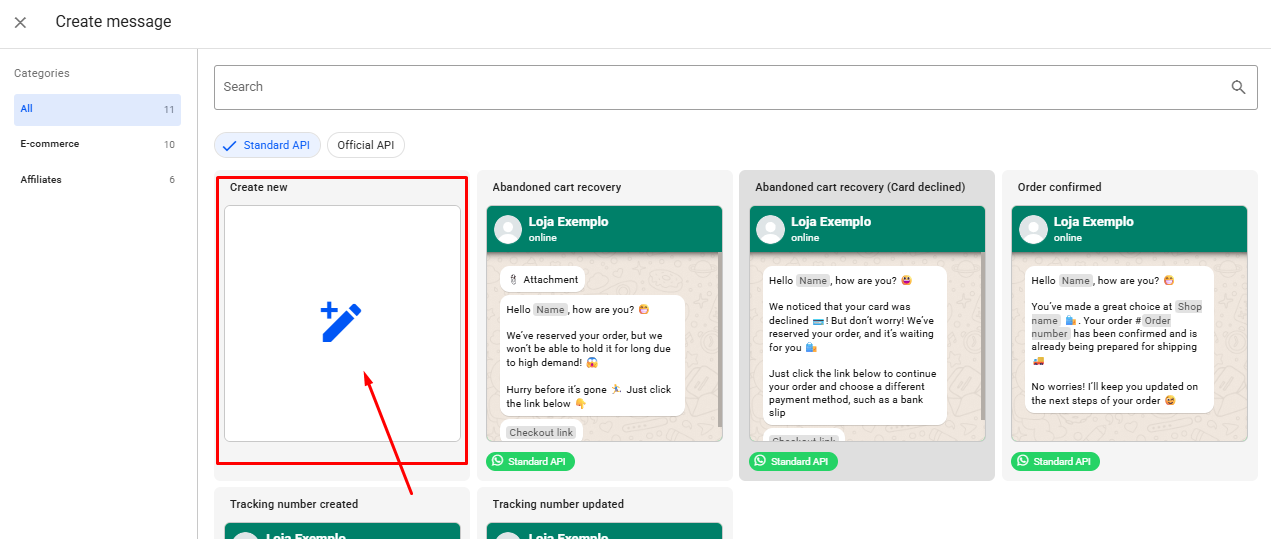
In this tab, you will find some ready-made and validated message templates. These can be used as a basis, with complete freedom to edit as required.
Click on +Create New to start creating your personalized message.
Select the Free-form format, and then the Type of the message you want to send, as this will define the variables that will be available in your message. The current types are:
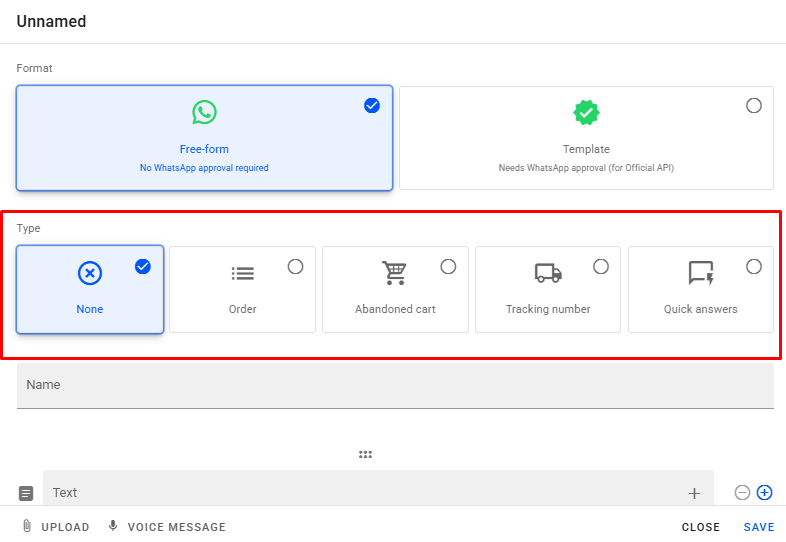
- None: Choosing the type none means that your message will not be used, for example, in the orders tab. The variables that are available are full name, name, last name, email, phone, store, shop name and currency.
- Order: Selecting, for example, the order type means that your message will be used in the orders tab within Reportana. The main variables available are order number, address, products, products with variant, total price, subtotal price, tracking number, etc.
- Abandoned Cart: By selecting the abandoned cart type, you will use these messages within the abandoned carts tab. The main variables available are the abandoned cart, address, products, products with variant, total price, subtotal price and checkout link.
- Tracking number: Selecting the tracking number type means that your message will be used in tracking automations. The main variables available are the order and its information, as well as the tracking numbers and tracking numbers link.
- Quick answers: Selecting the quick answers type means that this message will be used within Reportana's chat, where you can create standard replies to speed up your service. The variables available are full name, telephone, shop, shop name and currency.
-
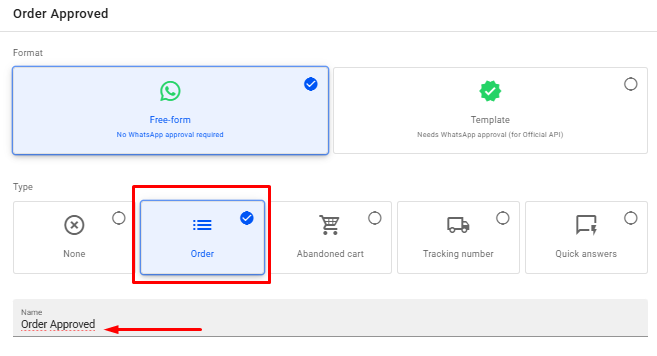
In this example, select the Order type and enter a name for the message.
-
Create your message and select the + icon in gray to add the variables responsible for displaying the customer and order data.

-
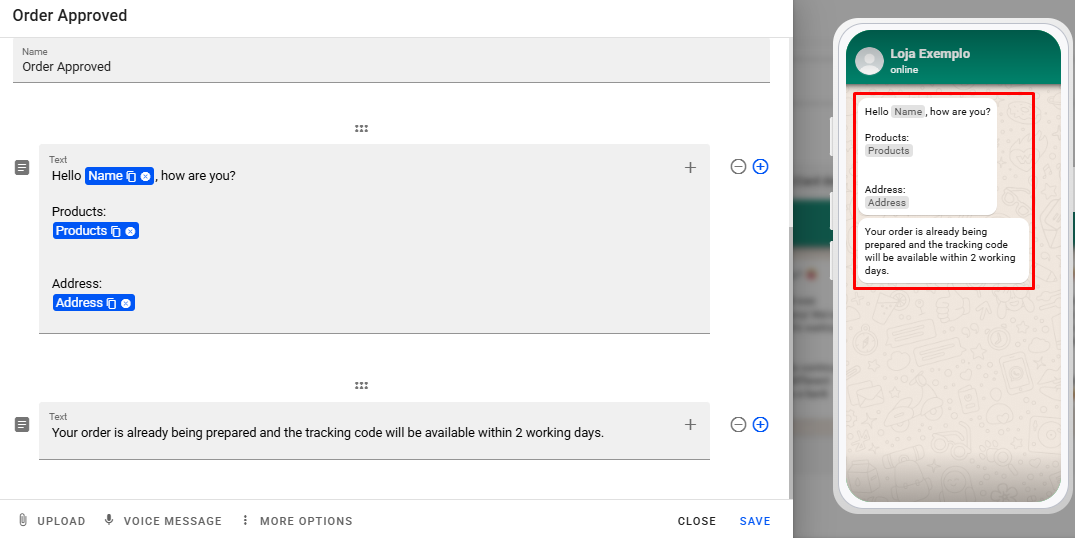
After creating the message, you can preview how it will be displayed to your customer.
-
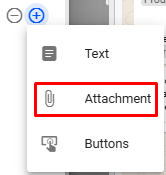
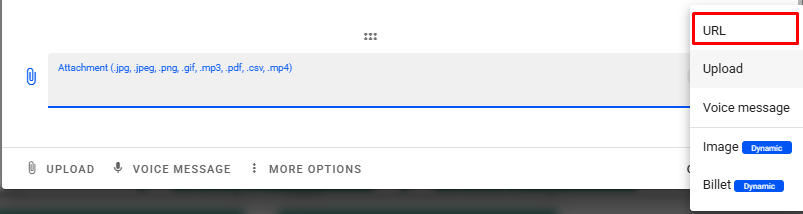
In the editor, we can add an e-book PDF as an attachment, for example, by clicking on the + icon in blue, and then in the new box using + in gray to add the e-book URL.
-
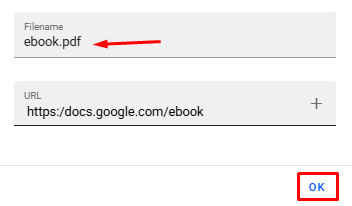
Add the name of the file and the link to the site where the attachment is hosted, and click on Ok.
-
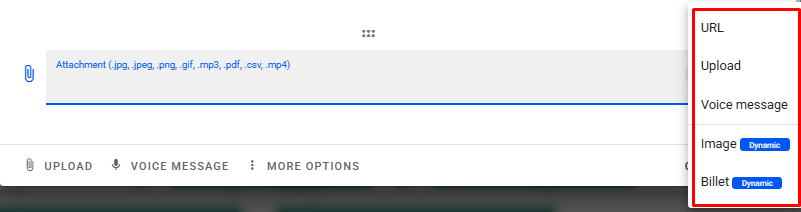
We also have the possibility to Upload an existing file on your computer, a Voice Message, attach the Image we have available or the Billet of the order.
-
Note: If you select the abandoned cart type, for example, the billet option will not be displayed, because an abandoned cart has not become an order, therefore it does not have a billet.
We can also use the shortcuts available when creating the message, which are displayed at the bottom of the message window, to add the same information we saw earlier.
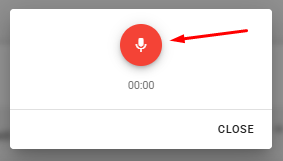
You can record an audio directly in the message by clicking on the Voice message option. Clicking on this option will open a pop-up to start recording, just click on the microphone icon in red and record the desired audio.

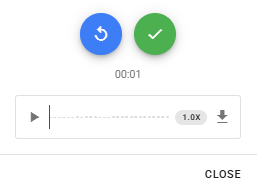
Once you've started recording, when you pause, you can listen to your audio by clicking on the play icon. You can also re-record by clicking on the back icon in blue or if you want to save, just click on the check icon in green.
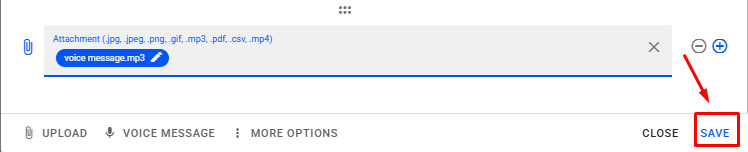
After adding the desired information to the message, click on Save.
Creating a message in Template Form
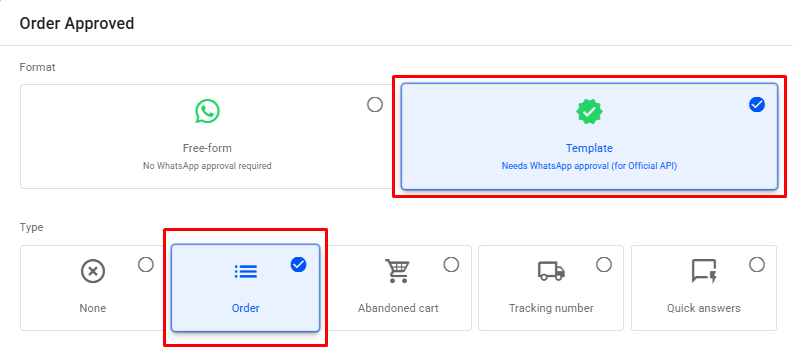
Select the Template format (Official WhatsApp API) and the message type desired.
Enter a name for the message and select a category.

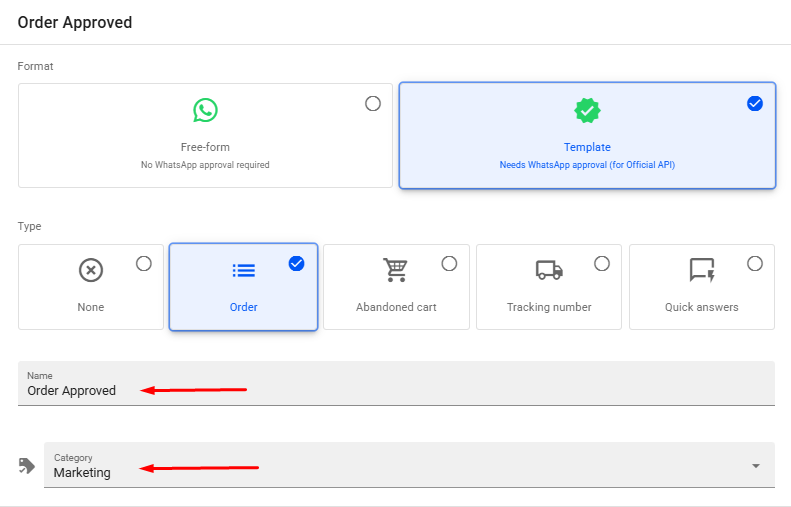
Note: In the official WhatsApp API, each message category has a different cost, it is important to access Facebook's documentation on the official API and check the cost of each category. Access: Pricing on the WhatsApp Business Platform - Facebook Documentation
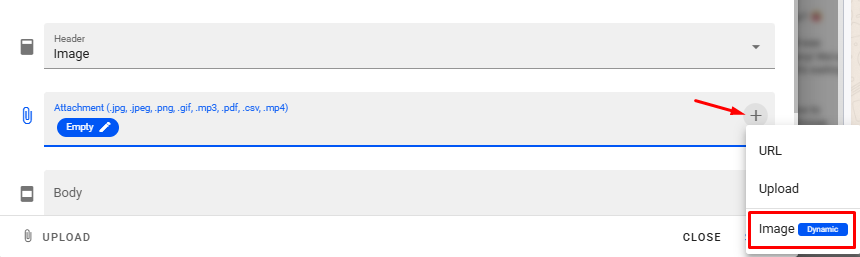
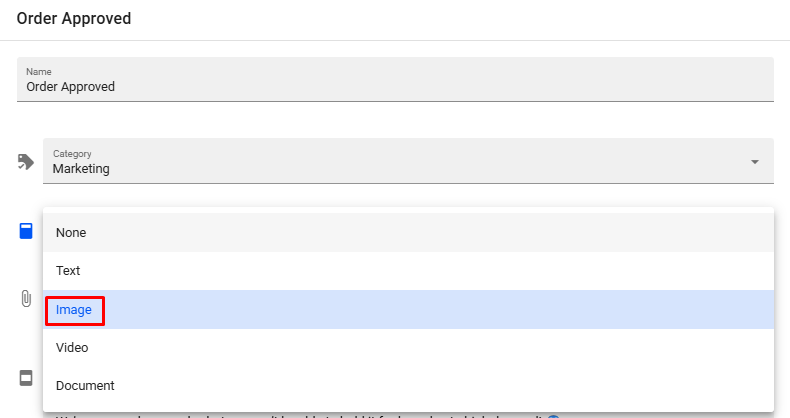
Choose one of the available options for the header you want to add. Here in this example we will choose image to add an image of the product, by clicking on the gray + icon and adding the dynamic image.
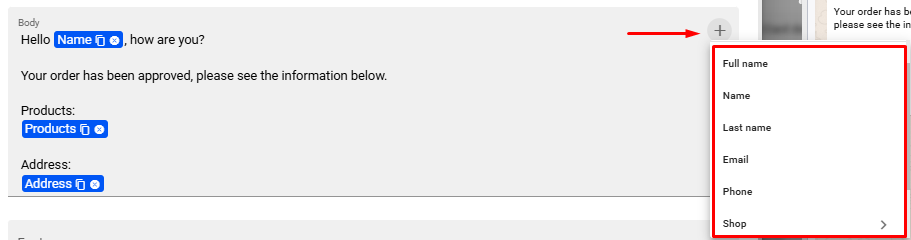
In the Body of the message, we can insert the desired text and use the available variables, clicking on the + icon in gray to further customize the content.
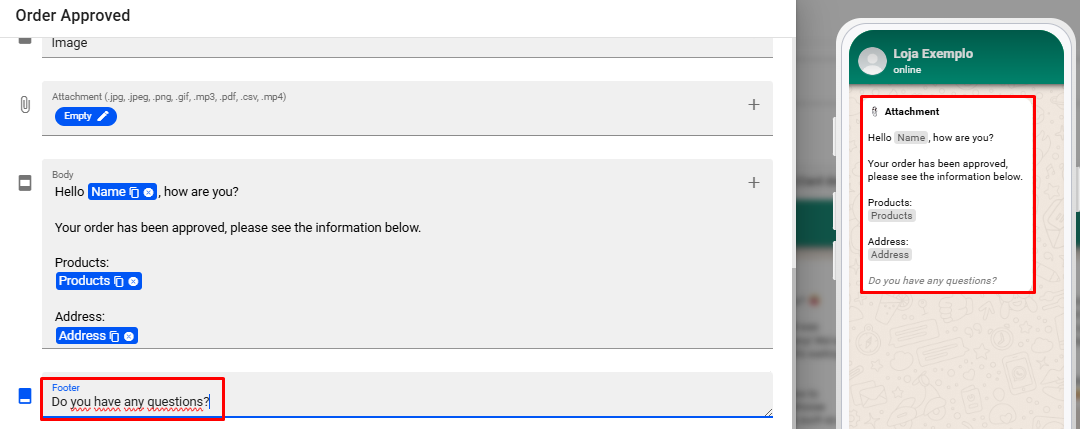
Add a text to the footer of the message and next to the message box, you can preview how the message is sent to your customer. The footer will be displayed at the end of the message body in italic format, with the font in gray.
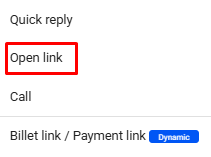
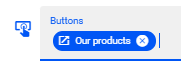
You can also add buttons to this message. Clicking on the + icon in gray shows the available options. In this example, we will use the Open link option.

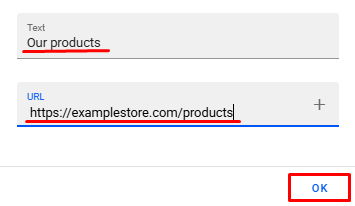
Add a text and the URL of your business website, for example, and click on Ok. You will now be able to see a preview of the message that will be sent to your customer. You can add up to 10 button options in this message.
Then click on Save to save the changes to the message.
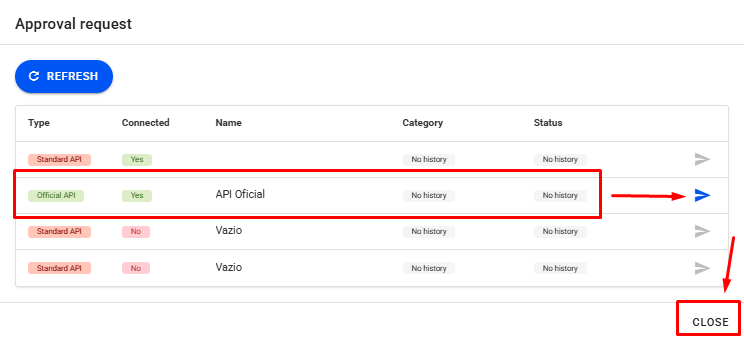
After clicking save, a window will appear to request approval of the message from Meta. To make the request, simply click on the blue arrow icon shown in the image. After sending the request, wait the approval status of the message. It may take a few minutes or a few hours for approval. Once approved, simply click on Close and it will be ready for use.