Introduction
Importing external lists allows you to leverage contacts you've already collected and use them in campaigns and automations on Reportana, without the need for manual registration. In this article, you'll learn how to upload a list and use it in your campaigns in a practical and segmented way.
How It Works
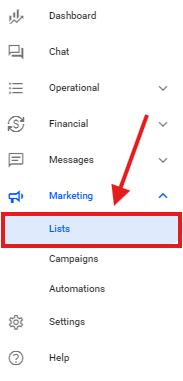
Access your Reportana account. Go to the side menu and click on Marketing → Lists. Or access: Marketing - Lists
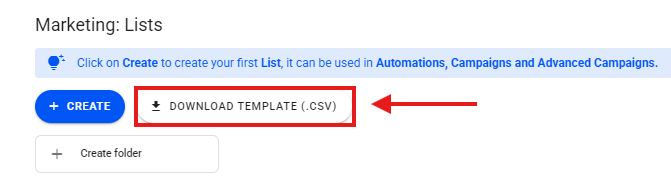
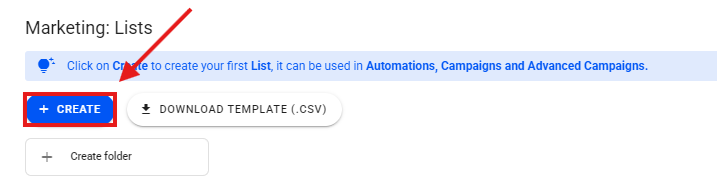
Select DOWNLOAD TEMPLATE (.CSV) to download our .CSV list template.
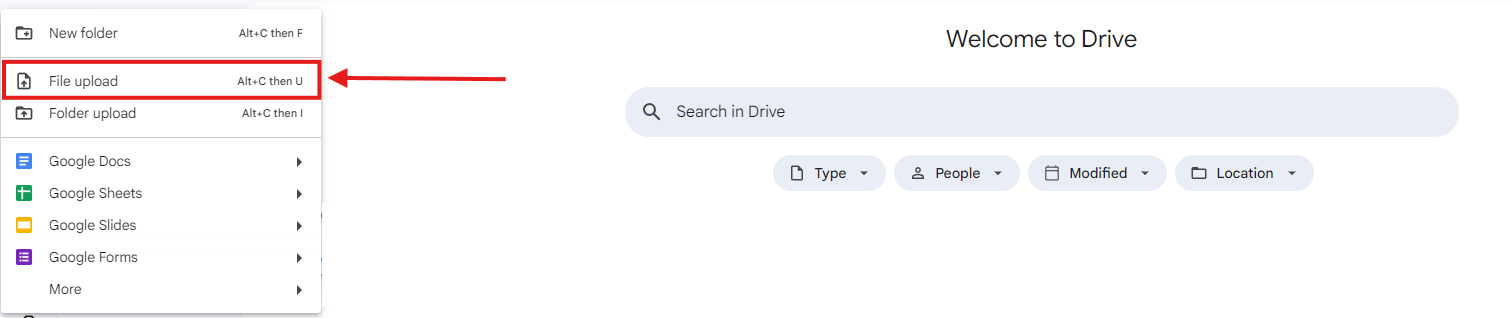
After downloading our list template (.CSV), open the file in your preferred spreadsheet editor. In this example, we’ll use Google Sheets, available in Google Drive. To do this, go to your Google Drive and click “+ New”.
Select File Upload and choose your downloaded list template file.
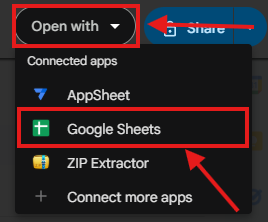
Right after, select your file in Google Drive and click on Open with → Google Sheets.
Right after, enter all your lead data such as Full Name, Email, Phone Number, and Date of Birth.
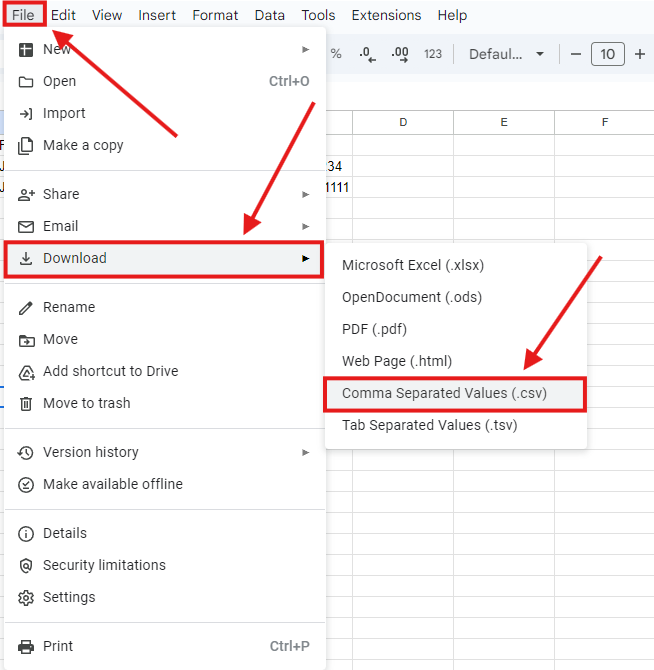
After entering all your lead data, select File → Download → Comma-separated values (.CSV) to download your list in a format compatible with Reportana.
After downloading your complete list, return to the Lists tab in Reportana under Marketing → Lists. Or access: Marketing - Lists.
Select the +Create button.
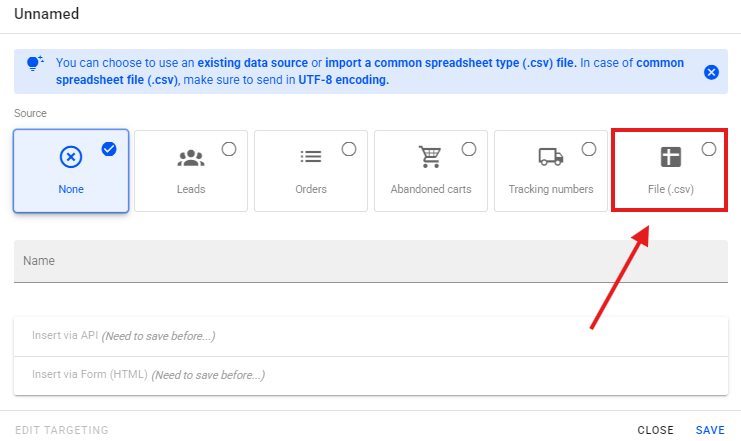
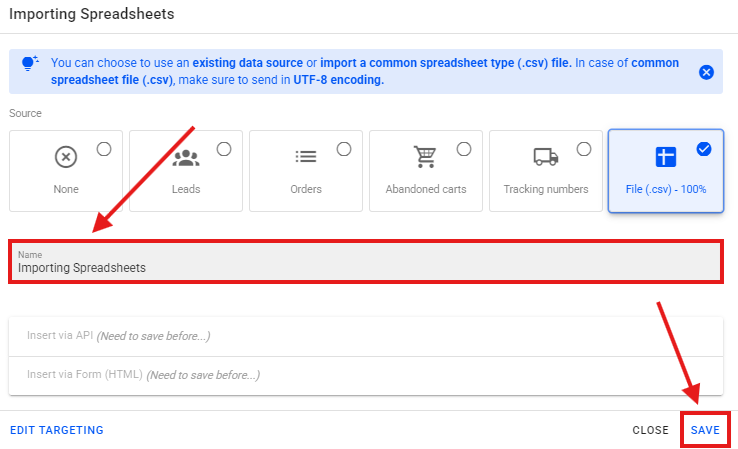
Select File (.CSV) → Then choose your list from your computer.
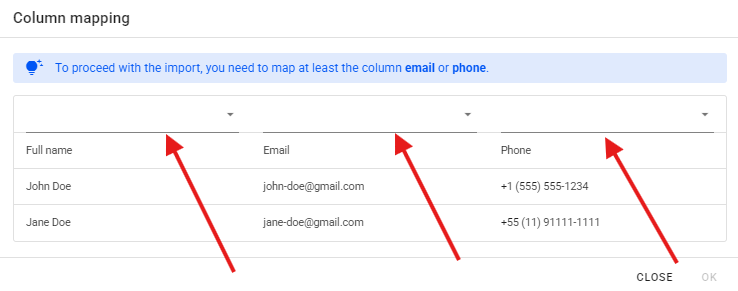
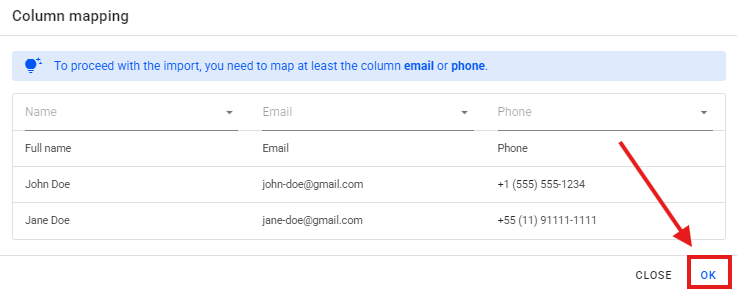
After selecting your list, map the fields for Full Name, Email, and Phone.
After mapping these fields, select OK to save your List mapping.
Enter a name for your list and click Save to save it.
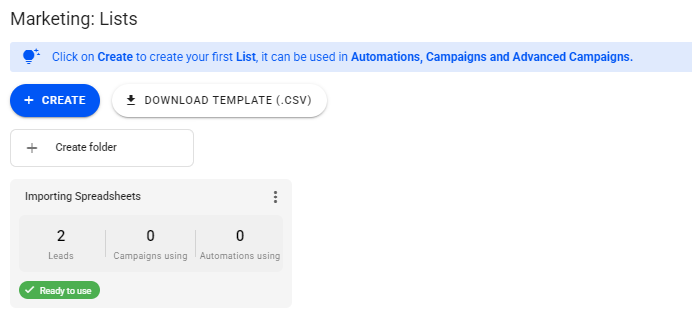
After saving your list, it will be displayed as shown in the image, and you will be able to use it in your campaigns or automations.