Introduction
In this article, we will guide you through the process of creating and managing contact lists using two effective approaches: API integration and embedded HTML forms. The ability to create and populate lists is essential for communication and digital marketing strategies, as it enables efficient structuring and automation of data collection.
How it Works
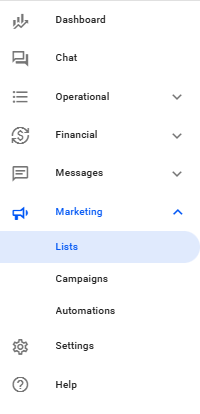
In your Reportana account, navigate to Marketing and then select Lists: Lists
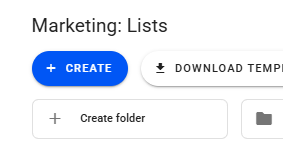
Click the + Create button to start the process of creating a new list.
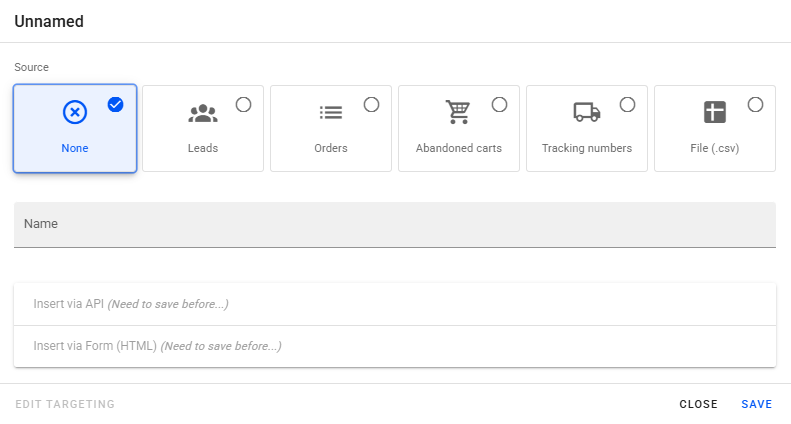
You will have two options to start your list:
- Source "None": select this option if you want to start with a completely empty list and add contacts later.
- Source "CSV": if you already have a list of contacts in a CSV file, you can choose to import it directly so your list starts pre-filled. In this example, we will use the None source.
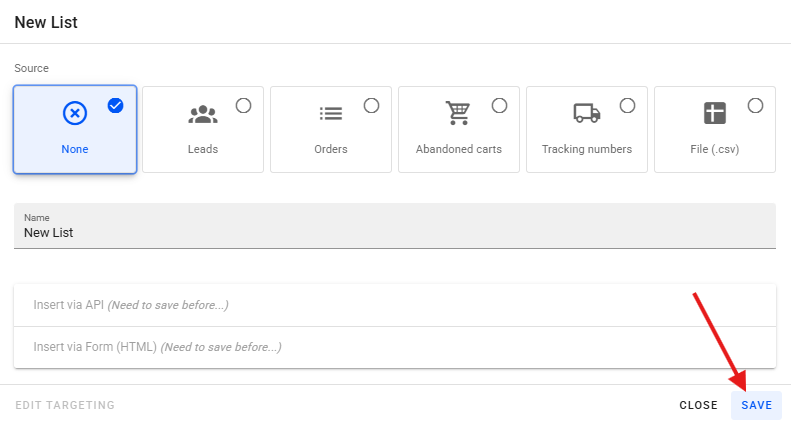
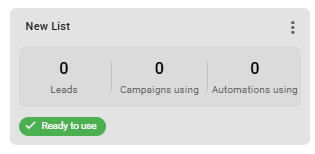
Give your list a name (for example, "New List") and click Save. After saving, your list will be created and, initially, empty (unless you have imported a CSV).
Filling the List via API
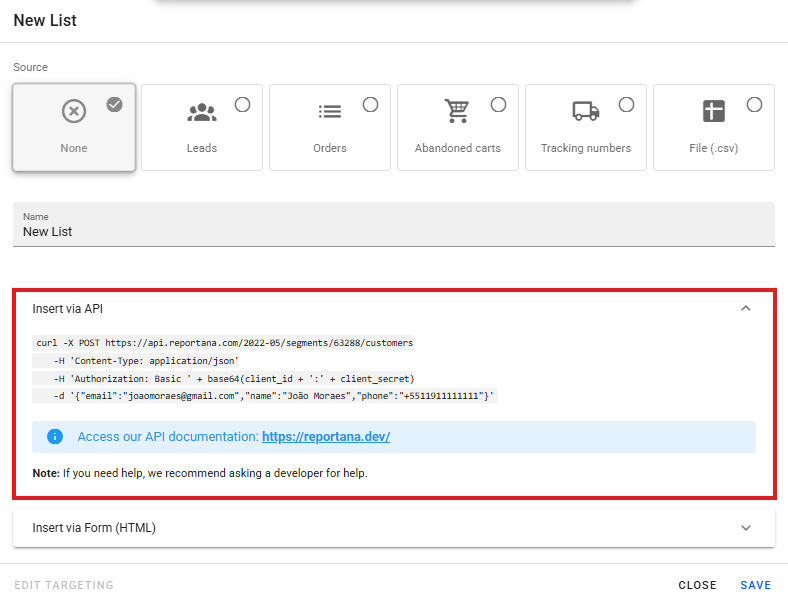
Double-click on the newly created list or select it and look for the "Insert via API" option. In this section, you will find an example of how to perform the insertion via API. It is highly recommended that, if you do not have programming knowledge, you seek the assistance of a developer for this step.
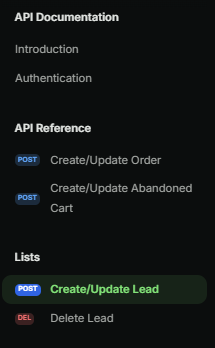
The API documentation will provide all the necessary details to perform authentication and, most importantly, how to programmatically insert leads (contacts) into your list. API Documentation
Filling via HTML Form
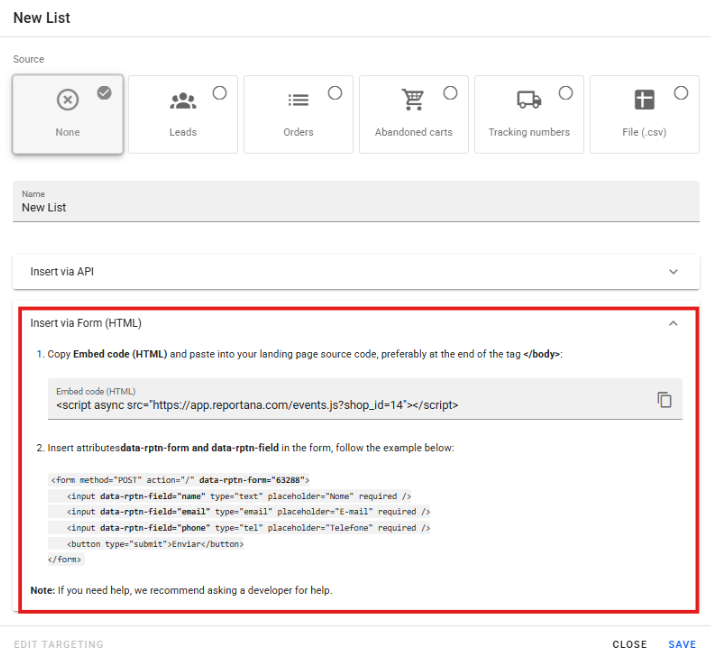
In your list view, click the option "Insert via HTML form." You will see an embed code and a code for the form fields. Copy these codes.
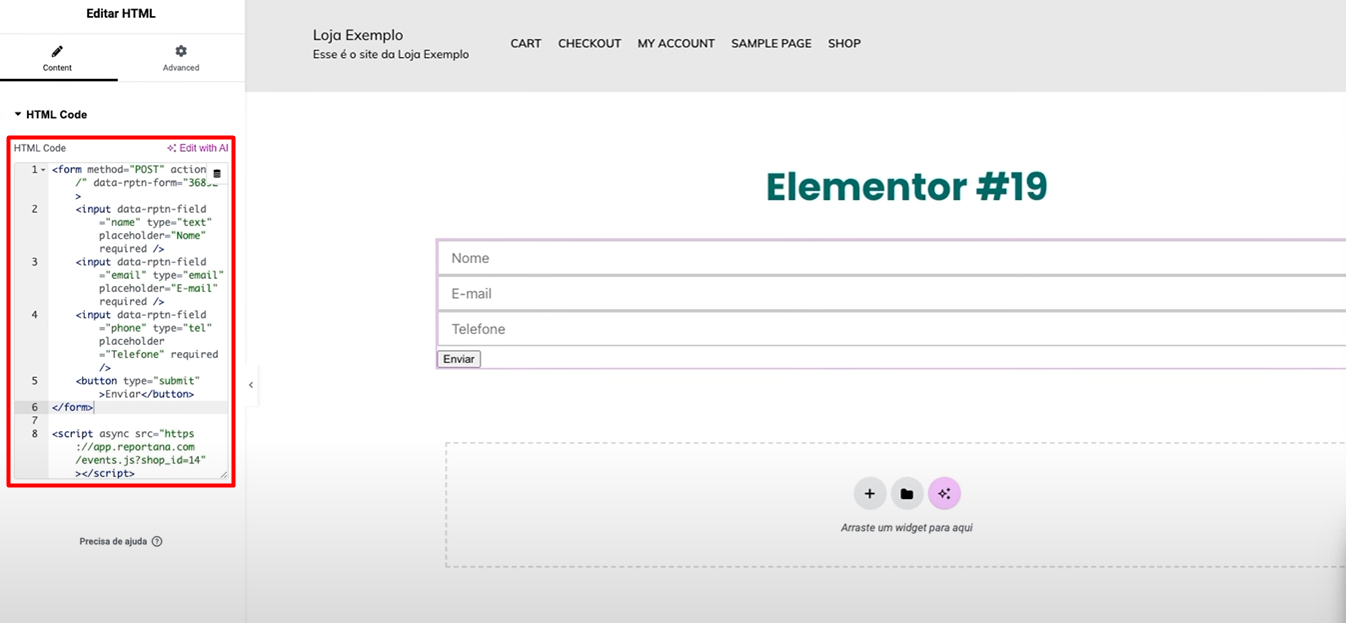
Open your page editor or create a page where you want the form to appear. Add an HTML block or edit the existing (or similar) code on your page, depending on your page editor/platform. Paste both codes you just copied into the HTML.
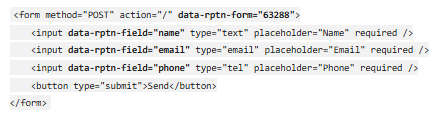
You can embed this code into your existing form by using the attributes data-rptn-form and data-rptn-field in the desired form, as shown in the example below.
After saving your code, the form will be functional on your page, and every lead submitted will be updated in your list within Reportana.