
Introduction
In this guide, you'll learn how to use Reportana to create personalized, automated messages that help re-engage leads who left items in their cart without completing the purchase. We’ll walk you through setting up these messages, using dynamic variables for personalization, and integrating them into your manual or automated workflows in a simple and efficient way.
How It Works
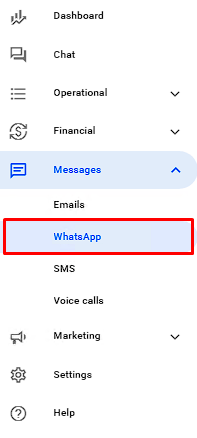
In your Reportana account, go to Messages in the side menu → WhatsApp. Or access: Messages
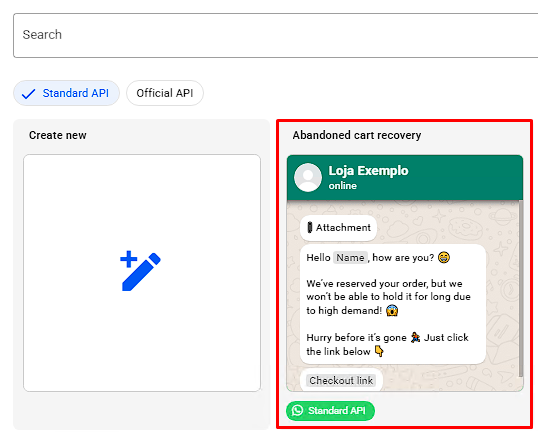
Next, click on +Create to access our abandoned cart message template. This template already includes useful information such as the product image, a sample message with the customer's name, and the checkout link.
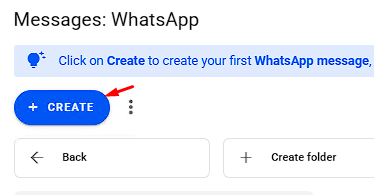
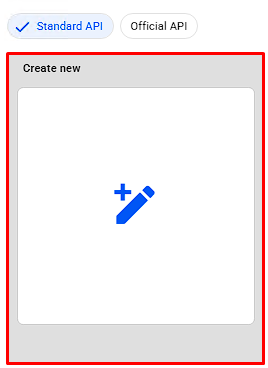
To create a custom message from scratch, simply select Create New instead of using a template. This will open the message creation window.
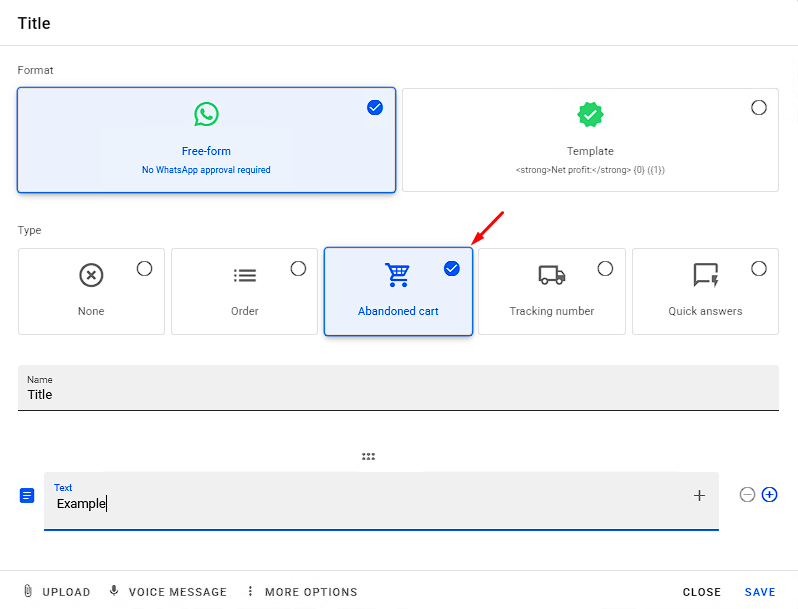
Select the message type Abandoned Cart, then give your message a title and write your text in the boxes below. It's important to select the correct type so that the proper variables are available for message creation and use..
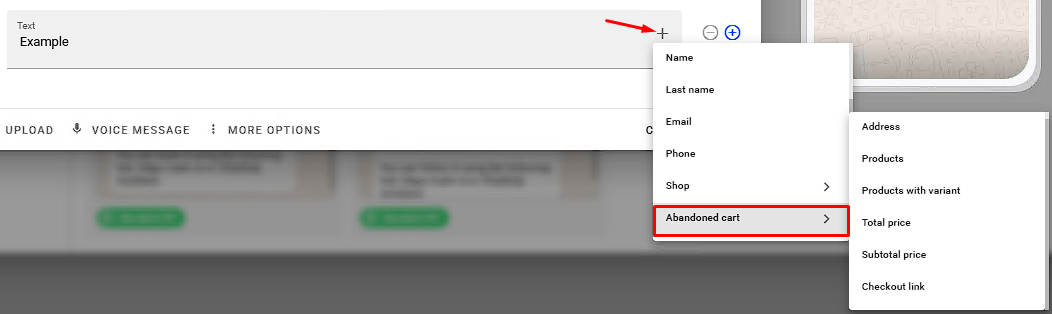
To insert variables into your message, click the gray + button in the message box. You’ll be able to choose dynamic fields such as customer data and cart details, which will be automatically filled in when the message is sent.
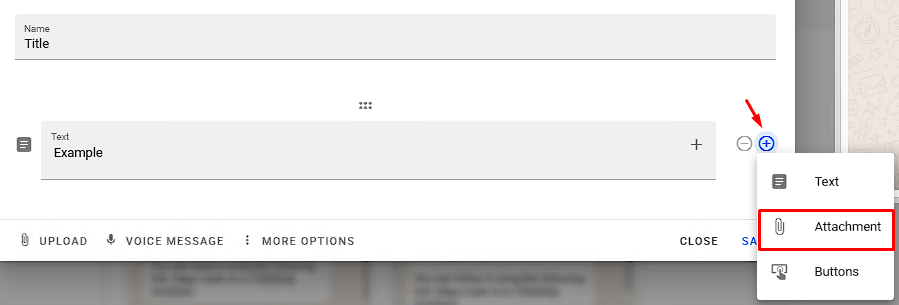
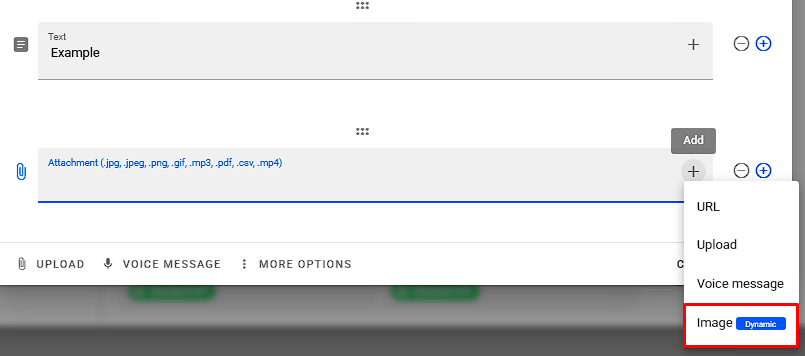
You can also add the product image as an attachment. To do this, click the blue + button to create a new media box, then use the gray + inside it to add a Dynamic Image.
Note: For a more in-depth tutorial on how to build WhatsApp messages, check out our guide: Exploring the WhatsApp Message Editor
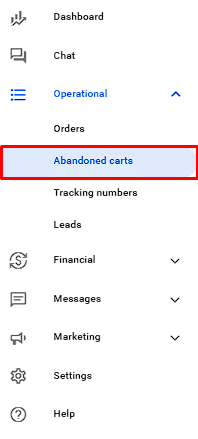
You can send semi-automated messages directly from the Operational → Abandoned Carts tab. Or access: Abandoned Carts
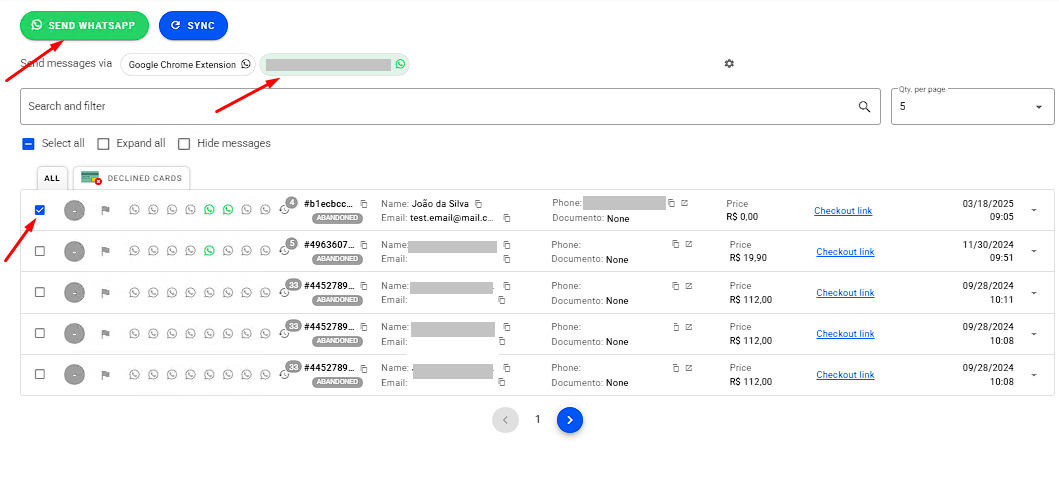
To send the message, select the desired abandoned carts using the checkbox, then click Send WhatsApp and choose the message you've created. Make sure your WhatsApp number is connected and selected.
Note: Your store and checkout must be integrated with Reportana. If you haven't completed this setup yet, we recommend checking our Help Center – Integrations.
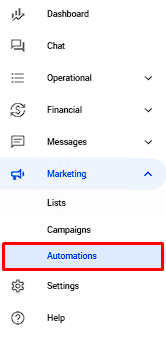
You can also automate abandoned cart recovery by sending messages through workflows. In your Reportana account, go to Marketing in the side menu → Automations. Or access: Automations
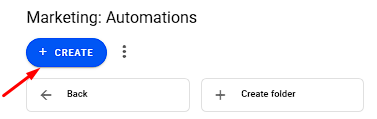
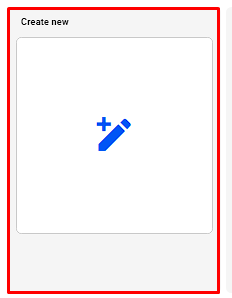
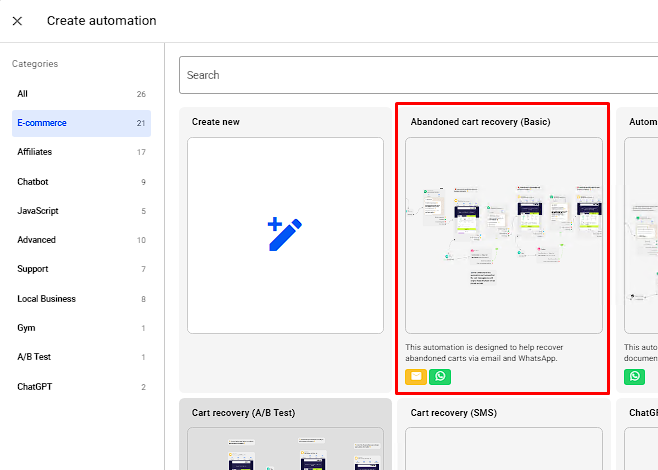
Click +Create → Create New to start building a new workflow. You can also use one of our templates. In the Ecommerce category you'll find abandoned cart automation flows that are preconfigured and ready to be customized to your needs.
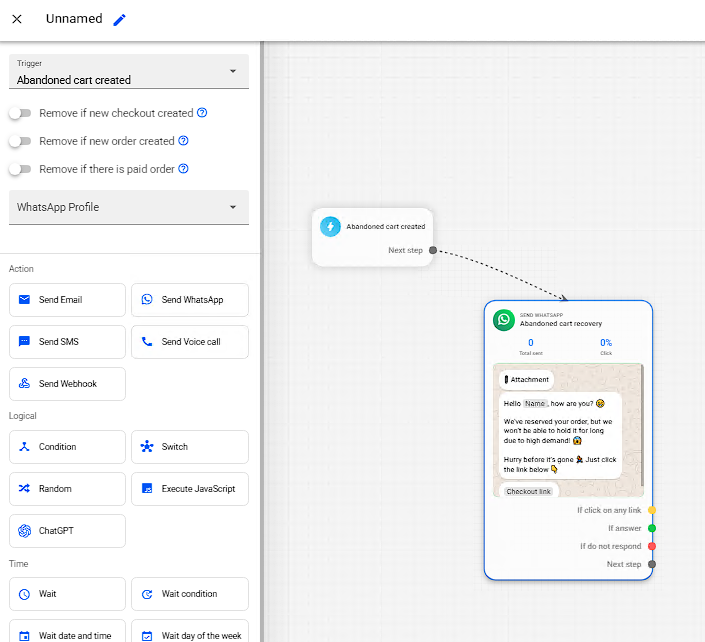
When building a new workflow, use the Abandoned Cart Created trigger. This ensures your automation starts as soon as a lead abandons their cart.
Add the message you previously created and connect in your workflow.
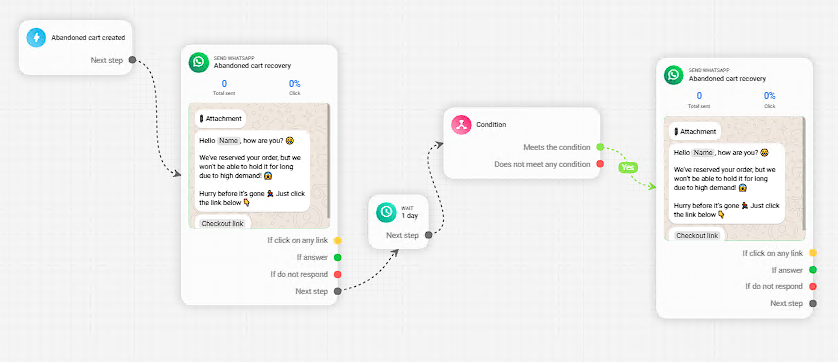
If you’d like to send follow-up messages after some time, insert a Wait block to set the delay. To avoid sending messages to leads who already completed a purchase, add a Condition block.
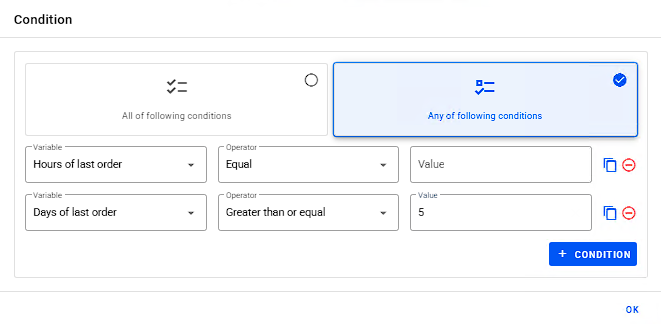
In the condition block, apply the settings shown. If any of these conditions are met, the recovery message will be sent, as the lead has no recent orders.
- Hours of Last Order = Empty or Null (just leave it blank): this means the lead has no orders.
- Days of Last Order ≥ 5: this means if the lead has placed an order, it was at least 5 days ago.
Once your workflow is fully configured, save and activate it.


Note: For a more advanced understanding of how to build automations, check out our article: Exploring the Automation Editor
