Introduction
In this article, you will learn step by step how to create customized telephone call messages in Reportana. We’ll guide you from initial navigation to content setup using text, attachments (via URL, upload, or recording), and dynamic variables for active personalization. By the end, you will be able to name, save, and apply your messages in automations and advanced campaigns, ensuring effective and targeted communication with your audience.
How It Works
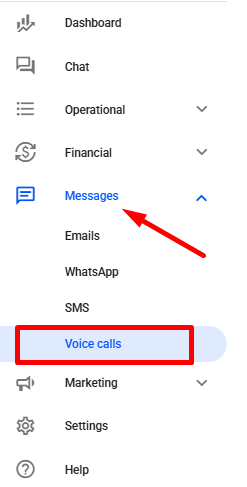
To create phone call messages, go to the side menu and navigate to Messages → Voice Calls. Or access: Messages → Voice Calls
Then, click on Create.
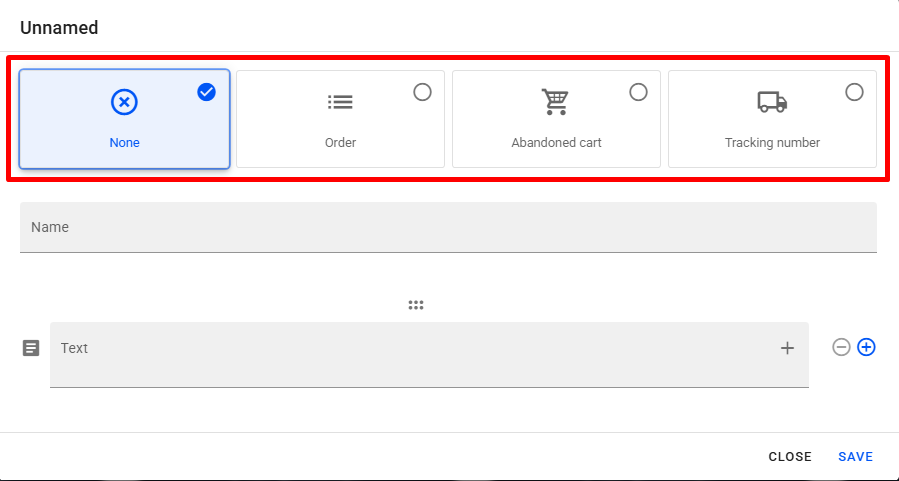
At this stage, the message editor will be available for you to view and customize the content to be used during the call.
Before starting to create the message, it’s essential to select the type of message you want to create. The available types are: none, order, abandoned cart, or tracking number. This step ensures the correct targeting of the message in advanced campaigns or automations.
Messages can be configured in different ways, depending on your needs and creativity. You can create them using text (automatically converted to audio), by attaching an audio file via URL, direct upload, or by recording the audio message during the creation process.
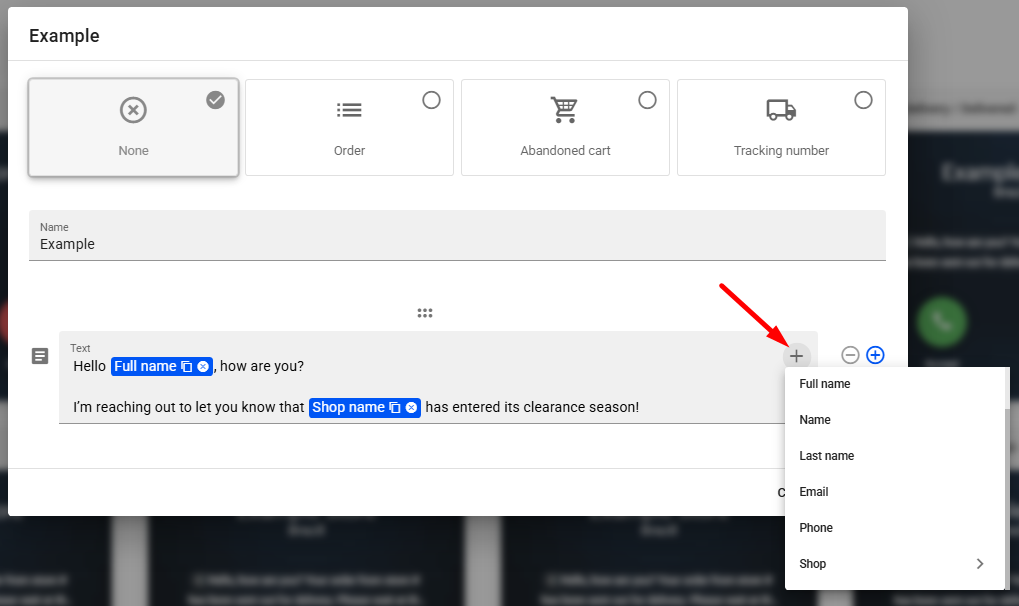
When using the text option, your message is converted to audio using the platform’s built-in TTS (text-to-speech) technology. You can also insert dynamic variables, allowing personalization with customer or business data, making the communication more effective.
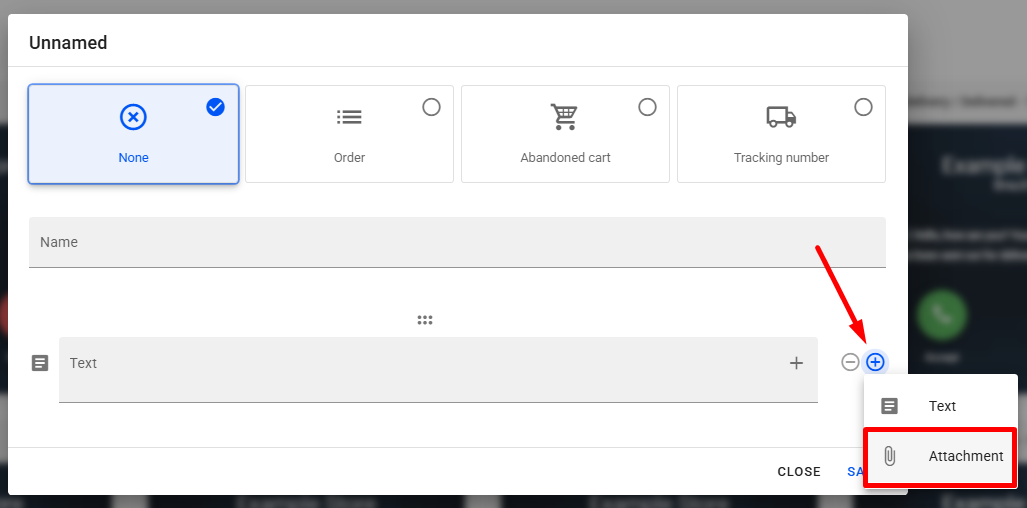
To create a message via attachment—whether using a URL, uploading an audio file, or recording it—click the “+” (blue ) → Attachment.
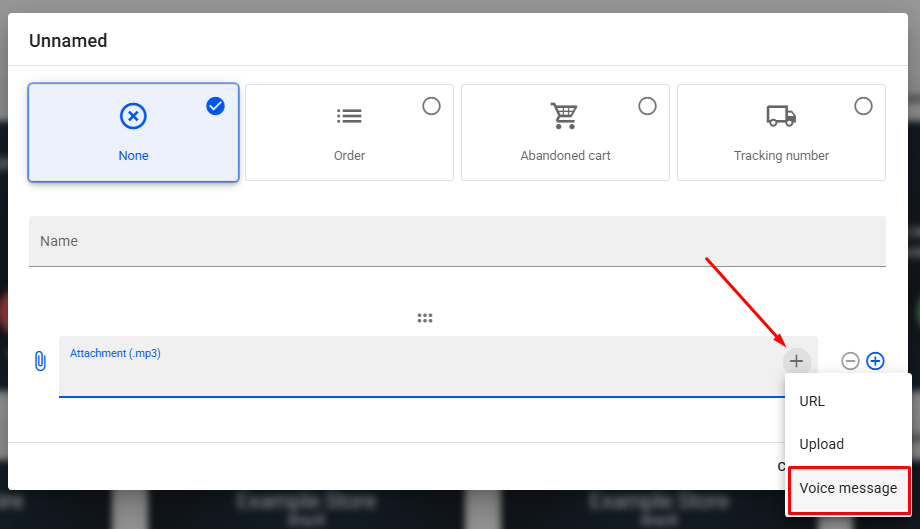
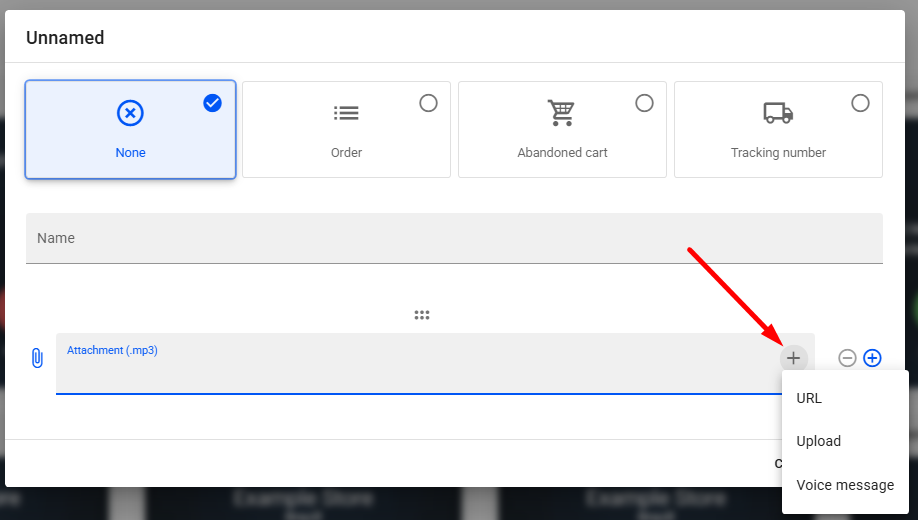
After selecting Attachment, proceed by clicking the “+” (gray). From here, you can choose your preferred method of adding the audio:
- URL: Add an audio file hosted online via a direct link. Just paste the URL in the indicated field and name the file.
- Upload: Attach an audio file saved on your computer. When selected, a window will open for you to browse and choose your file.
- Voice Message: Allows you to record an audio message in real time and use it directly as your call message.

Note: Attachments must be in .MP3 format.
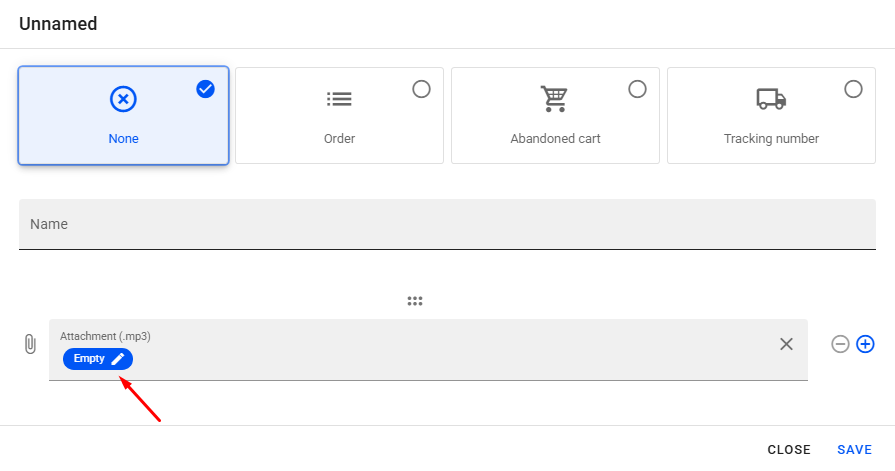
To use a URL audio file, select the corresponding option in the editor. Then click on the displayed (empty) attachment block.
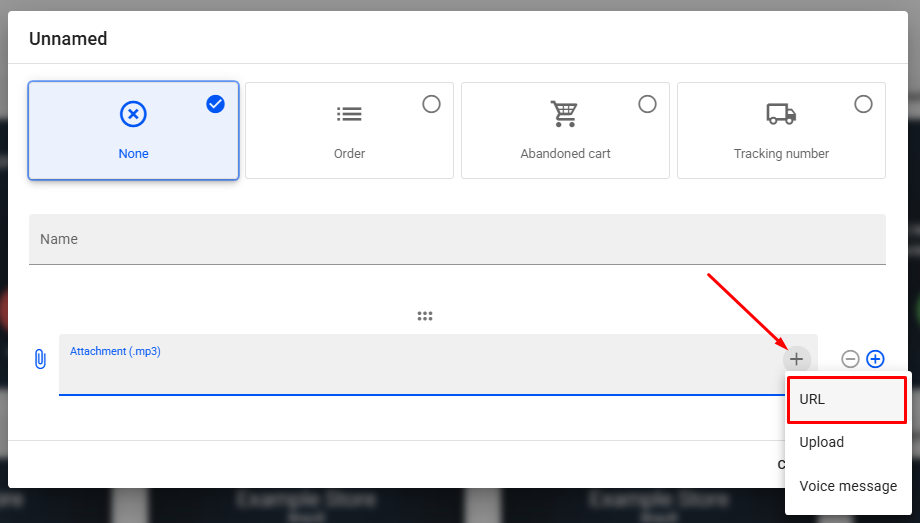
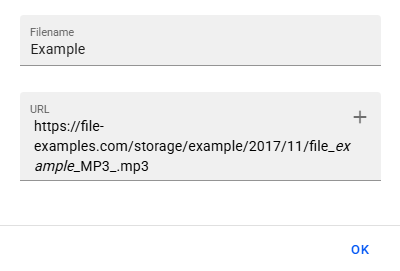
You’ll be able to paste the desired URL and assign a name to the file. After completing the fields, click OK.
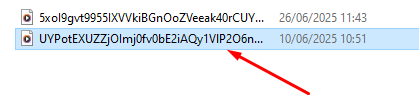
To attach an audio file directly, select the Upload option. A window will open for you to browse local files on your computer. Simply locate and select your audio file—it will be added as an attachment and ready to use.
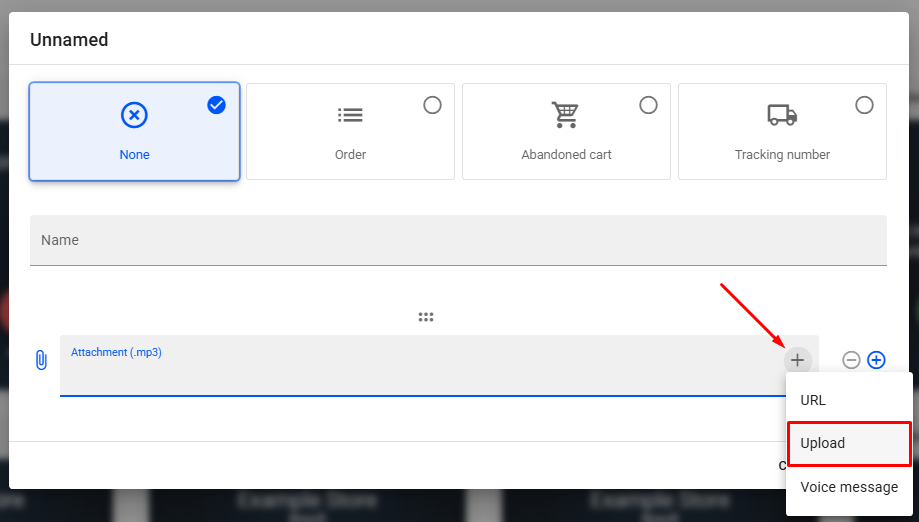
If you prefer to record a voice message, choose the Voice Message option.
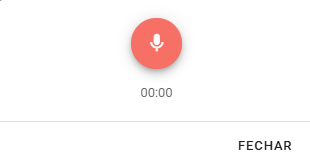
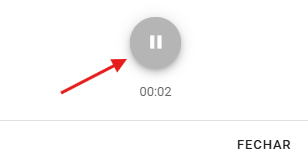
Clicking the button will open a tab with a microphone icon—click it to begin recording.
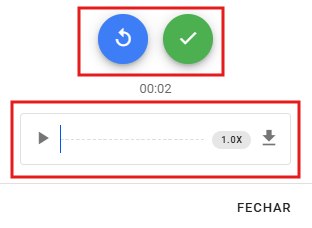
To finish the recording, click the pause button. The recorded audio will then be displayed. You can review it by clicking the play button, and if needed, re-record by clicking the blue button. If you’re satisfied and wish to proceed, click the green button to confirm.
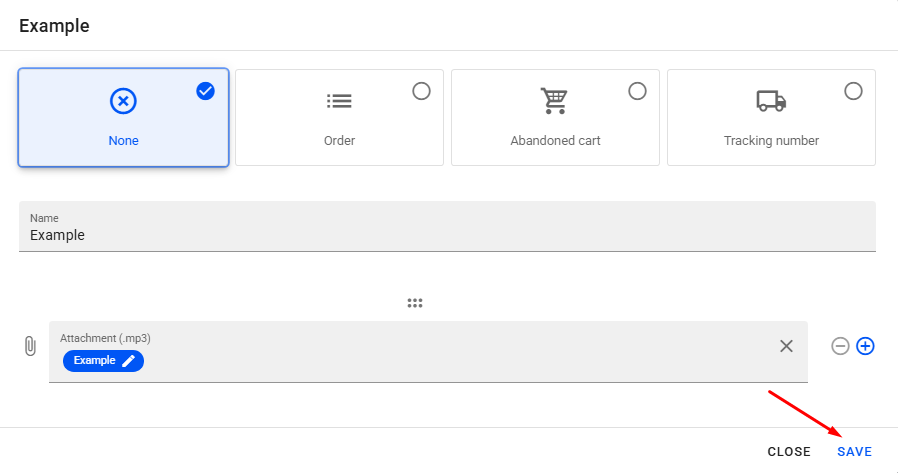
Once the message is fully configured, give it an identifiable name to make it easier to manage. Then click Save to store the content and make it available for future use.
With your message properly set up and saved, it’s ready for action. The phone call message can now be used in automations or advanced campaigns.