Introduction
The ChatGPT integration with Reportana enables automating customer service on WhatsApp using AI in your business. With this setup, you can train the virtual assistant to act as a customer service agent, answer frequently asked questions, send links, and optimize communication with accurate and efficient responses.
How It Works
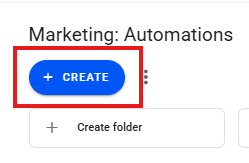
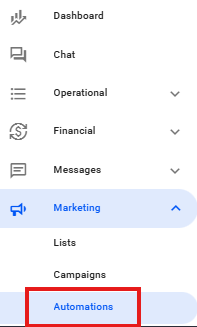
In the Reportana menu, navigate to Marketing and then click on Automations. To start creating a new automation, select + Create.
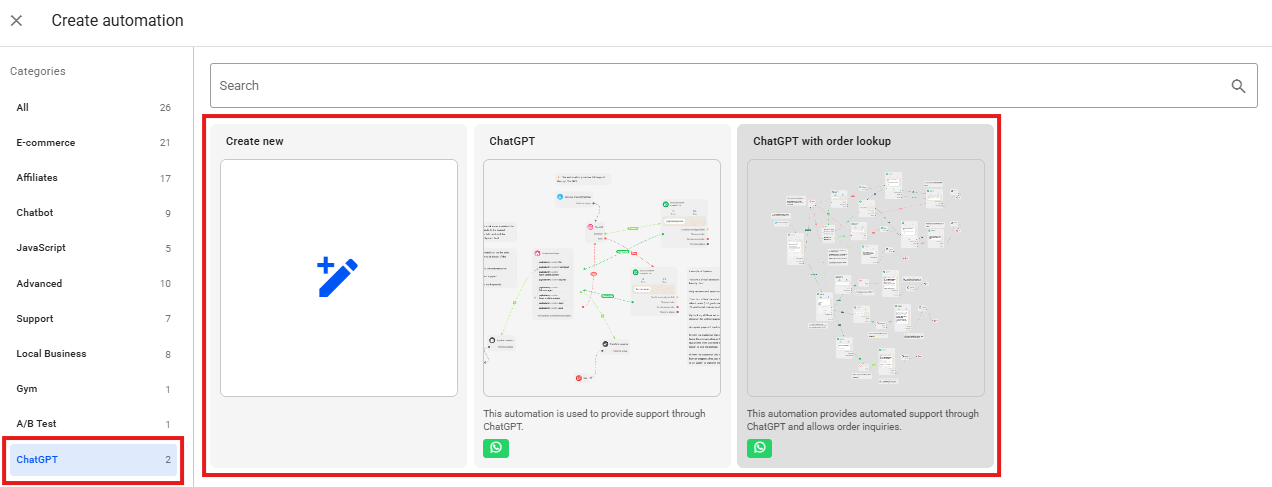
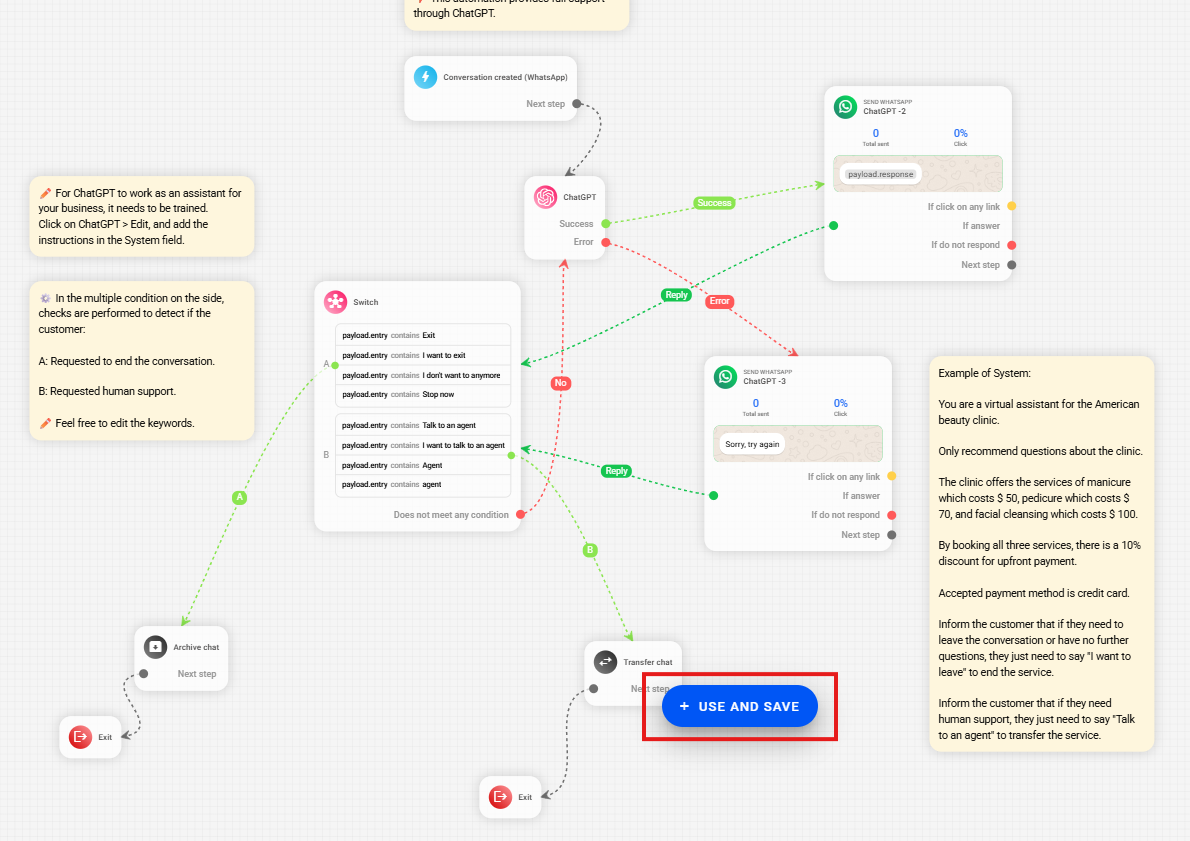
You have two options: create a new automation from scratch by clicking the Create New button, or use an existing template with ChatGPT support. If you prefer a preconfigured template, click on the ChatGPT category to view the available options. We recommend opening an existing template on the platform to simplify the setup process.
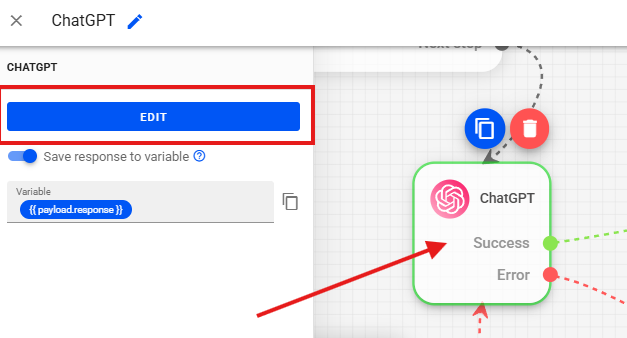
Within the automation template, simply select the Use and Save option. After that, locate the ChatGPT configuration block. Click on this block, then click Edit to access the settings.
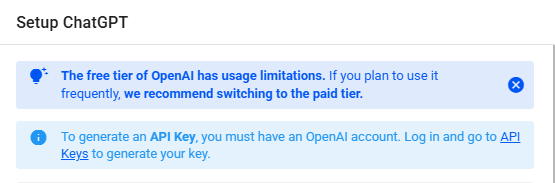
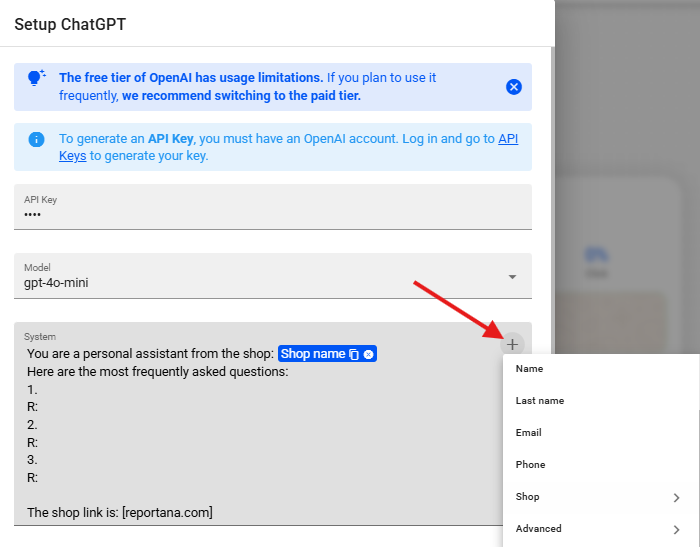
Generate the ChatGPT API Key, within the ChatGPT configuration screen in Reportana, you’ll see instructions indicating that you need to generate an API key. We recommend using the paid API tier if you plan to use ChatGPT more frequently.
- Click the provided link to access the API key generation page.
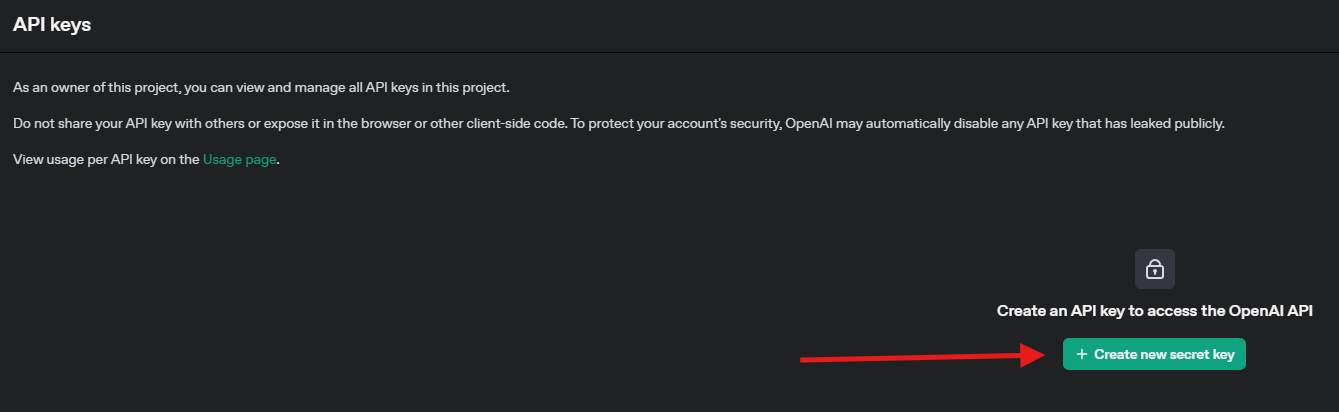
- On the OpenAI page, click the button to “Create a new API key”.
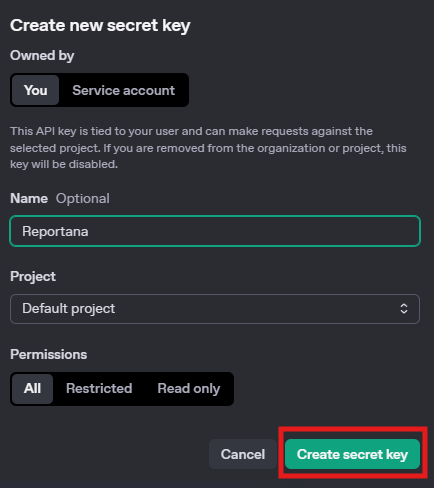
- Give your API key a name (e.g., “Reportana”). Naming is optional and intended for your own identification. Then, click the button to create the key.
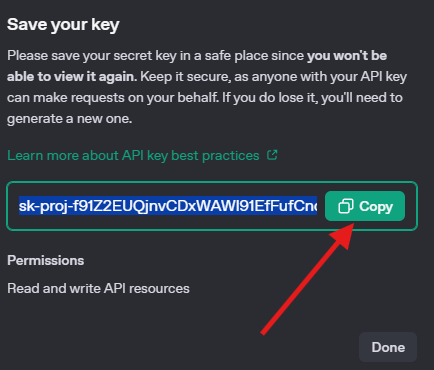
- Copy the generated key.
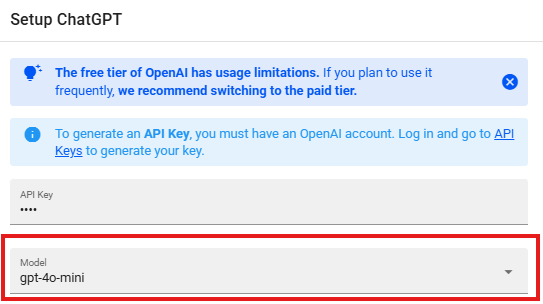
- Return to the ChatGPT configuration screen in Reportana and paste the API key you just copied into the designated field.
In the Model section, you will have several ChatGPT model options to choose from, such as ChatGPT 3.5, ChatGPT 4, and ChatGPT 4 mini. The ChatGPT 4 mini model is currently recommended for offering the best cost-benefit ratio. Select your preferred model.
The System section is a crucial part where you define how ChatGPT should behave. In the “System” field, you must configure the guidelines for the virtual assistant. It is also possible to add dynamic variables to the text. Examples of Configuration:
- Online Store Support: If you want to create support for your online store, you can configure the following: “You are an online store assistant. Here are the most frequently asked questions and [you can insert the questions and their respective answers here].”
- Including Links: You can train ChatGPT to provide your store’s link if the customer asks. For example: “Store link: [reportana.com].” The goal is to train ChatGPT to respond correctly in the manner you intend.
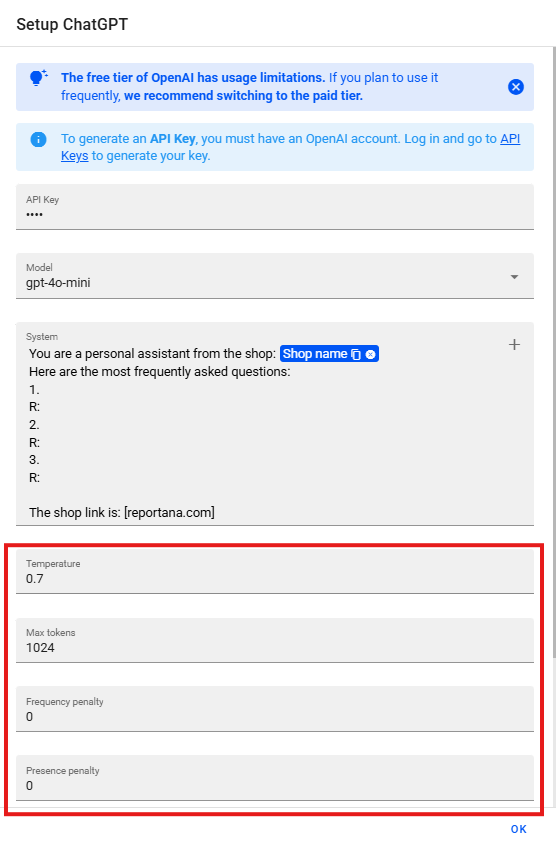
Advanced Parameters (Optional): You will see fields for Temperature, Max Tokens, Frequency Penalty, and Presence Penalty. If you have questions about the meaning of each field, it is recommended to consult the official ChatGPT documentation for further clarification.
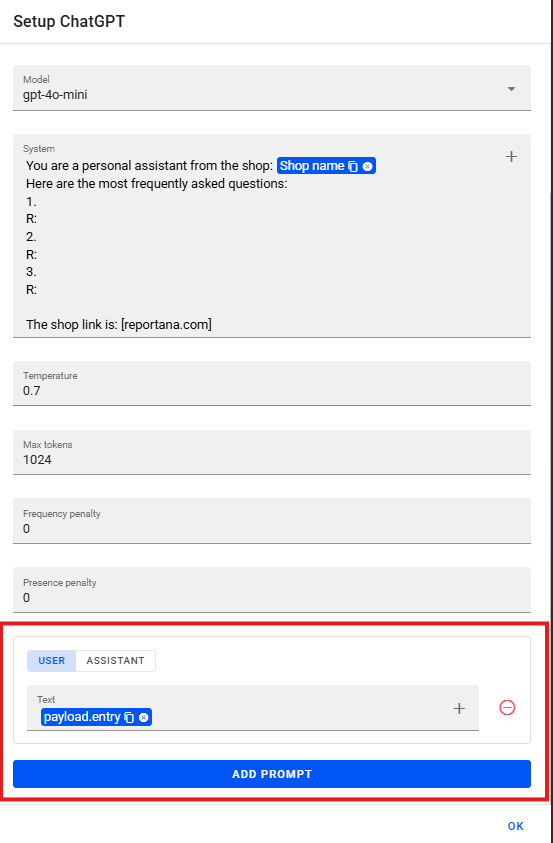
Check the Prompt Configuration (If you are using the model, there is no need to make changes). Essentially, this section defines that the user input will always be a specific variable (payload.entry).
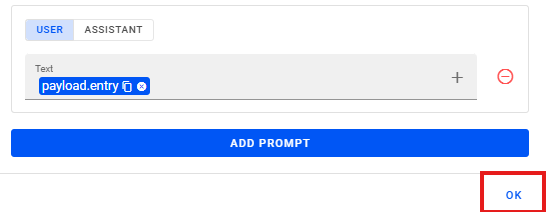
After filling in all the desired information and settings, click Ok to save the ChatGPT configuration.
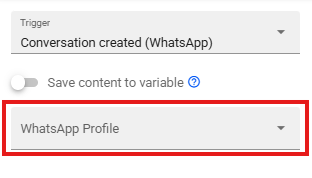
With the ChatGPT setup complete, select the WhatsApp profile or WhatsApp profiles you wish to connect to this automation. You can use just one or multiple profiles for the same automation.
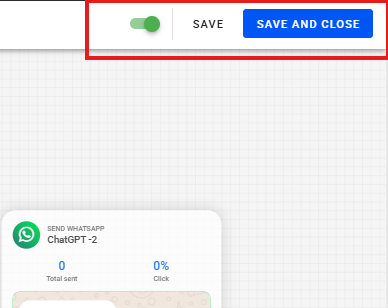
To finalize and activate the automation, click the Activate button at the top of the screen. Then, click Save and Close. With these steps, ChatGPT will be configured and integrated into your automation on Reportana, ready to interact intelligently and autonomously with your customers via WhatsApp, following the behavior you defined.