
Introduction
In our automations, by using the advanced option Save reply to lead field available in the Send WhatsApp block, you can request information from your lead and store the response as a metadata variable. This feature allows the captured data to be saved directly in the platform and reused in the same automation or even in different automations.
How It Works
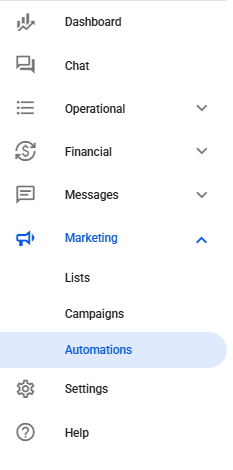
First, in your Reportana account, go to Marketing in the side menu → Automations. Or access: Marketing — Automations
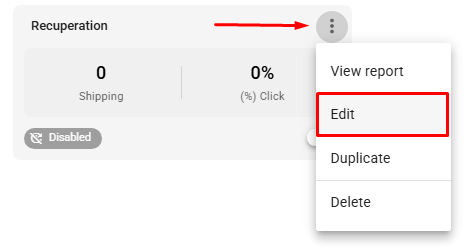
Create a new automation by clicking the +Create button or access the automation you want to configure by clicking on the three dots → Edit.
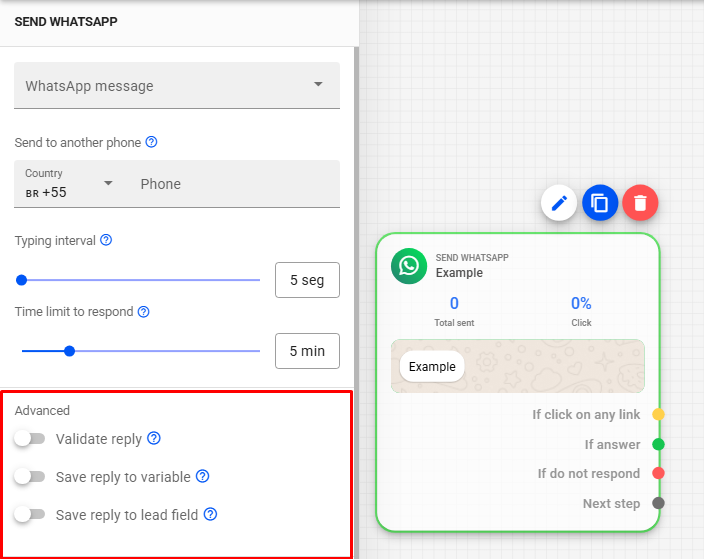
Next, in your automation, add a new Send WhatsApp block or select an existing block to configure. In the side menu, locate the Advanced settings → Save reply to lead field.
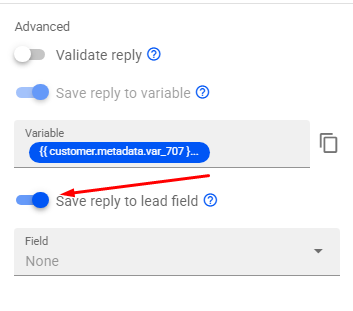
Click to activate the Save reply to lead field option. The variable name will be generated automatically, and you can customize it in the Variable field. The attribute “metadata” will also be automatically applied to the variable name, so the received response will be saved on the platform.
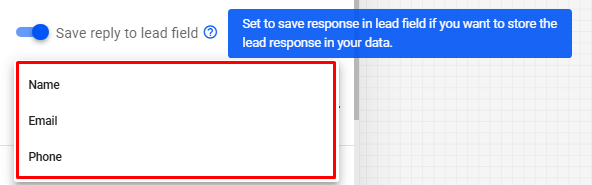
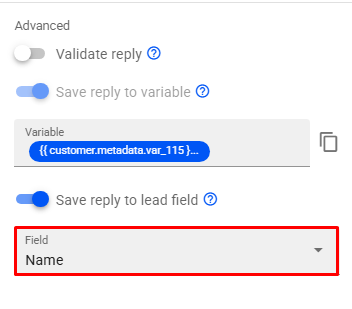
If the information you're capturing is any lead registration data, you can select Field so the reply is saved as the lead’s Name, Email, or Phone. If that’s not the goal, simply don’t select any option, and it will remain as None.
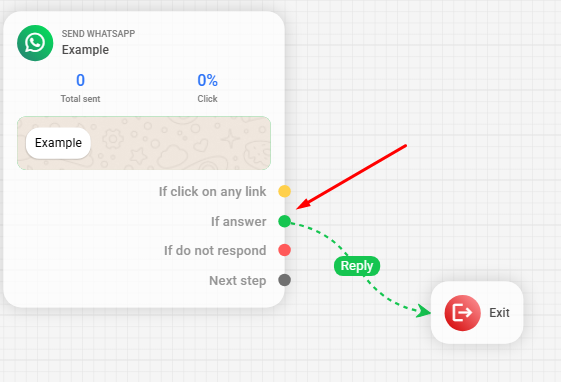
You must also ensure that you use the If answer sub-trigger so that the automation only proceeds when the lead responds to the message, ensuring the desired information is filled in. To better understand how the subtrigger works, access our article: Exploring the Automation Editor.
After capturing the desired data, you can use the variable in your automations to personalize messages or apply filters in conditions. To do this, manually insert the variable value between double curly braces: {{ customer.metadata.example }} wherever you want to apply it.
In the example below, using the Conversation Created (WhatsApp) trigger, we first request the lead’s name in our automation, and then the information is saved directly in the Name field of their profile on the platform.
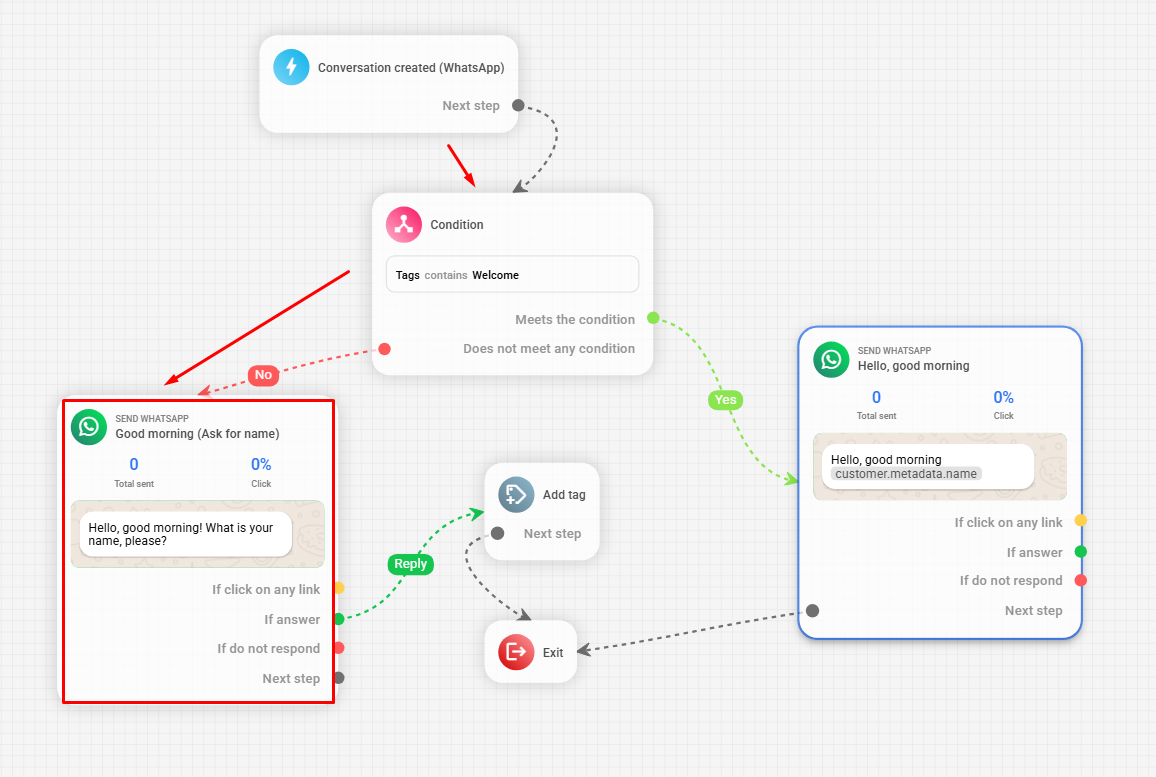
If the lead contacts you again, the automation will identify the tag added to their profile through the condition and use the previously saved name variable to personalize the greeting without needing to request the name again.
Note: To assign the tag to the lead’s profile, we use the Add Tag block available in our automations.
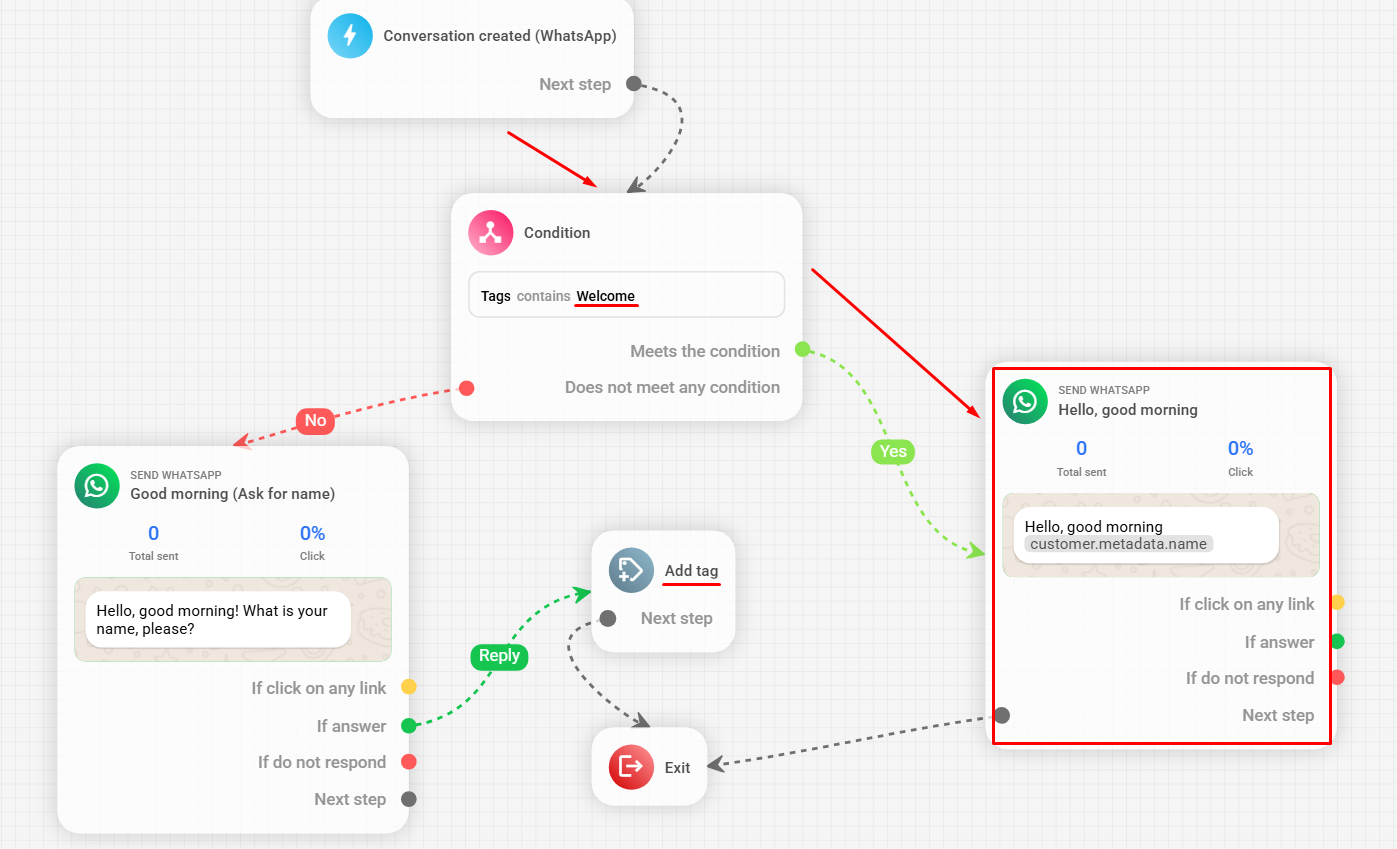
Important: Note that in the example, the same variable captured earlier in the automation was used in the highlighted message; this variable can also be used in other automations.
