Introduction
Discover how sending WhatsApp messages at scale with Reportana can revolutionize your customer communication and significantly boost your business performance. By leveraging the power of WhatsApp Marketing, your company can maximize key metrics and results—reaching customers where they are and driving more sales daily. Simplify order management, optimize cart recovery, and streamline shipment tracking, all while connecting multiple WhatsApp numbers to efficiently scale your operation.
How It Works
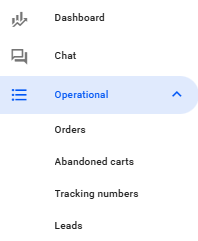
Access the Reportana platform and navigate to one of the sections designated for mass messaging, such as Orders, Abandoned Carts, Tracking Numbers, or Leads. The sending process is identical across all these sections.
Before sending the messages, select the WhatsApp channel you wish to use. Choose any number you’ve previously connected to the Reportana platform, this number will be responsible for the message delivery. Please note that messages sent via the Official WhatsApp API require prior approval from Meta. If you haven't connected your WhatsApp number to Reportana yet, follow this tutorial to complete the integration: How to Connect WhatsApp
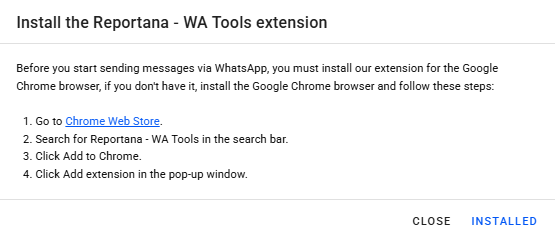
If you choose the Google Chrome Extension option and the extension is not yet installed, a prompt will appear guiding you to install it. To install it, go to the Chrome Web Store, search for "Reportana WA Tools", and click "Add to Chrome". Once installed, the extension will appear in your WhatsApp Web tab.
The platform offers different methods for selecting contacts and initiating the sending process:
- Mass Sending to Contacts on a Single Page: You can choose to send messages to all contacts visible on the current page. It’s possible to adjust the number of contacts displayed per page. After selecting all contacts on the page (or a specific group, if applicable), click “Send WhatsApp.” Then, choose the predefined message you want to send to the selected contacts.
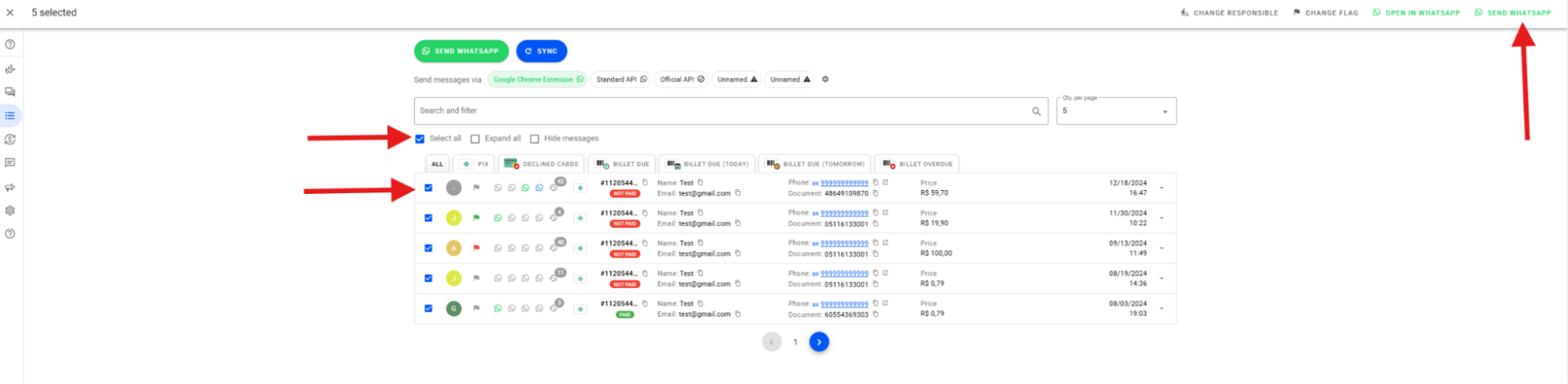
- Sending to a Single Contact: To send a message to an individual contact, simply click the WhatsApp icon corresponding to the message you want to send, next to the specific contact.
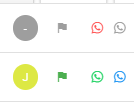
After sending, the status of each message can be monitored through an intuitive system of colored icons:
- Green Icon: Indicates the message was sent successfully.
- Blue Icon: Means the message is currently being processed for sending.
- Red Icon: Alerts that the message failed to send.
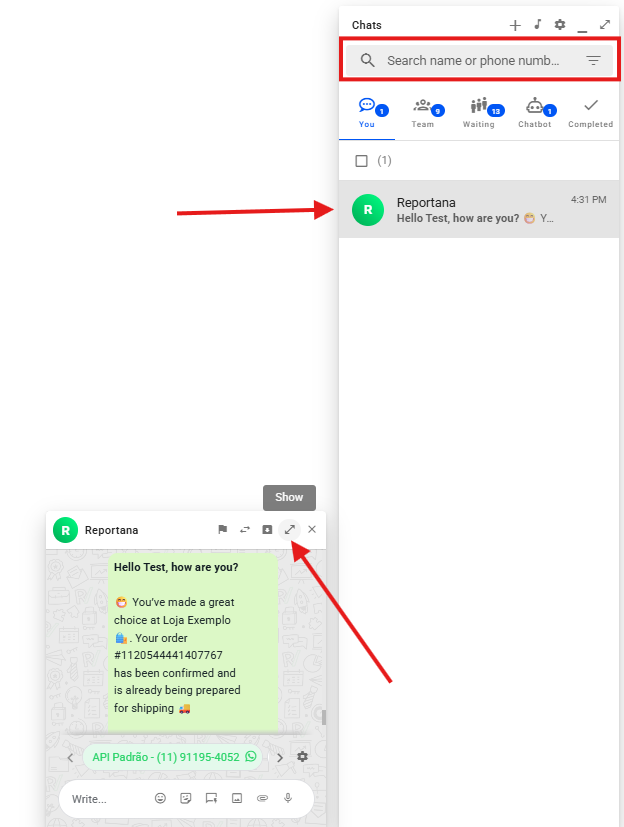
Messages sent successfully are displayed in the platform’s Message Chat. Simply search for the lead using their phone number or check the recent messages. You can access this section and expand the view to review message details and confirm successful delivery.
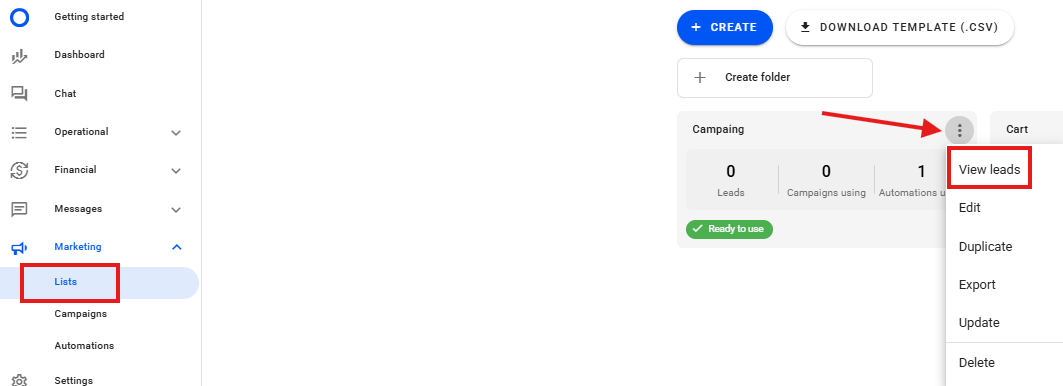
Another way to perform mass messaging in Reportana is by using saved lead lists. Access the Lists section within the platform. Select the desired saved list and click “View Leads.”
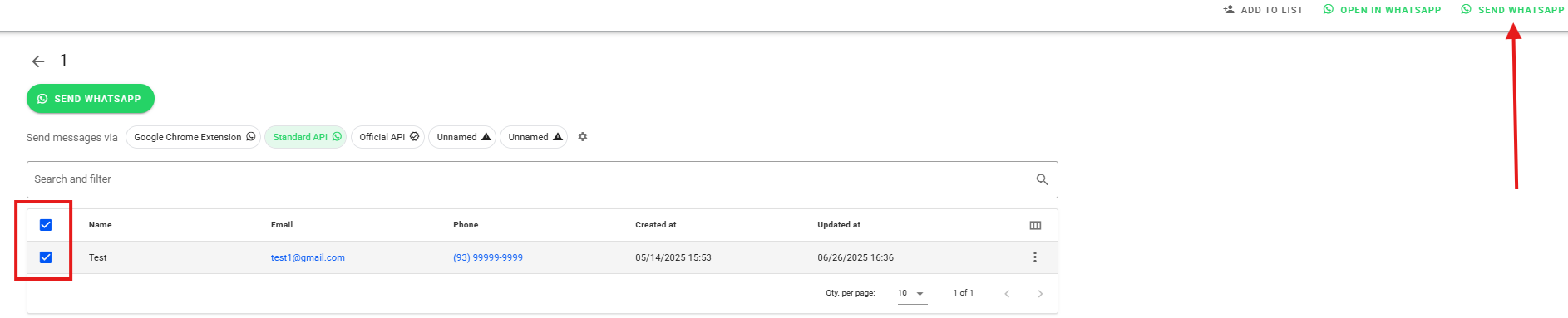
Within the list, you can select leads and then click Send WhatsApp to trigger the mass message.