Introduction
Tags are essential for organizing and segmenting your contacts, helping you identify customer profiles, interests, and stages. In Reportana, tags can be applied manually or automatically, making it easier to direct support and send more targeted campaigns. In this article, you’ll learn how to use them in practice with real examples.
How It Works
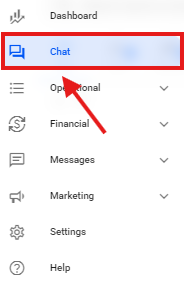
Log in to your Reportana account. Go to the side menu and click on Chat. Or access: Chat Reportana.
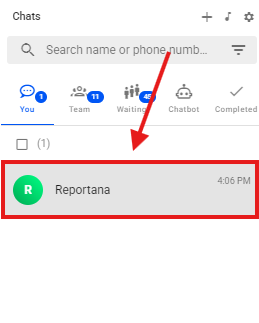
Select the Lead you want to tag.
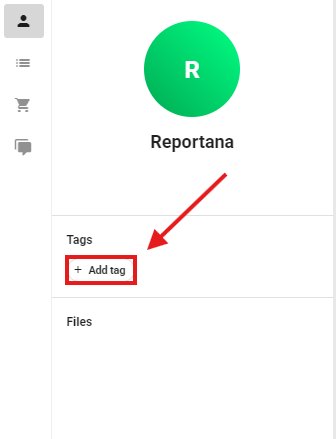
In the right-side menu, select the + Add Tag option.
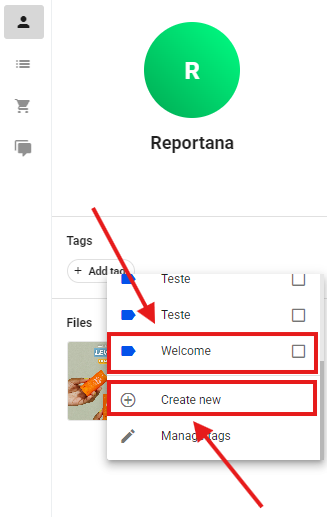
After selecting the + Add Tag option, all previously created tags will be displayed. If you want to use an existing tag, simply select it. Otherwise, click Create New to add a new tag.
Adding Tags Through the Leads Tab
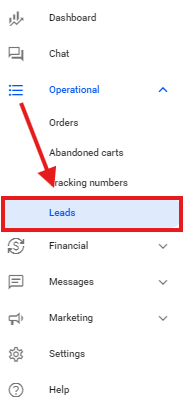
Log in to your Reportana account. Go to the side menu and click on Operational → Leads. Or access it directly: Operational - Leads.
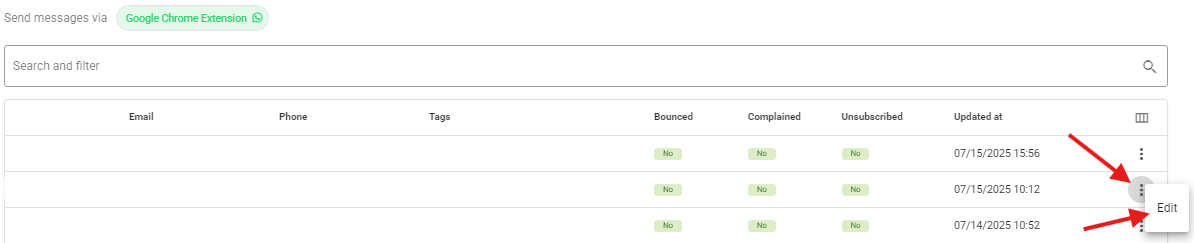
Select the lead you want to tag → three dots → Edit.
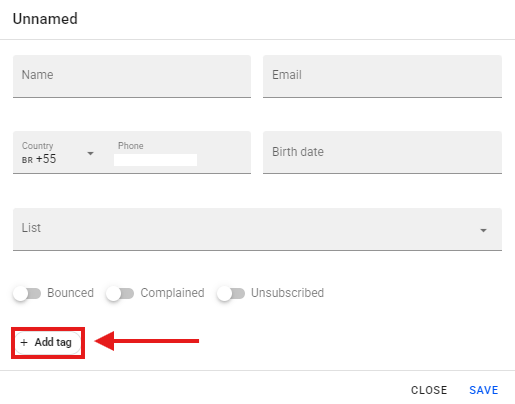
Select + Add tag.
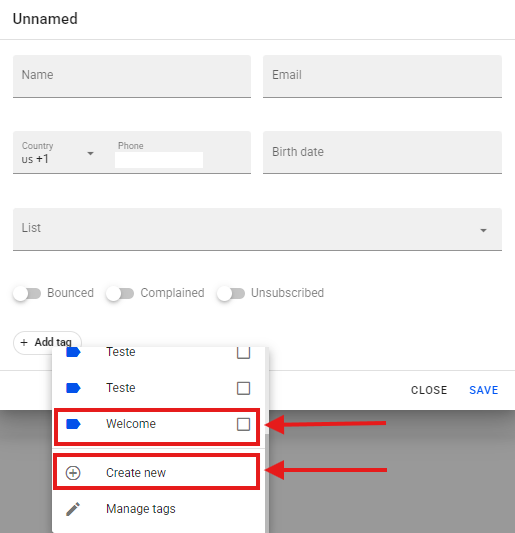
After selecting the + Add Tag option, all previously created tags will be displayed. If you want to use an existing tag, simply select it. Otherwise, click Create New to add a new tag.
Adding and Removing Tags Through Automations.
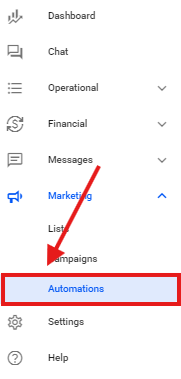
Log in to your Reportana account. Go to the side menu and click on Marketing → Automations. Or access:Marketing - Automations.
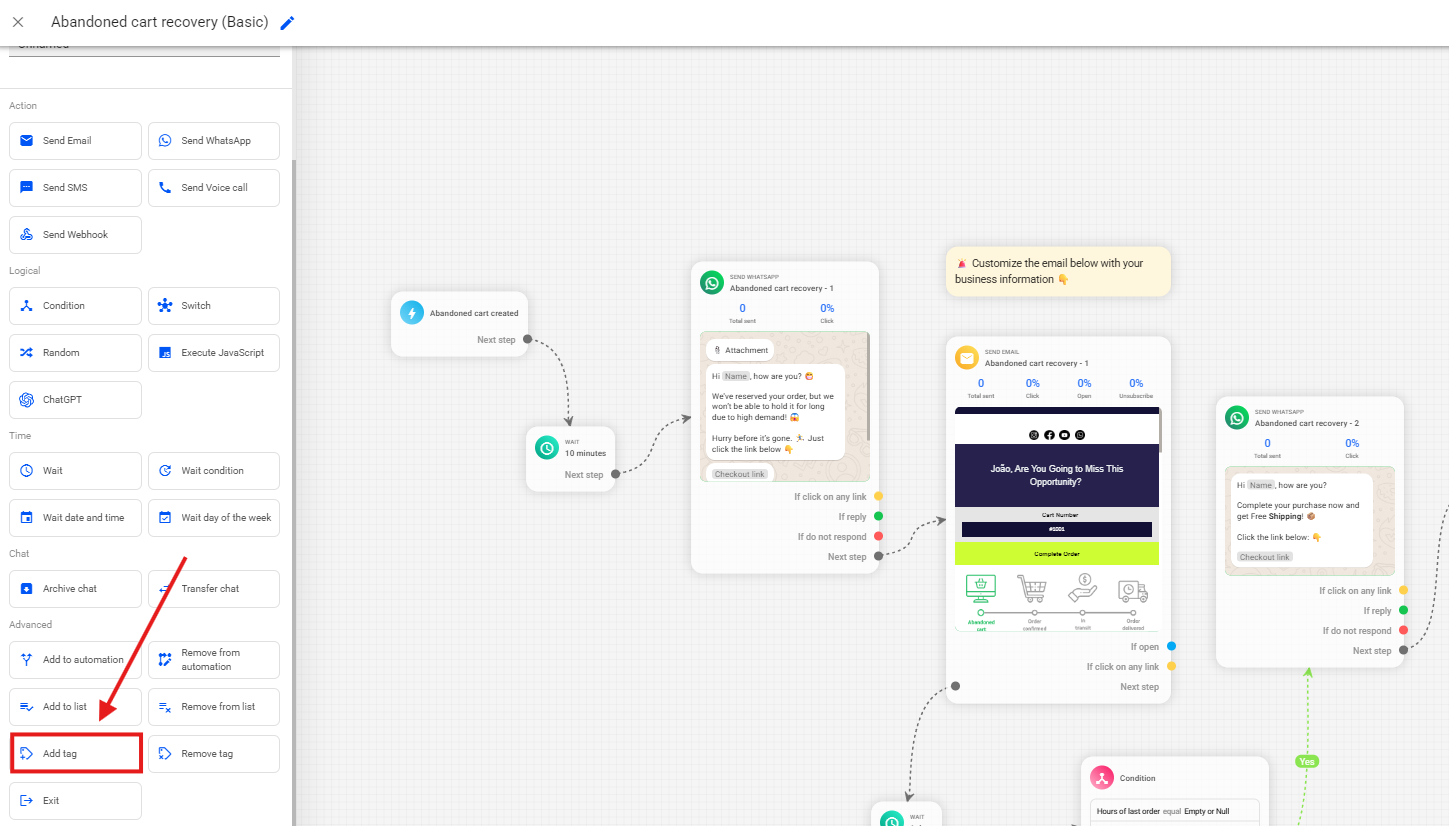
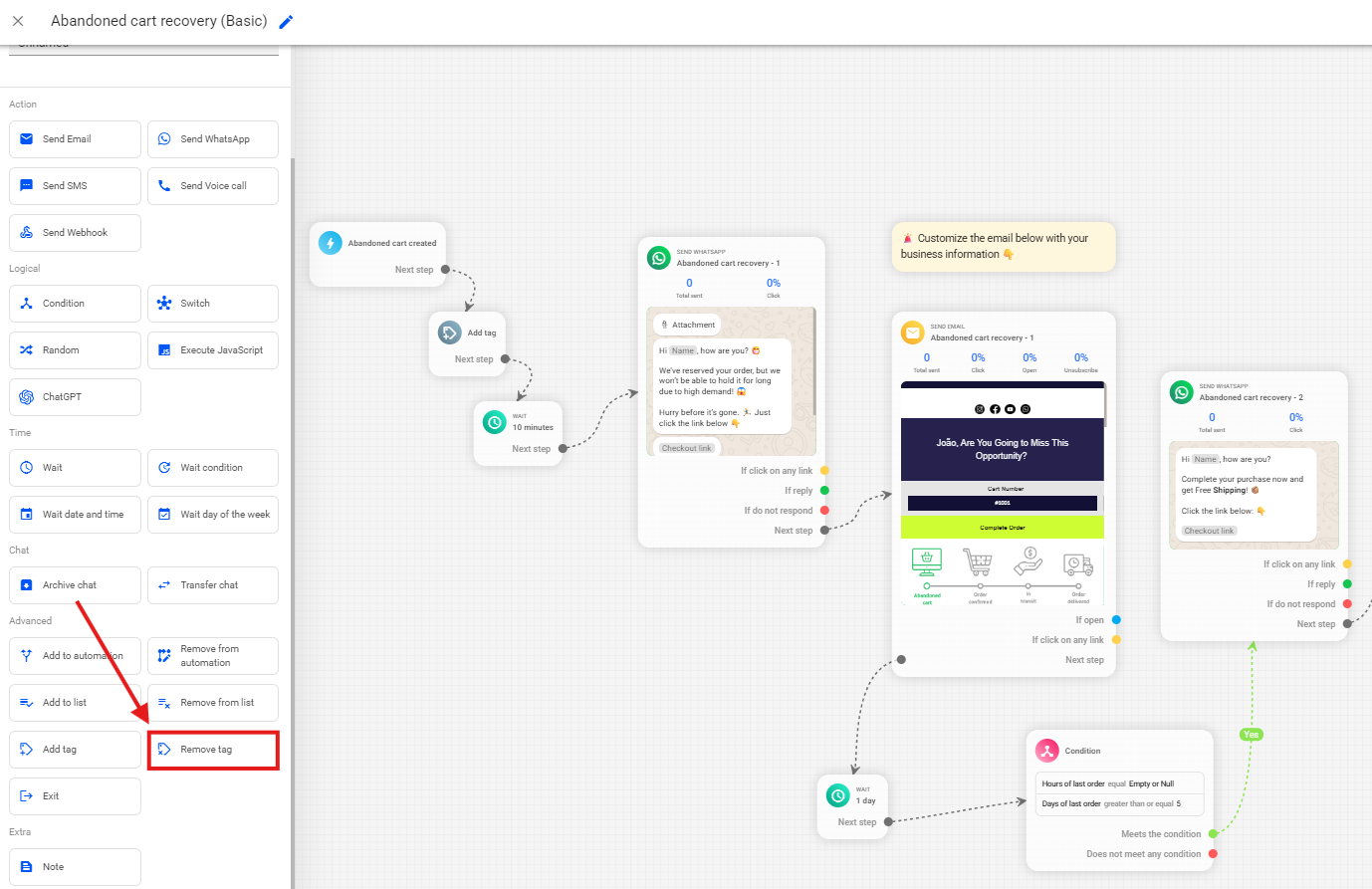
Access the desired flow and, in the side menu, select Add Tag.
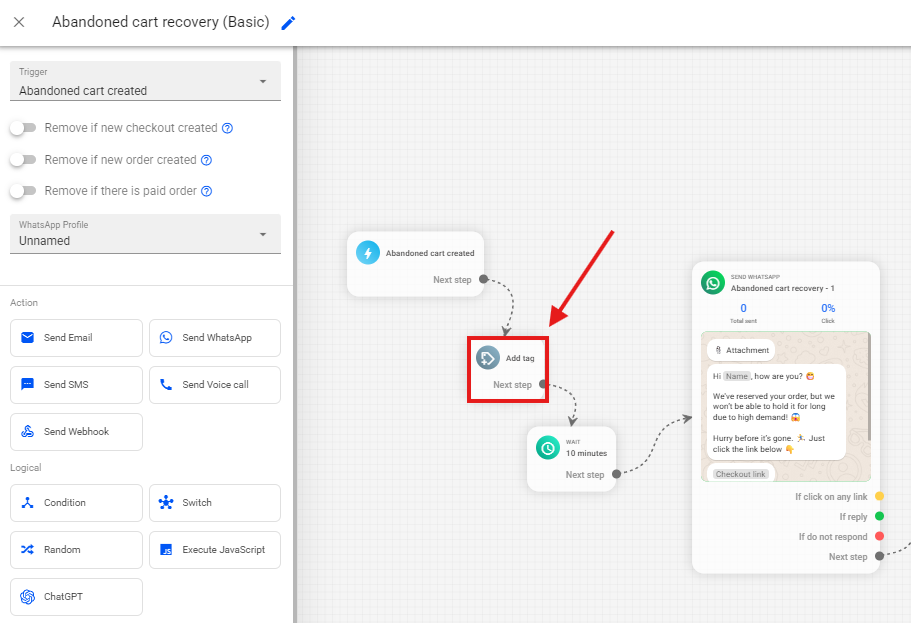
Insert the Add Tag block at the desired point in your flow, where you want to apply tags automatically.
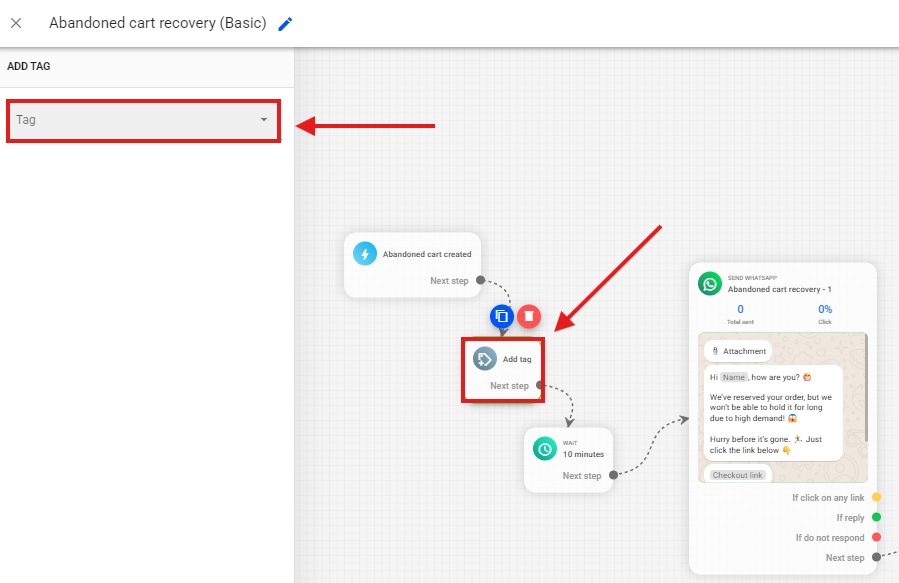
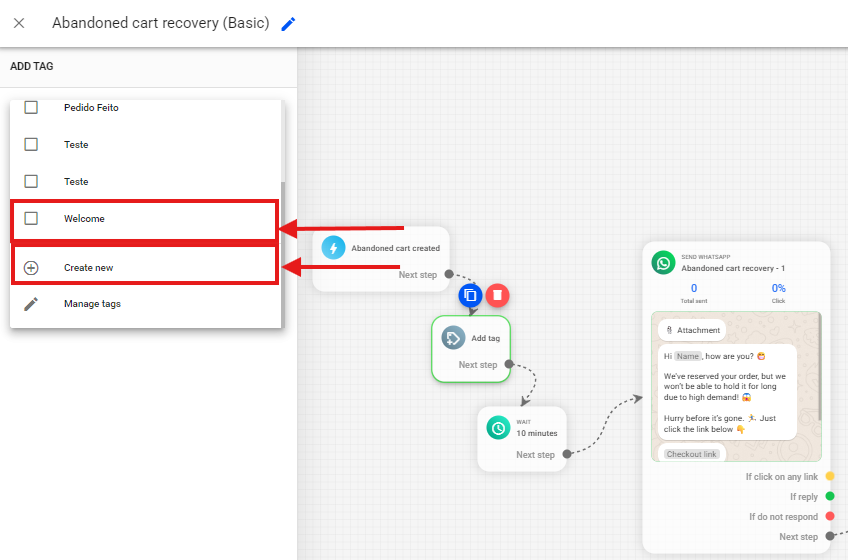
Select your Add Tag block → Tag.
After selecting the Tag option, all previously created tags will be displayed. If you want to use an existing tag, simply select it. Otherwise, click Create New to add a new tag.
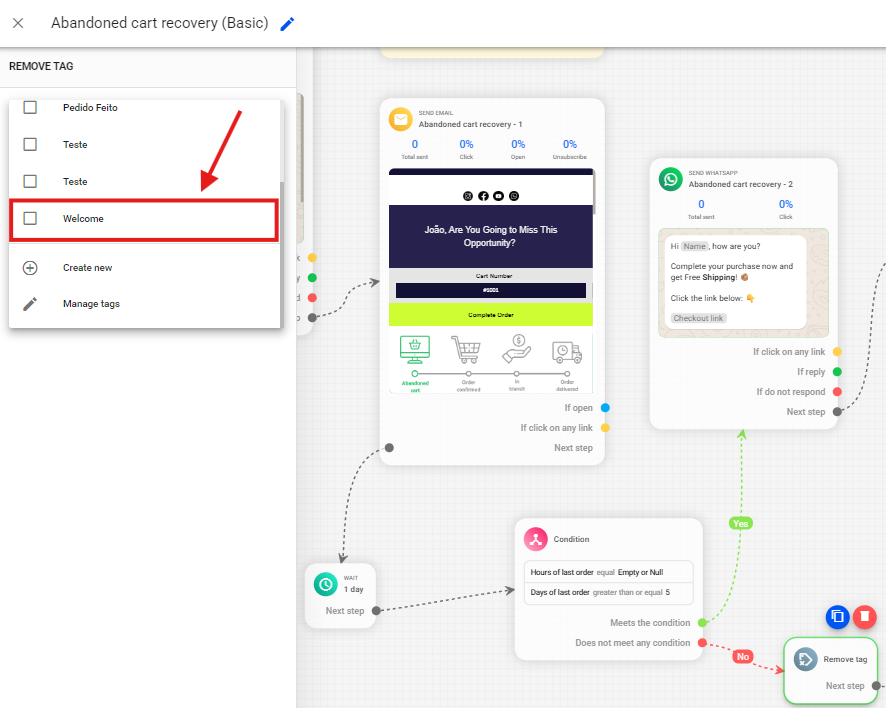
If you want to remove tags automatically, select the Remove Tag option from the side menu.
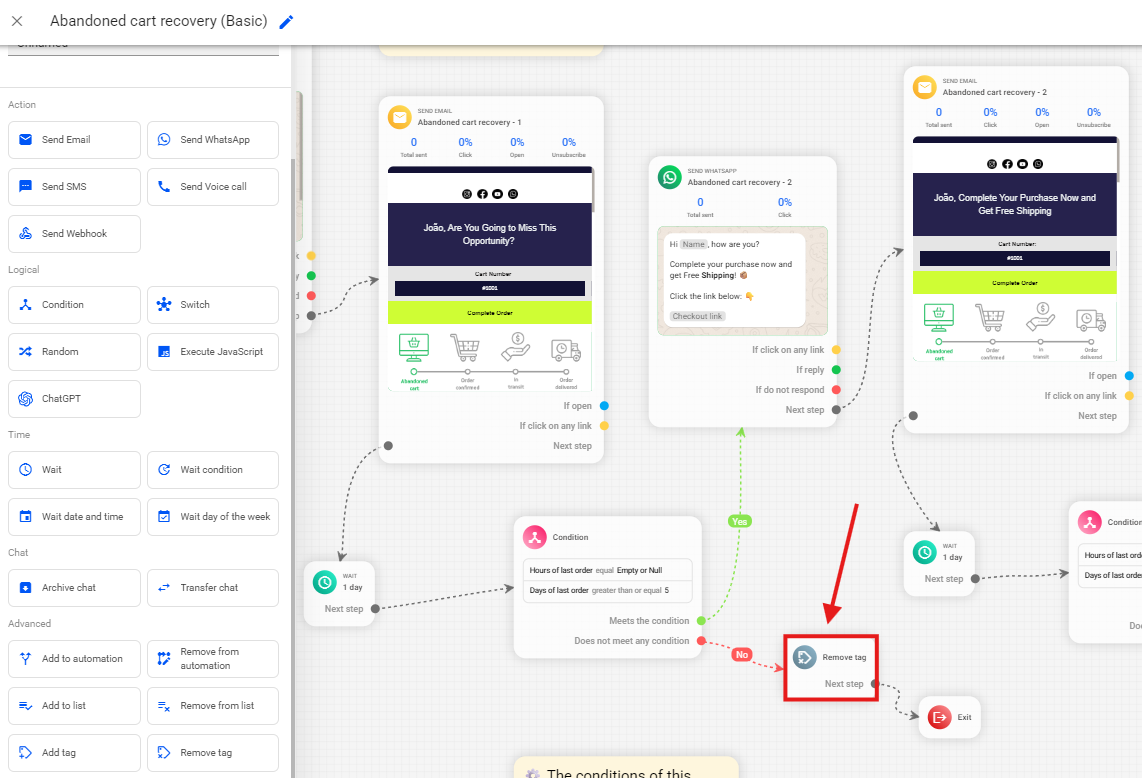
Insert the Remove Tag block at the desired point in your flow, where you want to automatically remove tags.
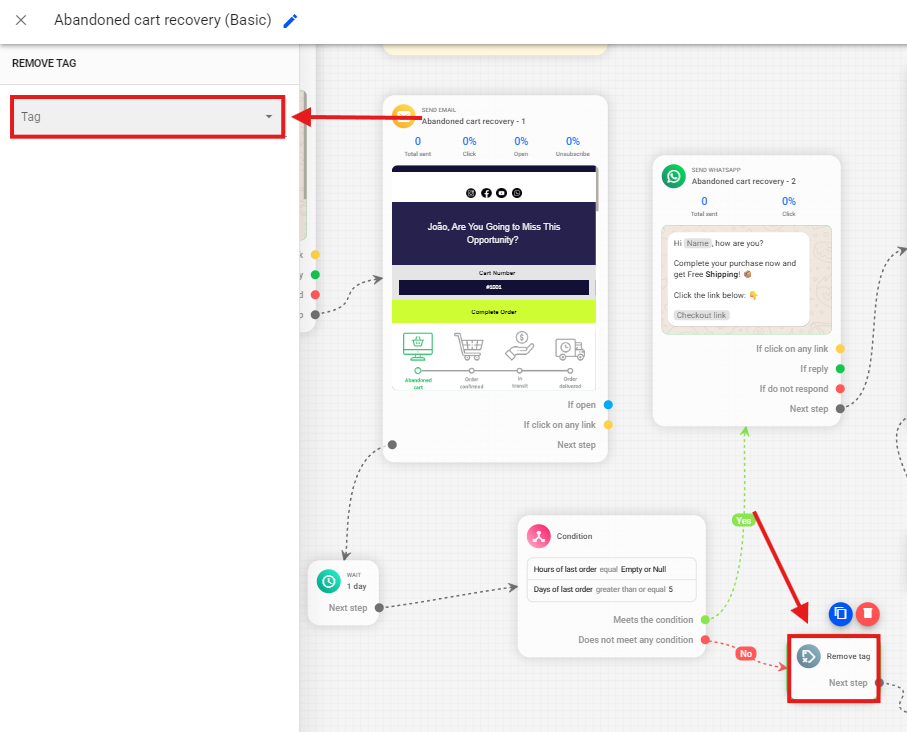
Select your Remove Tag block → Tag.
After selecting the Tag option, all previously created tags will be displayed. Select the one you want to remove automatically.
Creating Segmented Lists Using Tags
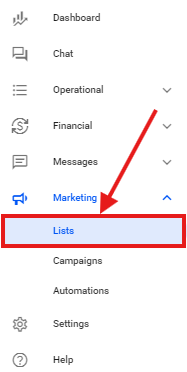
Log in to your Reportana account. Go to the side menu and click on Marketing → Lists. Or access:Marketing - Lists.
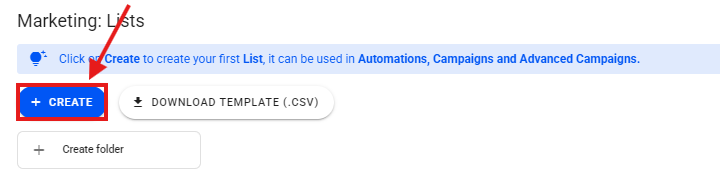
Select + Create.
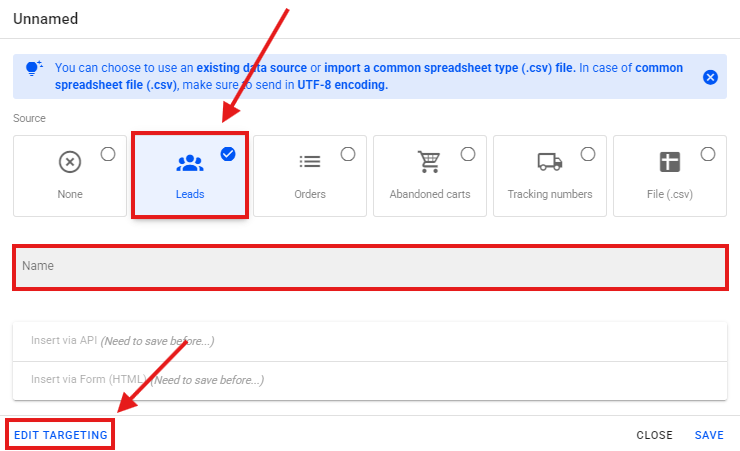
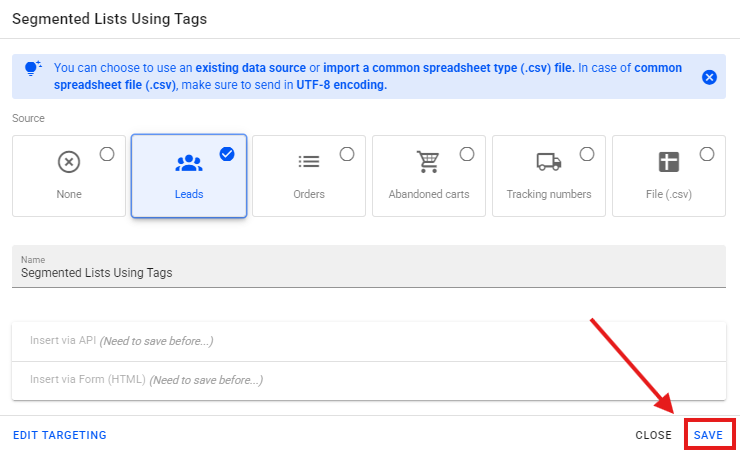
Select the Leads option, enter a name for your list, and then click on Edit Targeting.
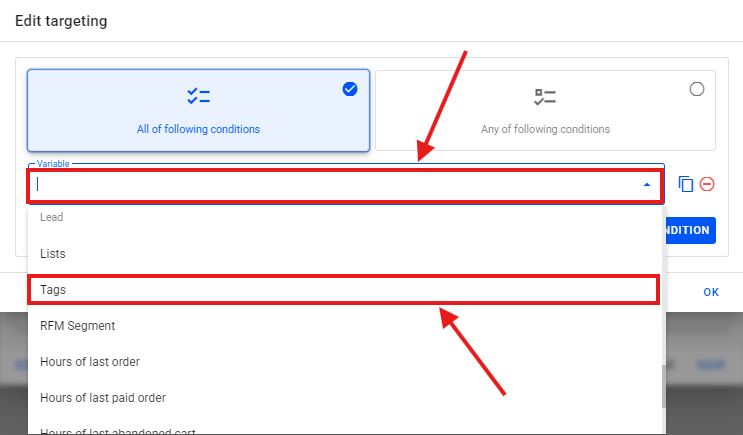
Select Variable → Tags.
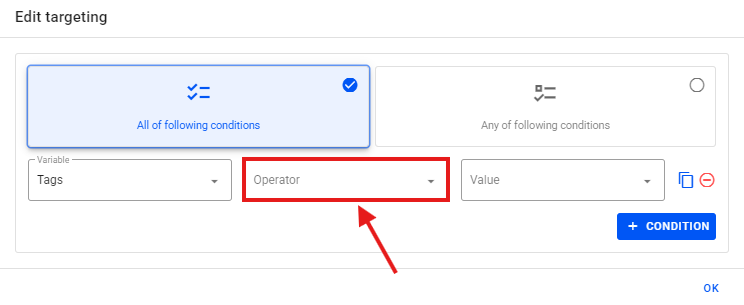
Select Operator → Contains.
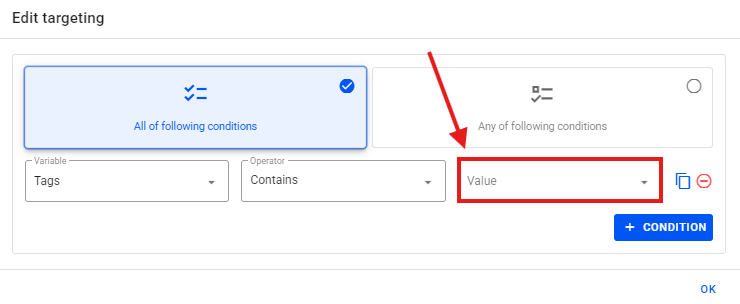
Select Value → Select the desired tag.
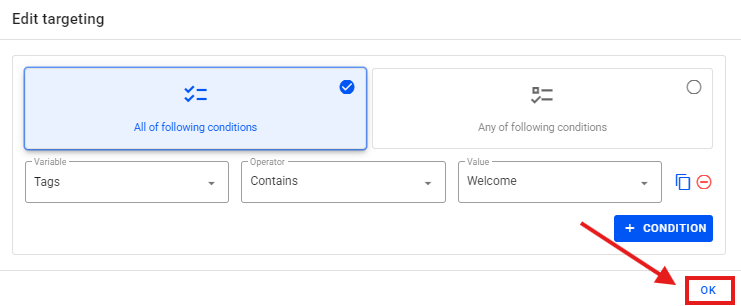
After entering your list segmentation, select the Ok option to save your list segmentation.
Then select the Save option to save your list.