Introduction
A webhook is a method for an application to deliver real-time information to other applications. It works like an automatic notification sent from one system to another whenever a specific event occurs. In Reportana, the Send Webhook block allows your automation to send data to other systems, making it easier to create personalized experiences and complex workflow.
Utility
The Send Webhook block is used to integrate Reportana with any other system that supports webhooks, such as e-commerce platforms, checkout systems, payment gateways, ERPs, and other platforms.
This feature enables:
- Send Data to External Systems: Initiates communication with external platforms (e-commerce, ERPs, CRMs, etc.) via webhook URLs or APIs, notifying events that occur within the automation.
- Perform HTTP Requests: Supports methods such as POST and GET, enabling integration with online services.
- Capture and Use Responses: Stores API responses (e.g., in JSON format) in internal variables (such as "payload.response_json"), allowing further use for personalization and the development of advanced logic within automated flows.
How It Works
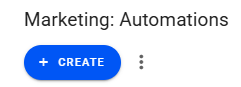
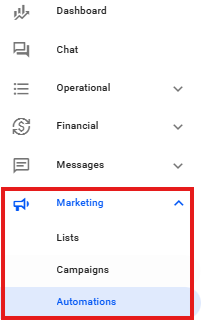
The Send Webhook block is an advanced feature available exclusively to Reportana Enterprise+ plan clients. To access it, go to Marketing > Automations and click +Create.
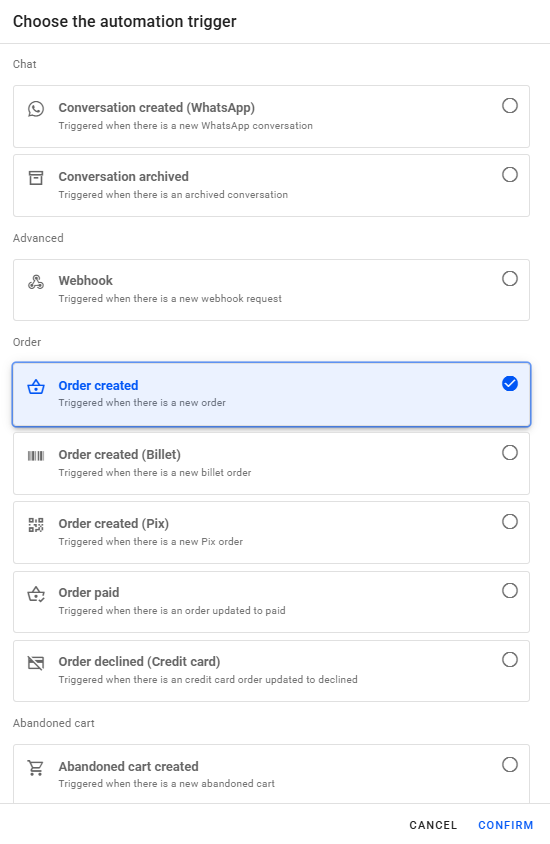
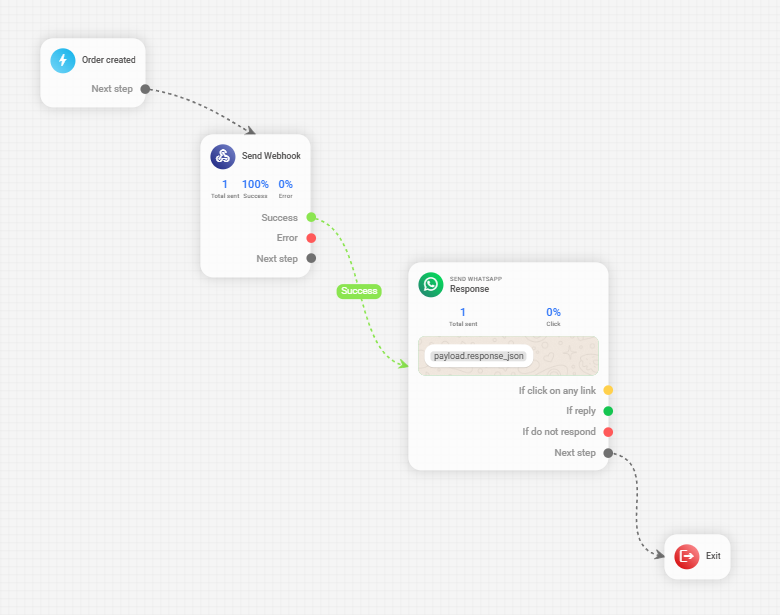
Next, select the trigger to be used in your automation. In this example, we will use the Order Created trigger.
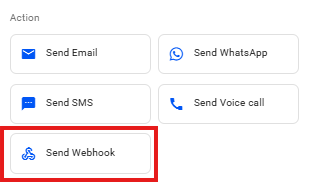
In the automation editor, drag and drop the Send Webhook block into your automation flow.
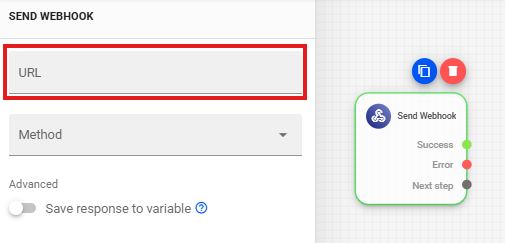
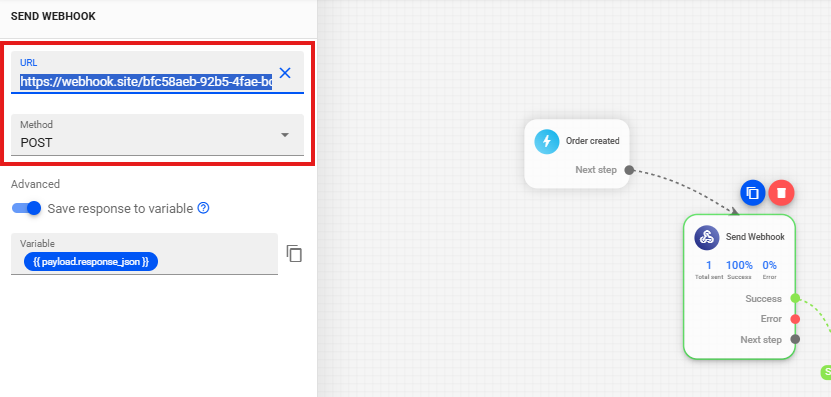
When you click to edit the block, you will need to define the URL of the external system that will receive the data.
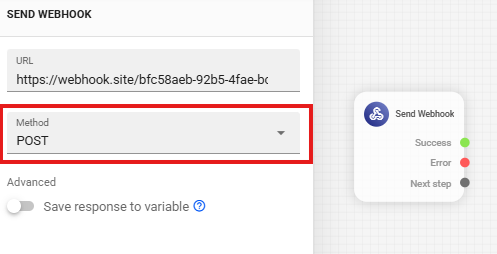
Select the desired HTTP request method, such as POST, for example. The POST method is commonly used to send data for creating or updating resources in an external system.
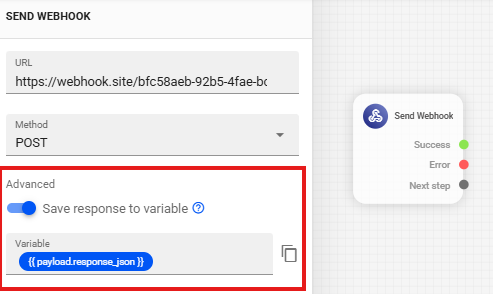
You can configure the Send Webhook block to store the response received from the external system in a specific variable, such as payload.response_json. This response can then be used in the subsequent steps of the automation, for example, to inform the customer about the result of the request.
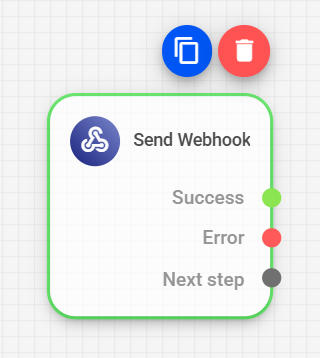
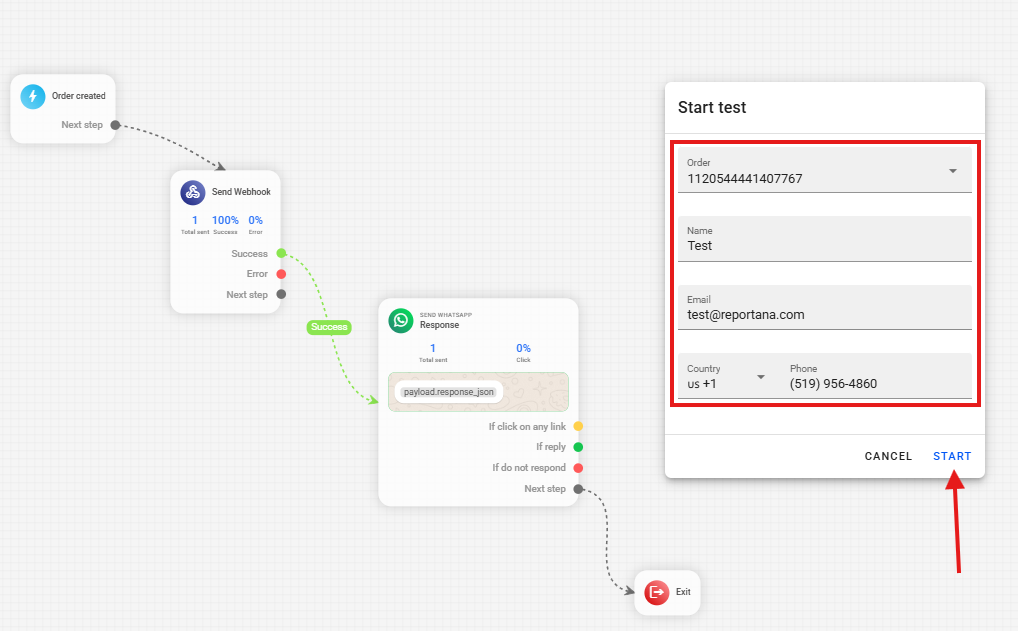
After configuring the block, connect it to the rest of your automation flow. The available outputs are:
- Next Step: continues the flow regardless of the outcome of the webhook block.
- Success: continues only if the webhook request returns success.
- Error: continues only if the webhook request returns an error.
When everything is configured, save the automation and perform the activation.
How to Test the Block
To ensure that the Send Webhook block is sending data correctly, it is highly recommended to perform tests. A useful tool for this is webhook.site.
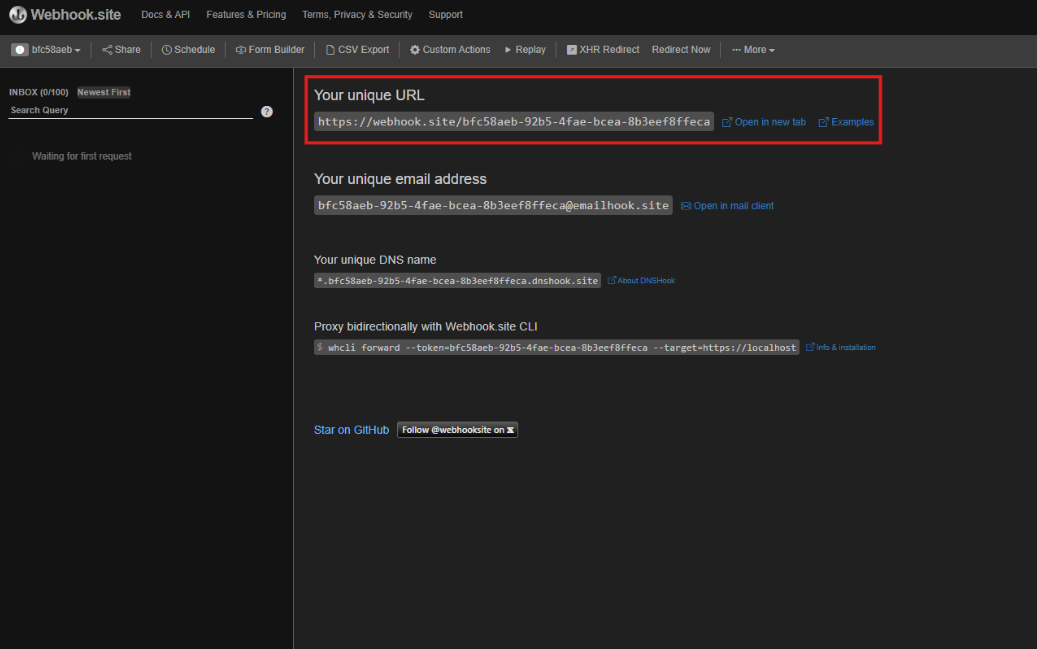
Go to the website https://webhook.site/ and copy the unique URL it generates ("Your unique URL").
In your Reportana automation, paste this URL into the "URL" field of the "Send Webhook" block and select the POST method.
Use the Reportana testing environment (within the automation) to trigger the event that activates the automation.
Return to webhook.site. You will see in real-time the entire data structure sent by Reportana, allowing you to verify if the information is correct and in the expected format.