
Introduction
At Reportana, you can track the click-through rate and conversion metrics of the messages sent through the platform. This data is displayed in intuitive dashboards, allowing you to evaluate the performance of your campaigns and identify opportunities for improvement. In this article, you will understand how to find and analyze these metrics.
How It Works
How conversions and click-through rate works on the platform
- Click-through rate
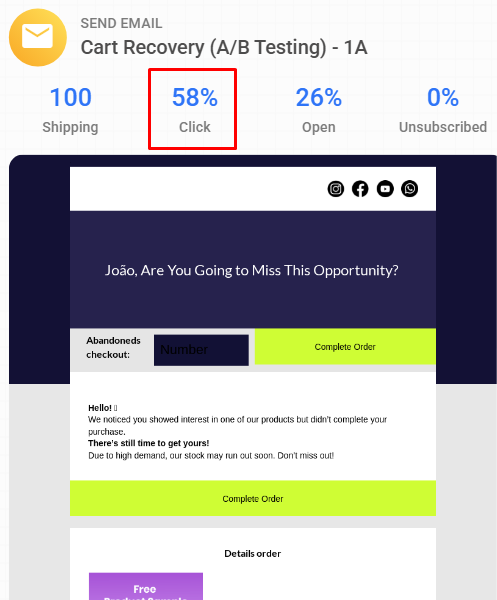
Whenever you add links in your messages sent through the platform, whether via Email, WhatsApp, or SMS, we will record the click-through rate in relation to the message and in relation to the automation or campaign. The click-through rate, expressed as a percentage, is a metric that measures the percentage of users who click on a link included in a message.
- Conversions
Conversion is a metric expressed in monetary value that indicates how much financial return the message, automation, or campaign generated in terms of sales conversion.

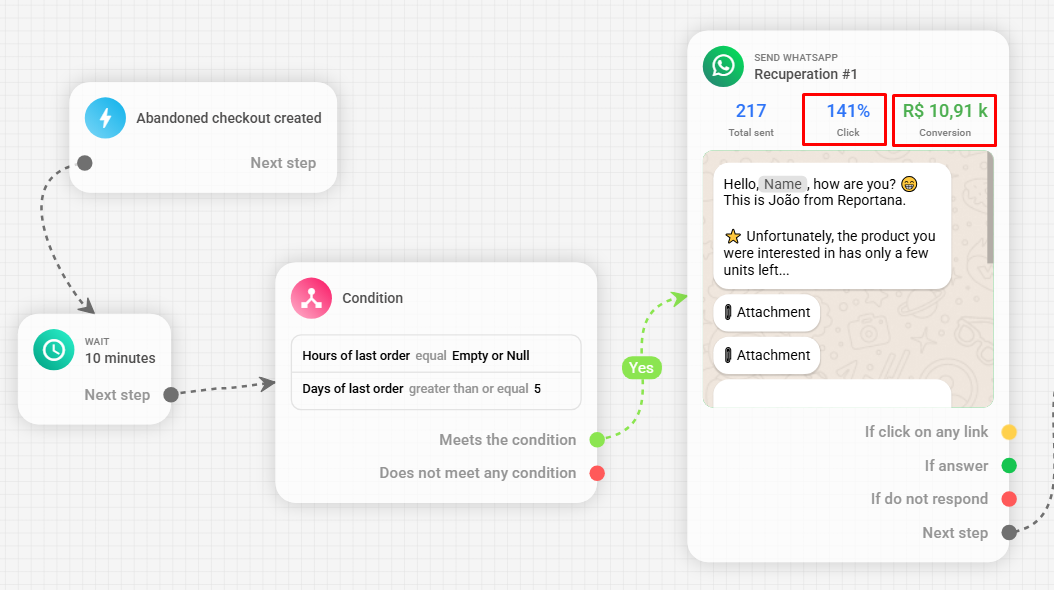
To register a conversion, the customer must click on the link and then make a new purchase or place a new order using the same registered email. In the image above, we show a message for invoice recovery; in this case, the conversion is recorded when the order is paid. This is different from abandoned carts, where the conversion is recorded as soon as the order is created, regardless of whether it is paid or not.
- Conversion deadline:
Conversions are registered on the platform when the customer makes a purchase or a new order within 7 days after clicking on a link sent by our messages.
Important: The conversion is attributed to the last link the customer clicked on. If a customer clicks on multiple links from different messages, the conversion will be associated with the last clicked link, regardless of when the purchase was made. This helps accurately track the customer journey.
- Discrepancies in conversion metrics compared to other platforms
Sometimes, conversion metrics between Reportana and other platforms, such as e-commerce or checkout platforms, may show different values. This happens because each platform defines the conversion metric differently. For example, in the case of abandoned carts, we consider a conversion to be recorded once the order is placed, regardless of payment. On other platforms, the conversion may only be recorded when the order is paid.
- How to ensure correct tracking of clicks and conversions
To ensure accurate tracking of clicks and conversions, it’s important to use the platform's link shortener in your messages. Whether in campaign messages or automations, make sure all external links start with “https://”, for example:
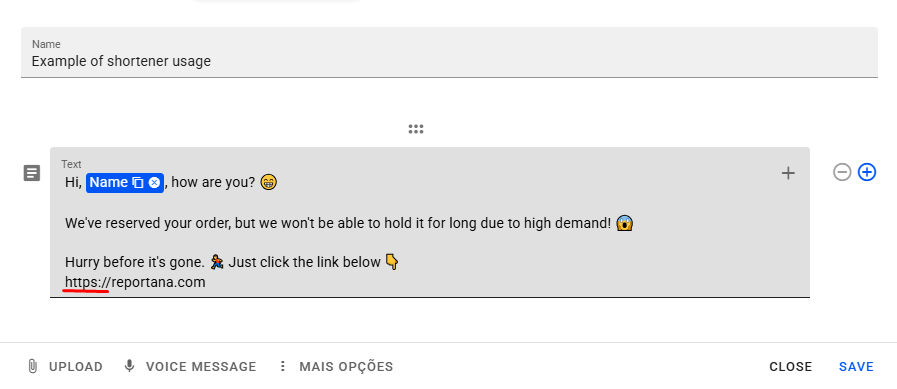
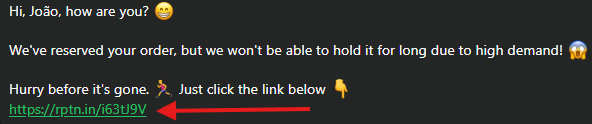
In the example above, we used the link to our site, adding https:// at the beginning of the link. This way, our shortener will automatically be applied to the link, and both conversions and click-through rates will be recorded. This will be the output when sending the message to the customer with the shortener applied:
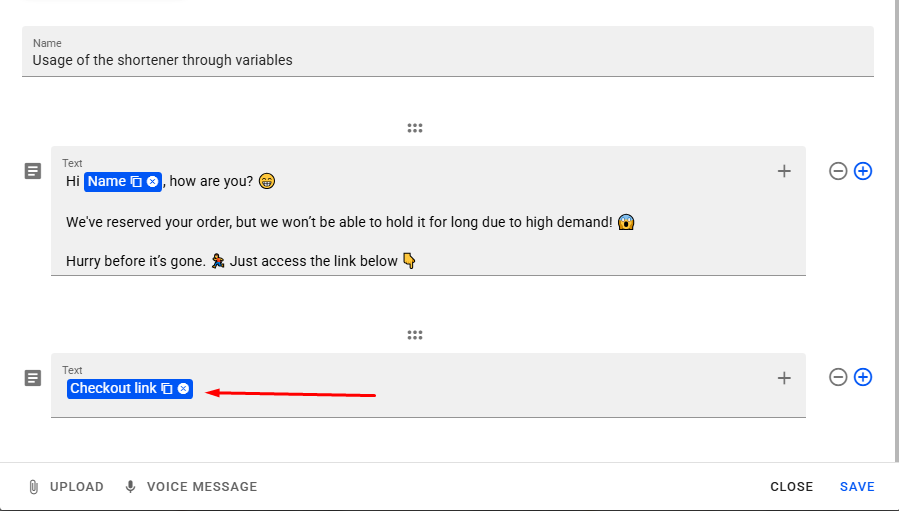
If you use platform variables for links, the shortener will be automatically added, ensuring that click-through rate and conversions are correctly tracked:
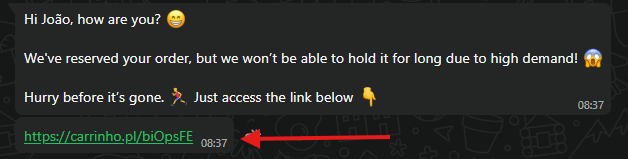
In the example above, we used our variable corresponding to the checkout link. The output will also have the shortener automatically applied.
How to check conversions and click-through rates in automations, campaigns, and messages
The first way to check conversions and click-through rates on the platform is through sent campaigns. To check, go to Marketing ➞ Campaigns. Or access: Marketing — Campaigns
In this section, you can check the conversions of each campaign, as well as the click-through rate in relation to the total sends. Here, the displayed conversion refers to the total campaign performance.
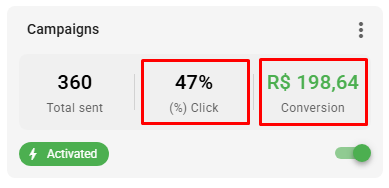
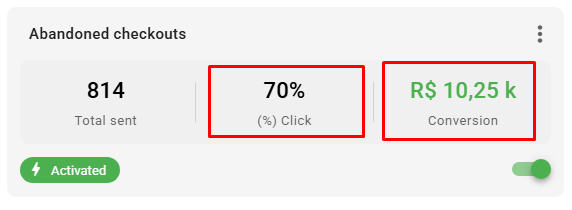
We can also check the same metrics in the automations tab. To access, go to Marketing ➞ Automations. Or access: Marketing — Automations
In automations, conversion and click-through metrics are also displayed for the entire automation.
Additionally, when accessing the automation editor, we can check the conversions and click-through rate of each message used in the structure.
For a more detailed summary of conversions and click-through rates, we can access the automation and campaign reports. To do this, in the corresponding tab, click on the three dots ➞ View report.
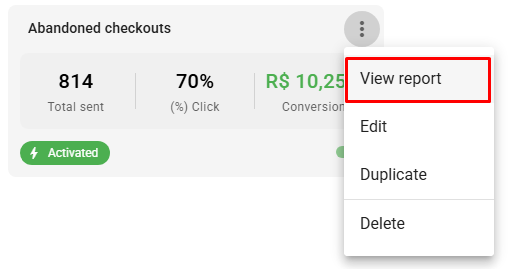
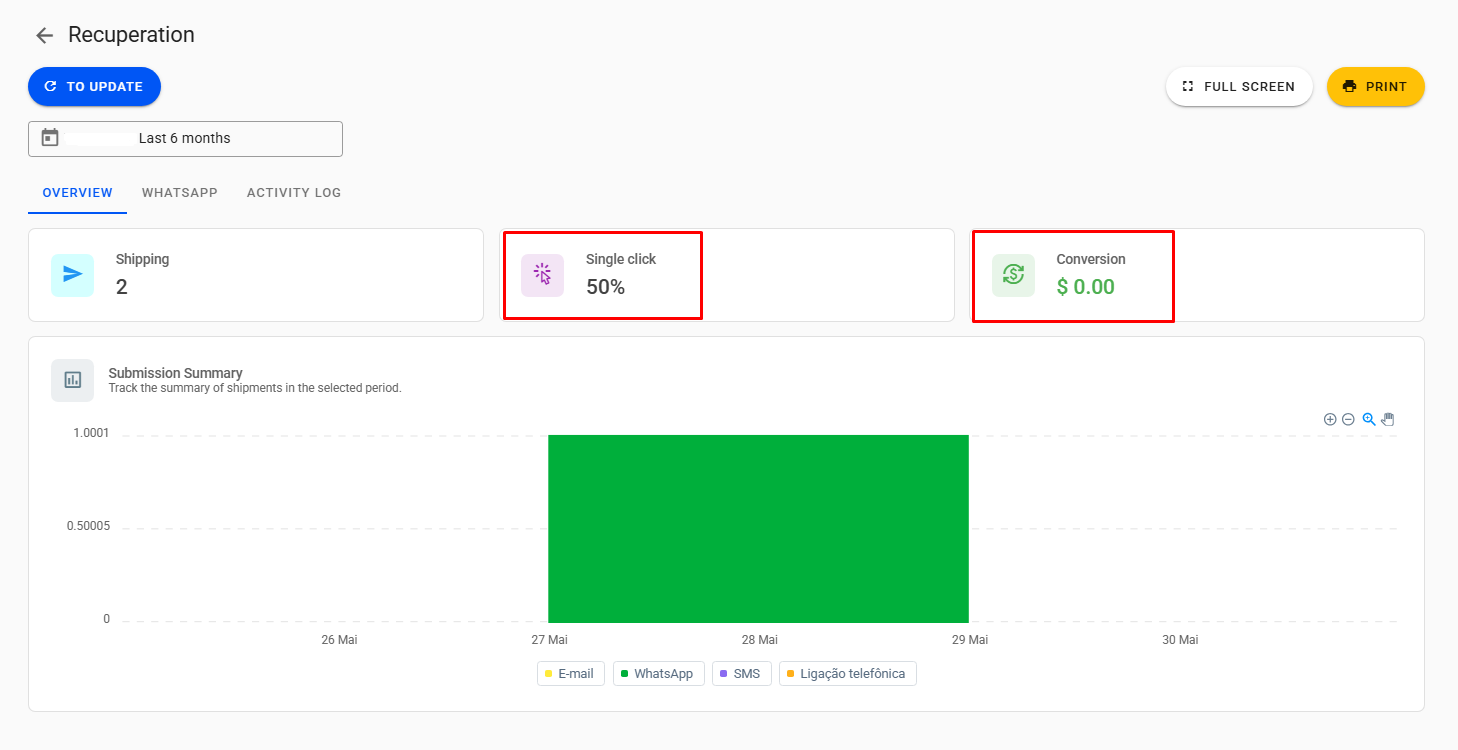
In the reports, we can view the click-through and conversion rate based on the total sends and the applied filter.
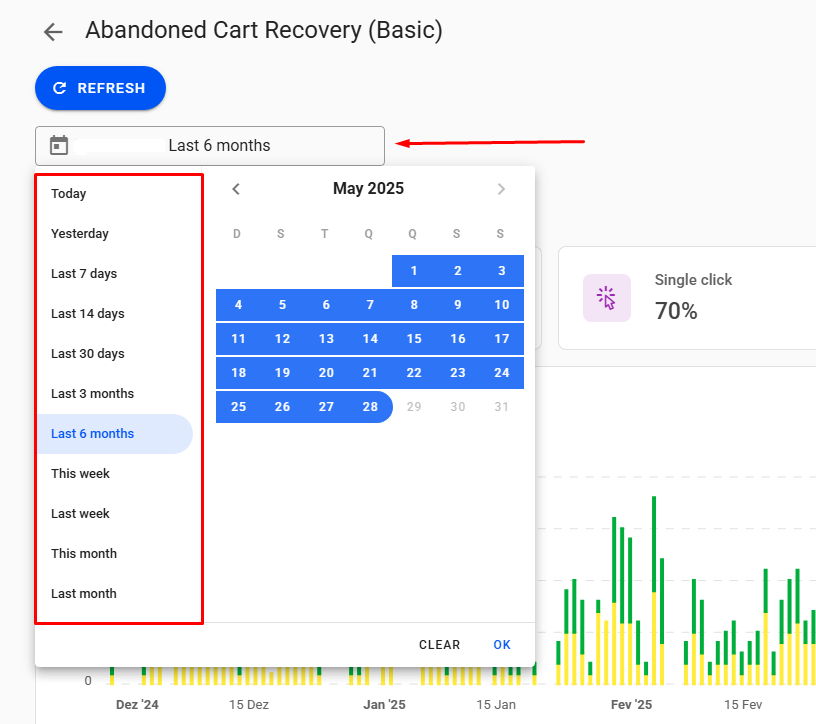
In the filter, you can change to the desired period.
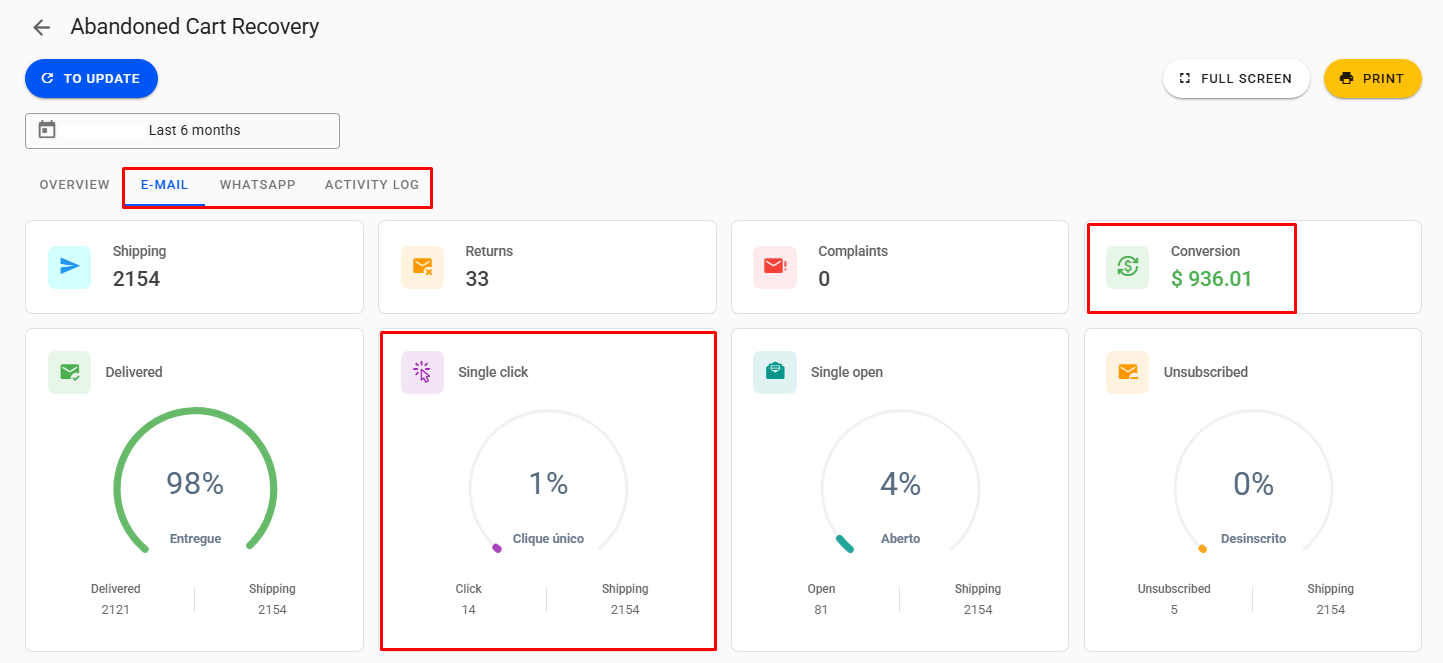
It is also possible to filter the metrics according to each type of message used in the automation or campaign.
Note: You can also view some conversion metrics in our dashboard. If you want to learn more about the metrics displayed there, we recommend checking our tutorial: Get to Know Our Financial Dashboard — Help Center
