Introduction
Keeping your customers updated on the status of their orders is crucial for a good shopping experience. On Reportana, you can create an automation that sends automatic notifications whenever there is an update on an order's tracking. In this tutorial, we will detail the process of creating an automation from scratch, from the basic setup to using advanced conditions for different scenarios.
How it works
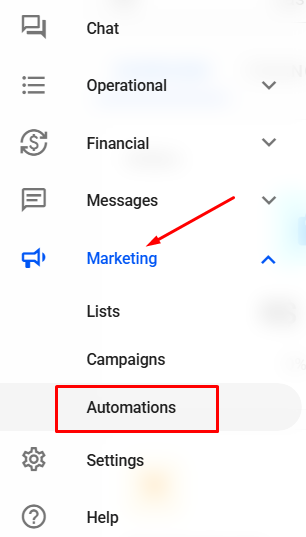
Navigate to Marketing → Automations. Or access: Automations.
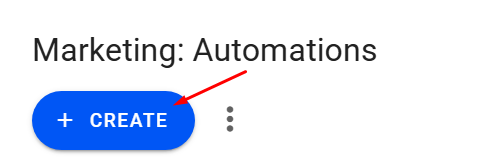
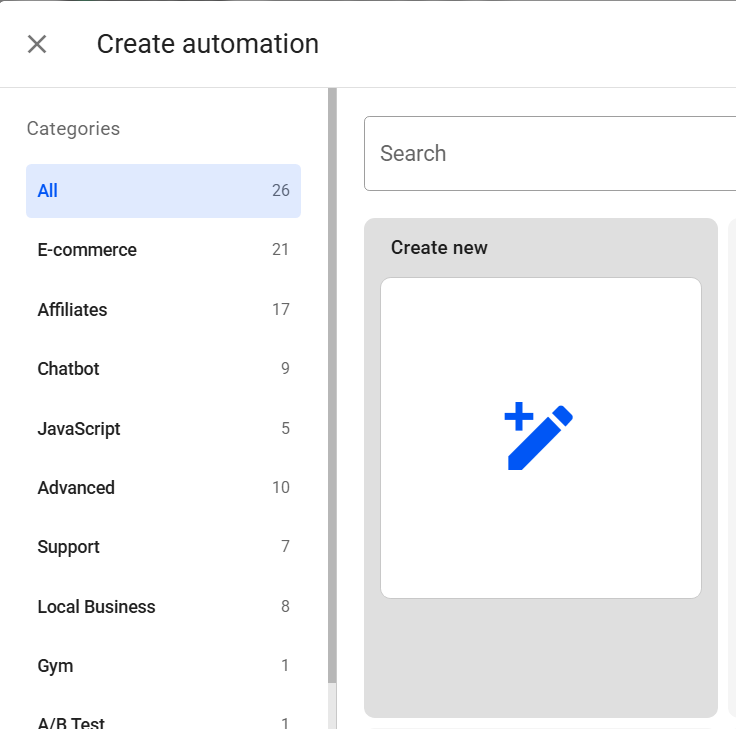
Click the Create button to start a new automation. You can choose to use pre-existing automations (such as the one under the "E-Commerce" category for "tracking status update") or create a new automation from scratch.
For this guide, we will create an automation "from scratch" by clicking Create new.
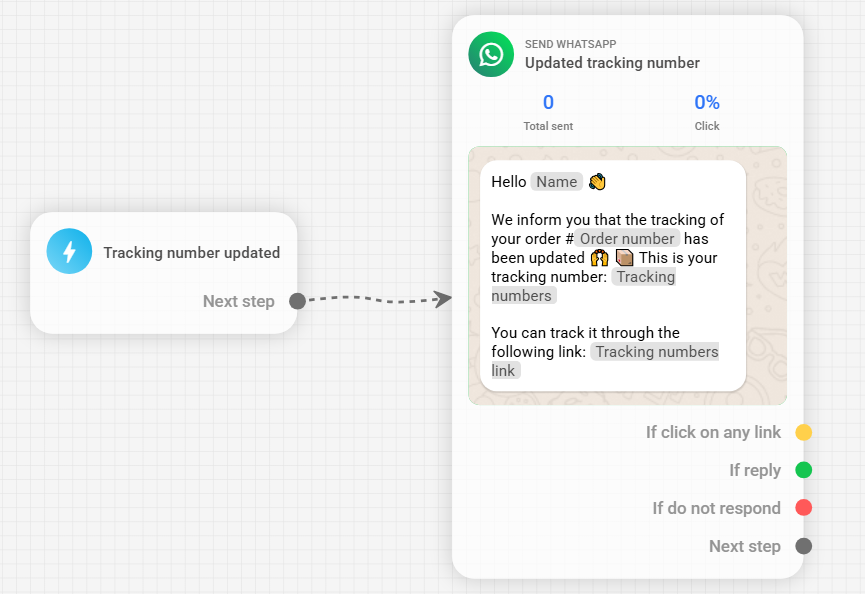
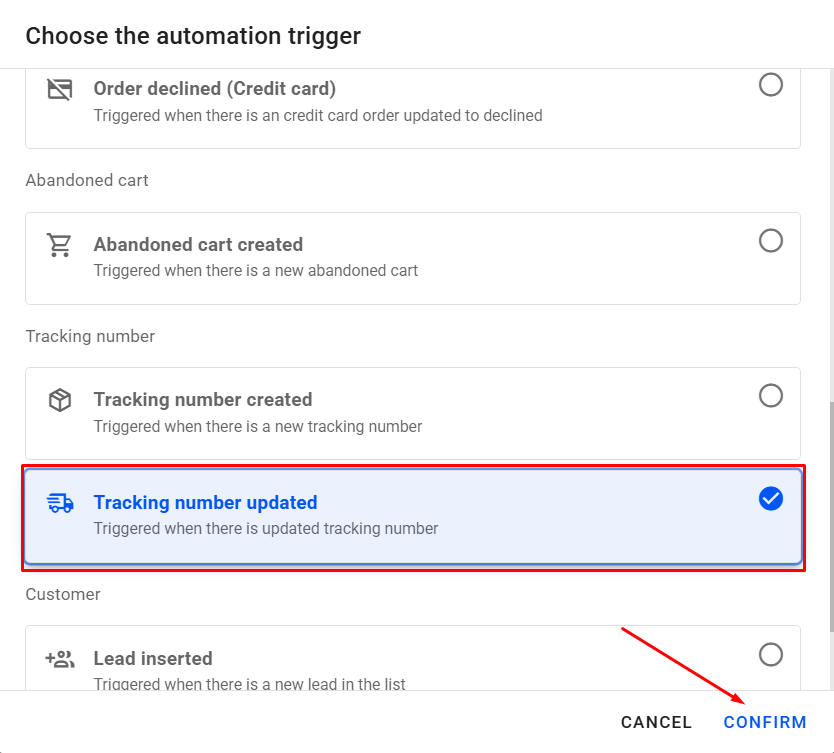
For the trigger, search and select the Tracking number updated option. This trigger ensures that the automation is activated every time there is a tracking update on an order. After selecting it, click Confirm.
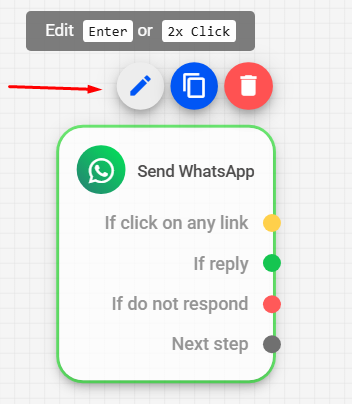
Once inside the automation editor, we recommend creating a new message or selecting an existing one. To do so, click the Send WhatsApp block and then click the pencil icon to edit the message.
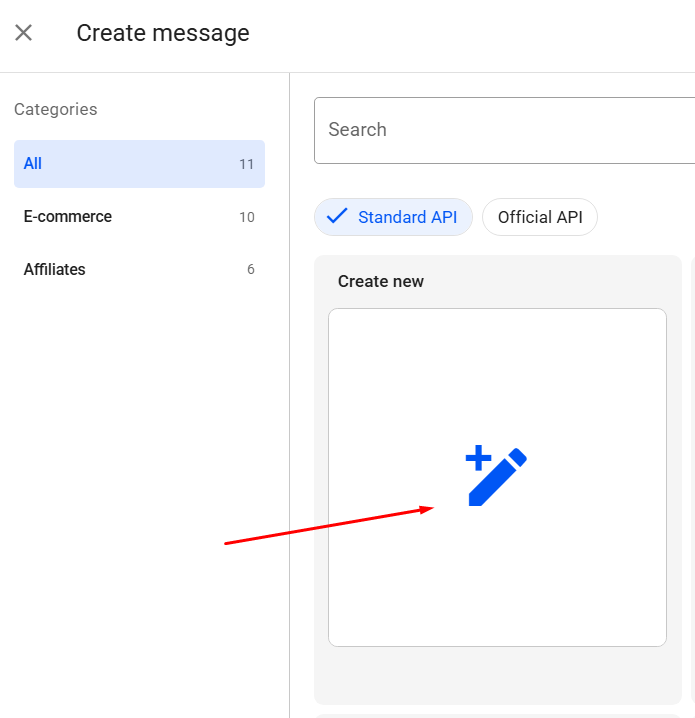
You can select an existing message or create a new one. To create a new message, click Create new.
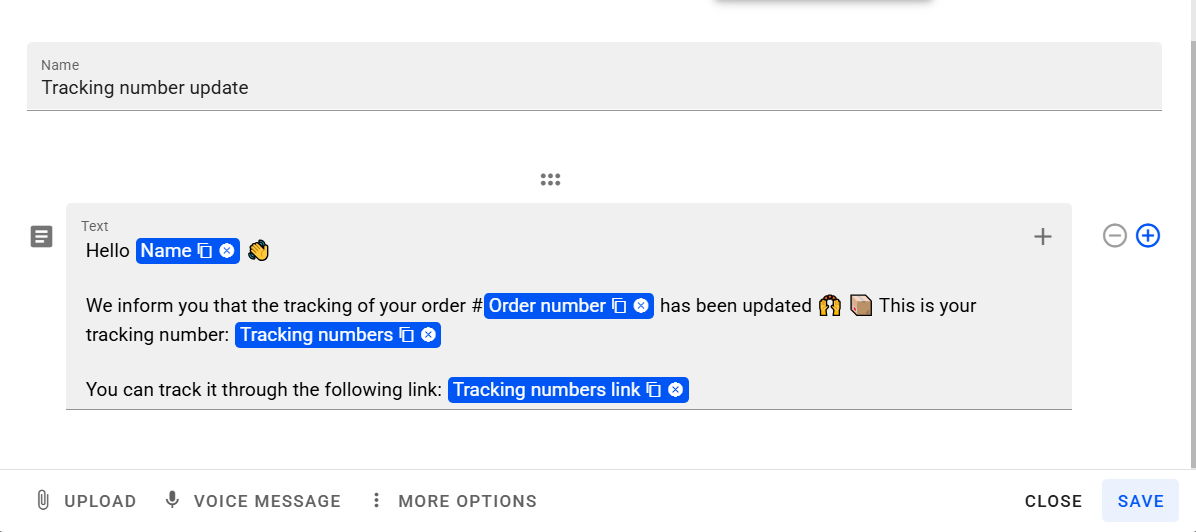
Enter the content of your message. A basic example might include:
- “Tracking number updated” (as a title);
- “Hello, (variable: customer's name)”;
- “There has been an update to the status of your order, please check below:”;
- “Tracking code: (variable: tracking number)”;
- “Tracking link: (variable: tracking link)”.
After creating the message, click Save.
Note: If you need more details about editing WhatsApp messages, we recommend viewing the article: Getting to Know the WhatsApp Message Editor
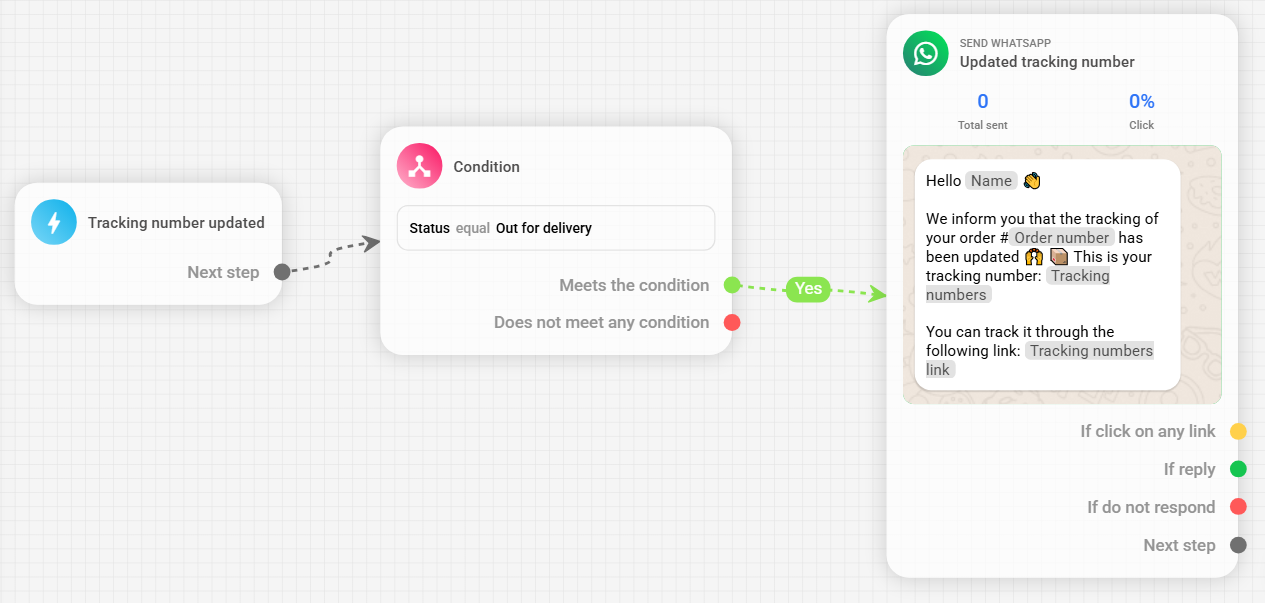
With the message created, connect the Tracking number updated trigger to the WhatsApp message. This way, every time a tracking update occurs, the WhatsApp message will be sent.
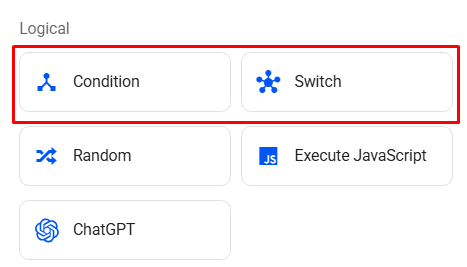
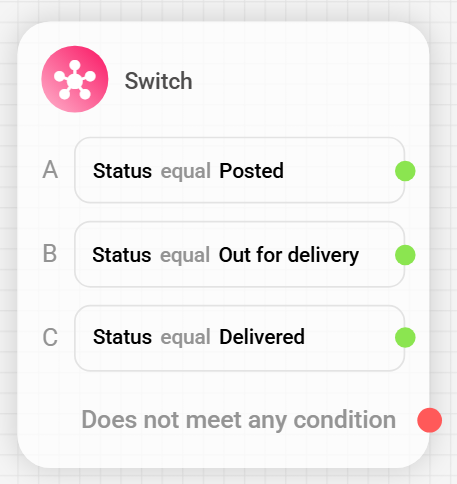
You can also add conditions to send messages only when the order reaches a specific status, for example: Out for delivery. To do this, add a condition block to your automation, or a switch block if you want to filter more than one tracking status.
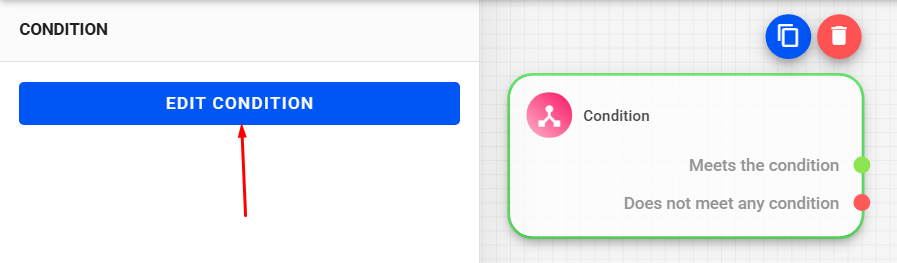
Select the condition block added and click Edit condition.
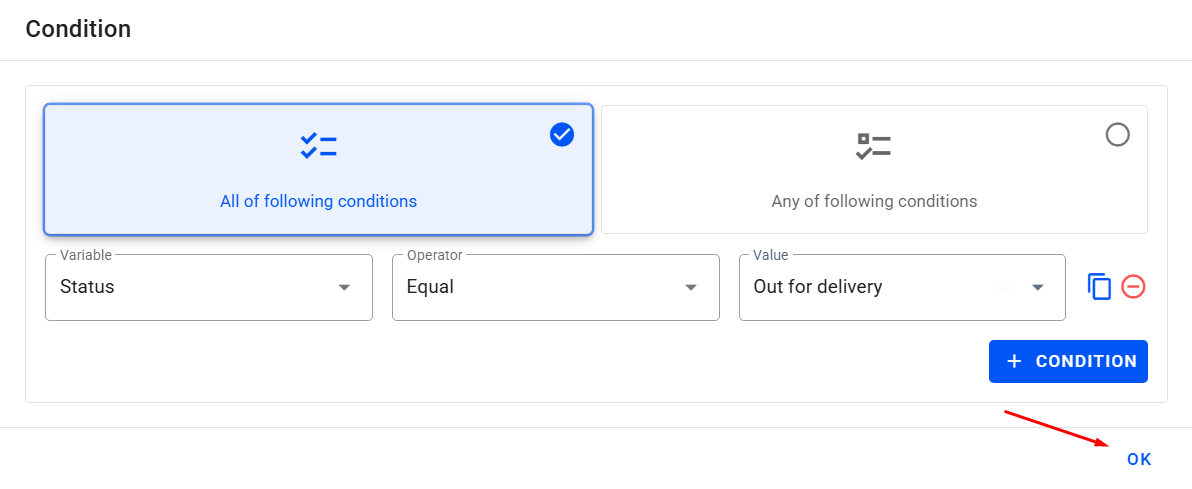
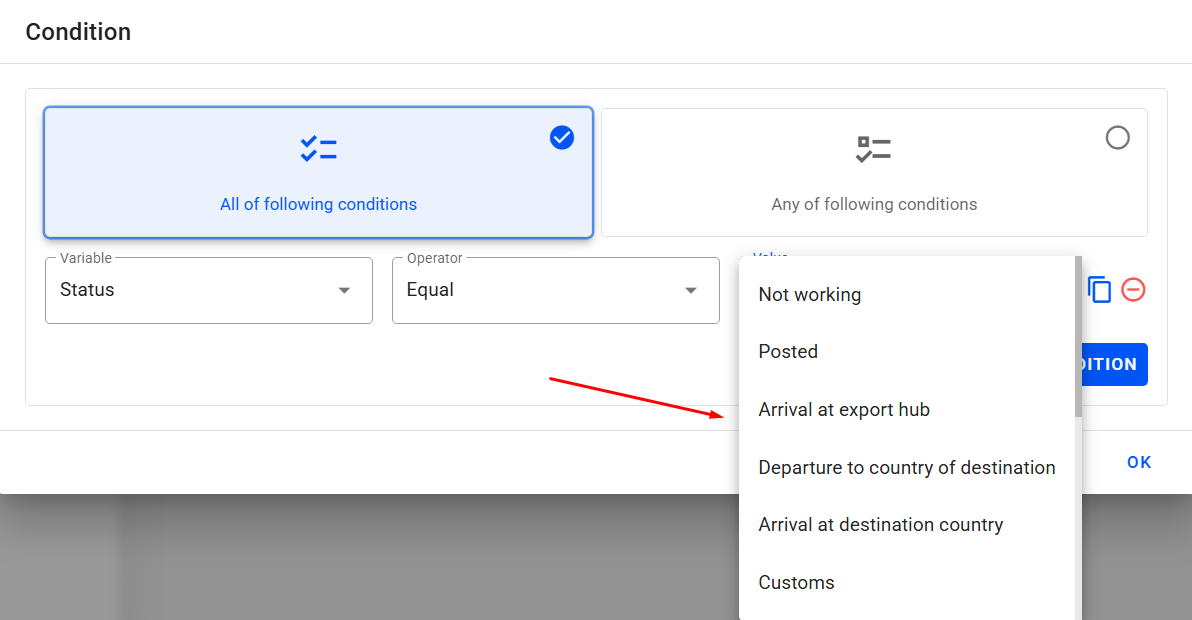
In the condition, set the following options:
- Variable: Search for Status (tracking number).
- Operator: Select the equal operator.
- Value: Choose the desired status, for example, Out for delivery.
- Click Ok.
Once the condition is configured, you must insert it between the trigger and the WhatsApp block, linking the sub-trigger Meets the condition to the WhatsApp block.
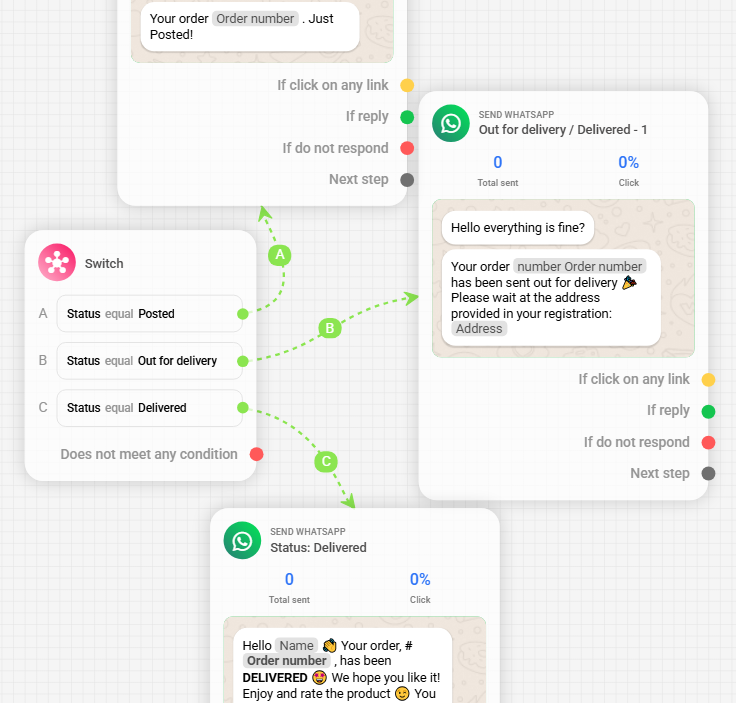
You can also use the multiple condition block to select several tracking statuses in one automation. Just add a new Switch block and define the desired filters in its settings by clicking Add to include the number of conditions needed → Edit Condition to configure the desired status.
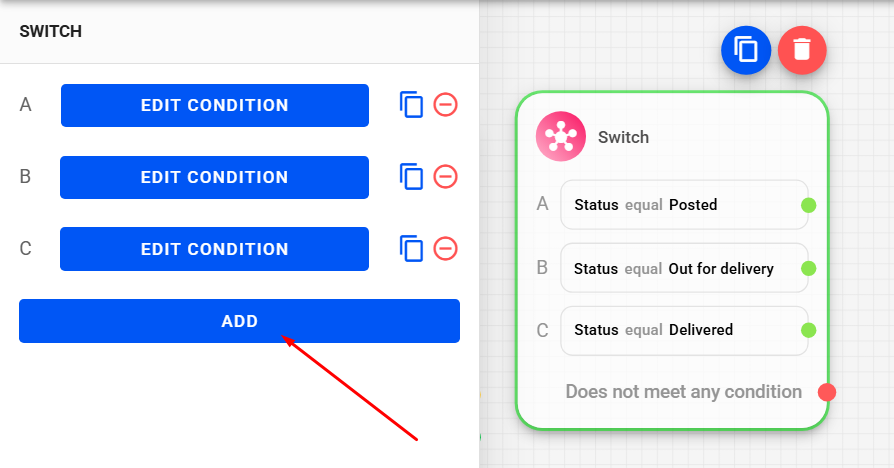
After that, link each status in the condition to the corresponding messages.
The statuses mentioned in the above conditions are just examples, but you can also select any status available in the value option of the condition.
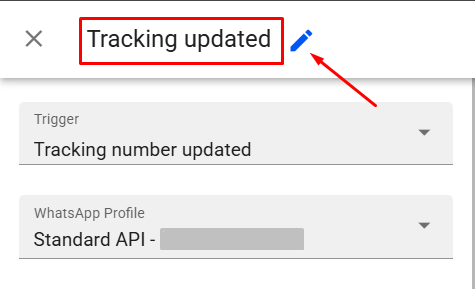
To finish, give the automation a name to make it easier to identify.
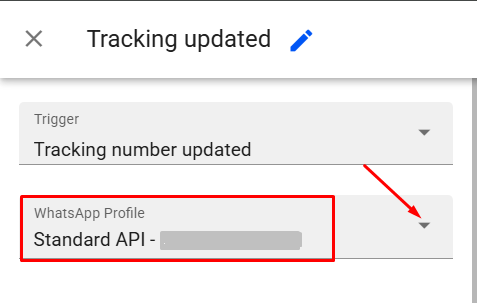
Next, define the WhatsApp profile that will send the messages.
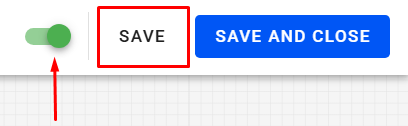
After that, activate the automation and click Save.
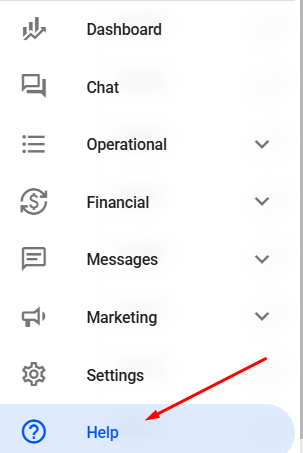
If you have questions about which carriers we are integrated with, we recommend contacting our support team for verification by clicking Help on the left sidebar.
Then, select the channel you would like to use to get in touch (email or WhatsApp).