Introduction
In this article, you will learn how to create a chatbot automation with chat distribution in Reportana, using one of our models as a base, to organize your team's service support and automatically distribute conversations to specific departments or agents.
How It Works
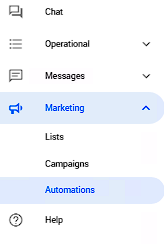
In your Reportana account, navigate to Marketing in the side menu → Automations. Or access: Automations
Select the +Create option to create a new automation.
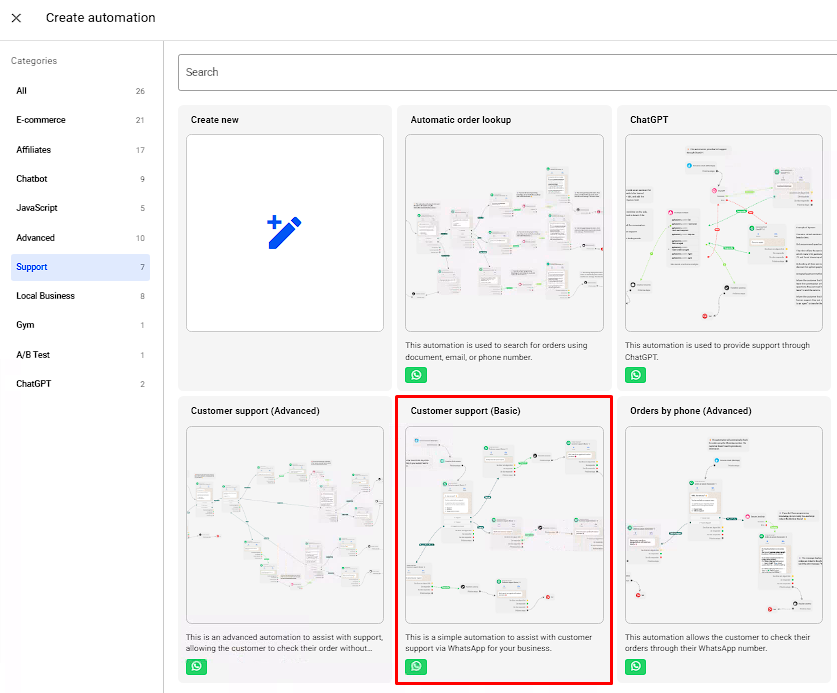
You can then create a new automation from scratch, or use one of our templates. In this case, search for the Support category and locate our Customer Support (Basic) template.
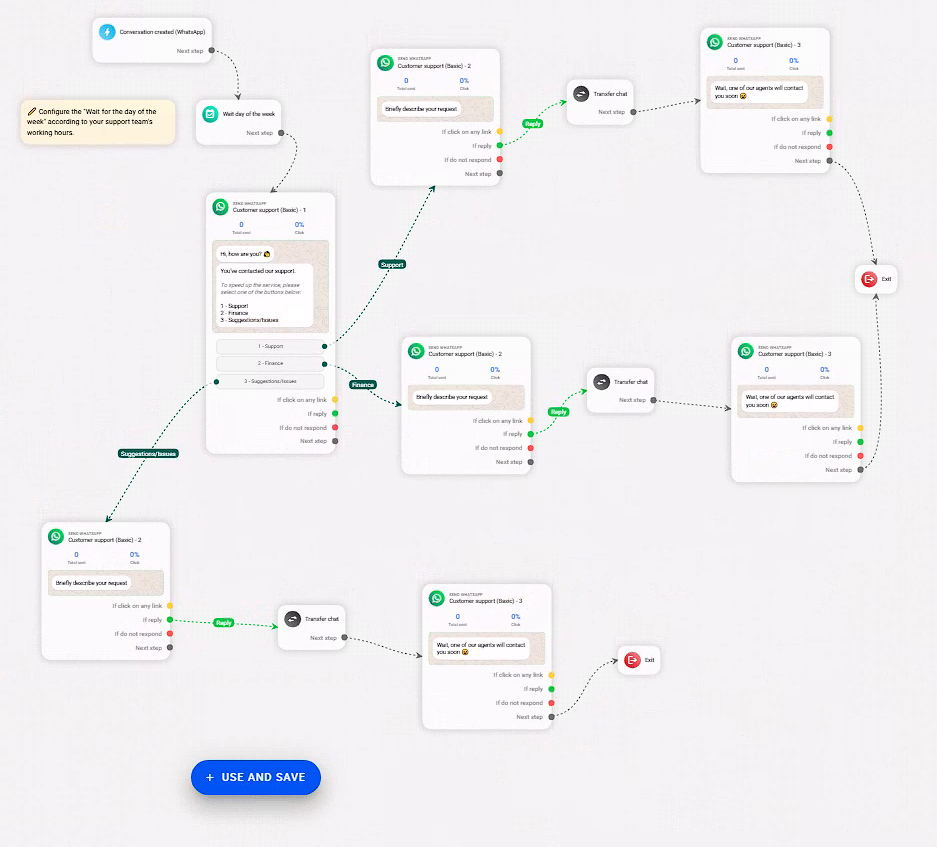
To use the pre-configured model, simply select the + Use and Save button displayed on the screen and the automation editor features will be enabled to adjust it according to your needs.
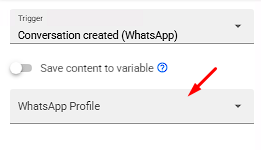
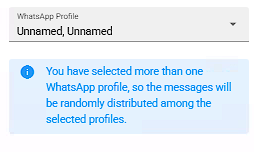
On the left side, find the WhatsApp Profile option to select your numbre connected to the account, as the profile for sending messages. It is also possible to select multiple profiles at the same time.
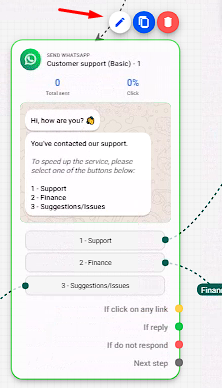
When selecting a message, you can edit it using the ‘’pencil’’ or double-click.
Note: If you want to learn in more detail how to configure a message, we recommend that you check out our article: Getting to Know the WhatsApp Message Editor
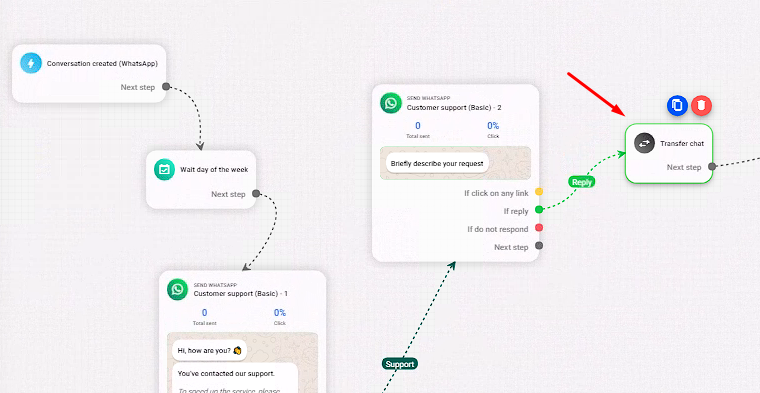
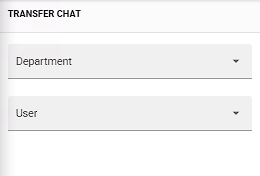
The next step is to identify who you want to transfer your customers to; by selecting the Transfer Conversation block you can configure up to two options in each block:
- Department: A department of your choice will be applied to the conversation that identifies the customer in the conversation and the responsible sector. We recommend that it corresponds to the customer's request. To learn more about this, check out: How to Configure Departments
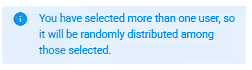
- User: To whom the conversation will be transferred in the platform chat, if you select multiple users, the redirection will be random among those selected.
After finishing the settings, save and activate your automation using the button. You can also use our other models as a base if you are looking for more specific settings!