Introduction
The connection between WhatsApp and the platform is used to send messages, whether through automations, campaigns, semi-automatic sends, or chat. In this article, we will show you how to connect your WhatsApp directly to the platform using the Standard API.
Important: This article describes how to connect with the Standard WhatsApp API available on our platform, If you'd like to learn how to connect with the Official WhatsApp API, we recommend checking out our tutorial: How to Connect to the Official WhatsApp API — Help Center.
How it works
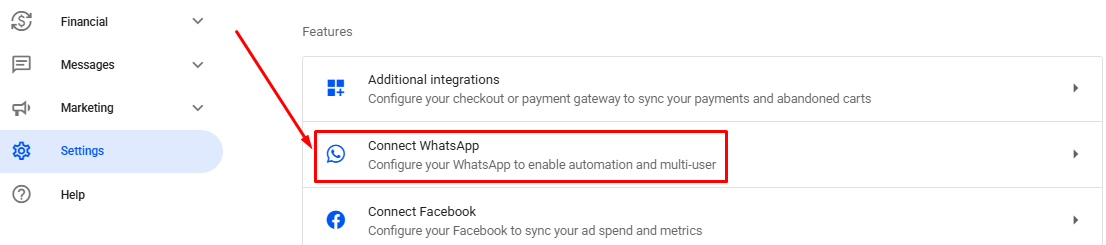
In your Reportana account, navigate to Settings on the menu side → Connect WhatsApp. Or access: Settings — Connect WhatsApp.
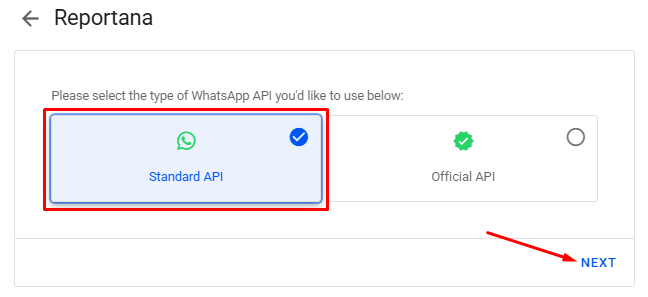
Choose the Standard API ➞ Next.
On your first access, a QR code will be displayed for scanning. Follow the instructions below to connect.
Instructions:
- Open WhatsApp on your phone.
- Tap More options or Settings and select Linked devices.
- Tap Link device.
- Point your phone at this screen to scan the code.
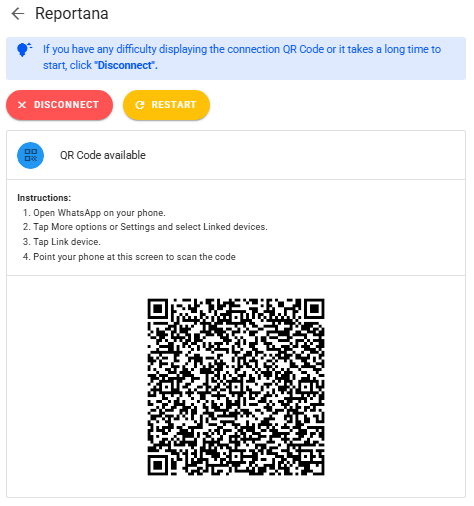
Note: When reading for the first time, it may take a few minutes to connect, as your messages will be synchronized with your account.
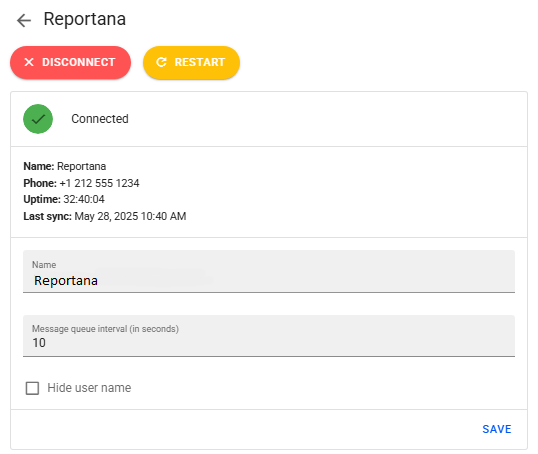
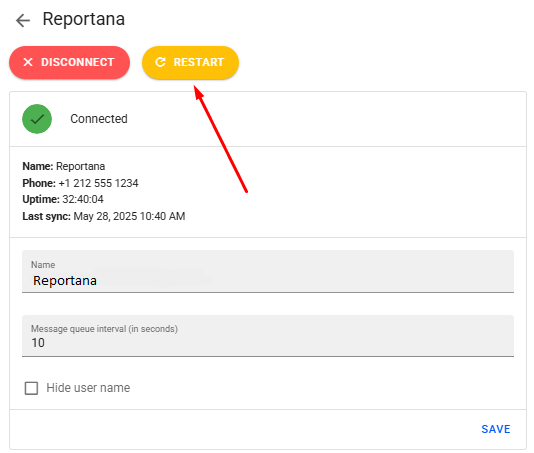
After connecting, the status will change to Connected, and information such as your name, connected number, uptime, and last sync date and time will be displayed.
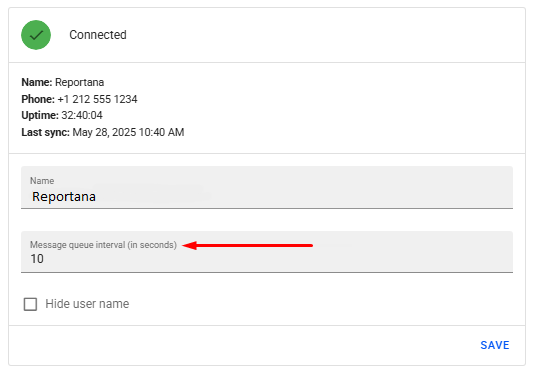
Below, set the Message Queue Interval (in seconds), which is the time between sending each message to the message queue sent via the automations. To configure it, enter the desired number of seconds, click on Save and then Restart to apply the changes.
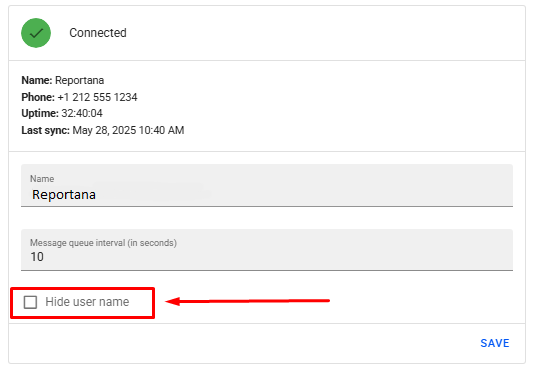
It's also possible to enable the Hide User Name option. If selected, the user name will be hidden during chats in our system.
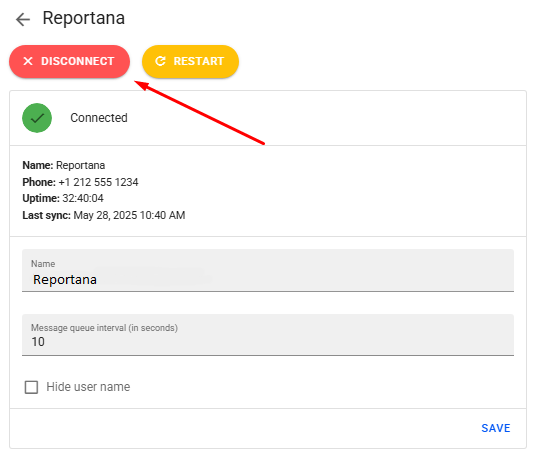
It's also possible to disconnect the device. Just click on the DISCONNECT button.
If there problems with message synchronization, we recommend clicking on the RESTART button.