Introduction
Reportana uses WhatsApp messages to facilitate sales recovery automations. In this tutorial, you will learn how to create specific messages to recover credit cards and their variations. We'll explore the options for sending messages, both semi-automatically and integrated into automations, ensuring efficient, automated communication with your customers.
How it works
There are two types of declined cards. Those that are declined immediately at the time of purchase are characterized as declined abandoned carts, and those that are declined after an analysis by your payment gateway are characterized as orders that had a declined card.
Declined Abandoned Cart Message
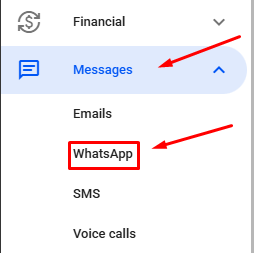
In your Reportana account, navigate to Messages in the side menu → WhatsApp. Or access: Messages ㄧ WhatsApp
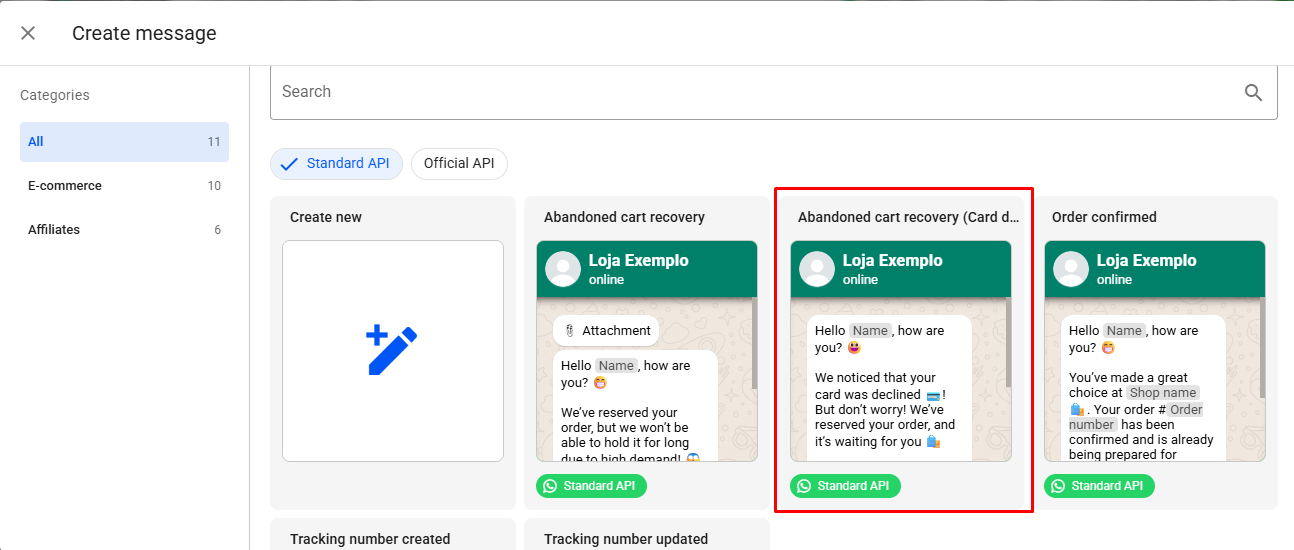
Then click on + Create. When creating a new WhatsApp message, you can use our template for recovering a declined card.
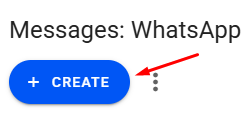
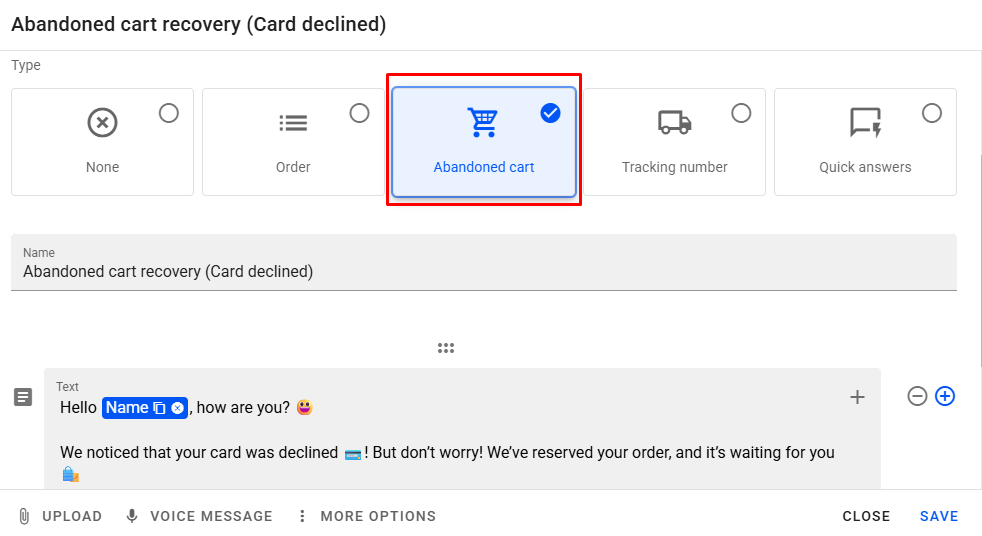
To create a new message, select CREATE NEW, and then select the message type Abandoned Cart.
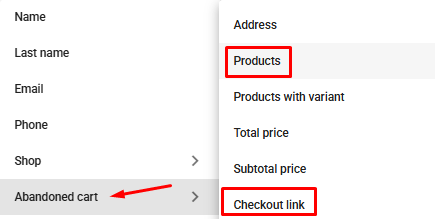
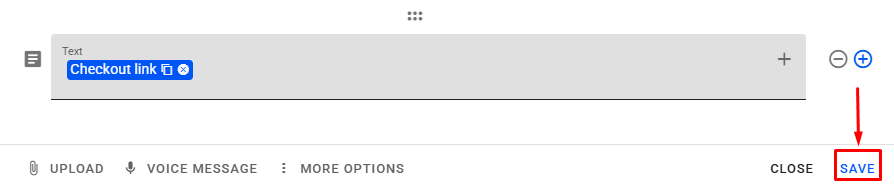
To add text variables, click on the + icon in gray, and you can add customer data, referring to the product they liked and the Checkout Link.
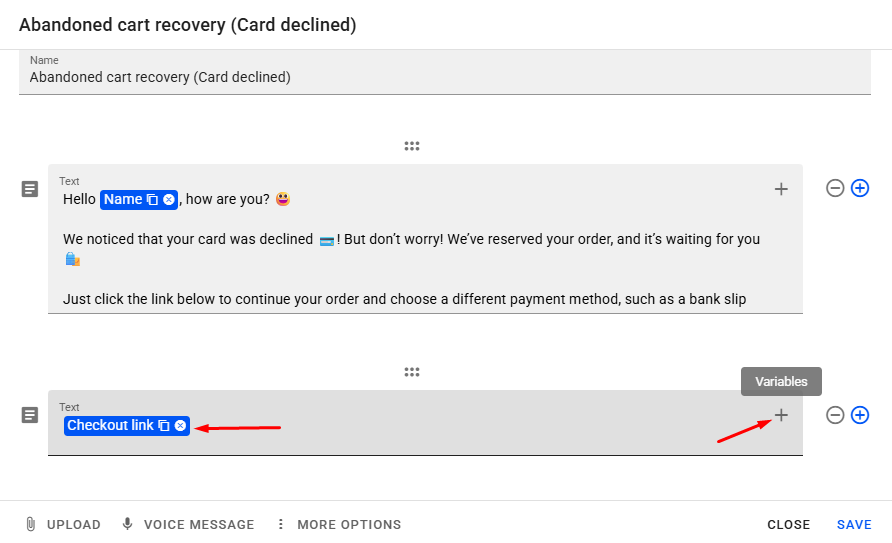
After inserting the variables, click on Save.
Declined Order Message
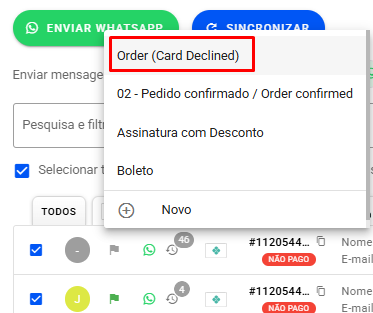
To create a new message for recovering declined cards characterized as a request, create a new message of type request.
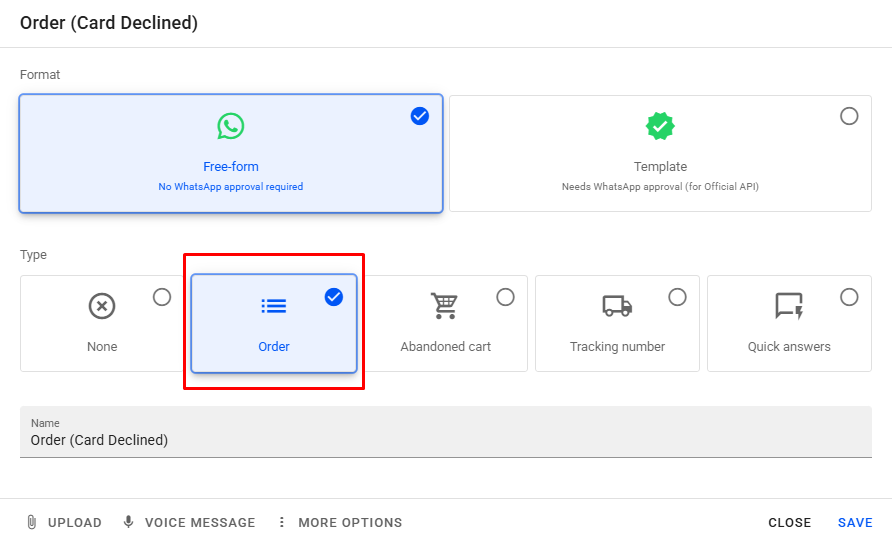
By clicking on the + icon in gray you can add text variables, such as the products in the order and the total amount.
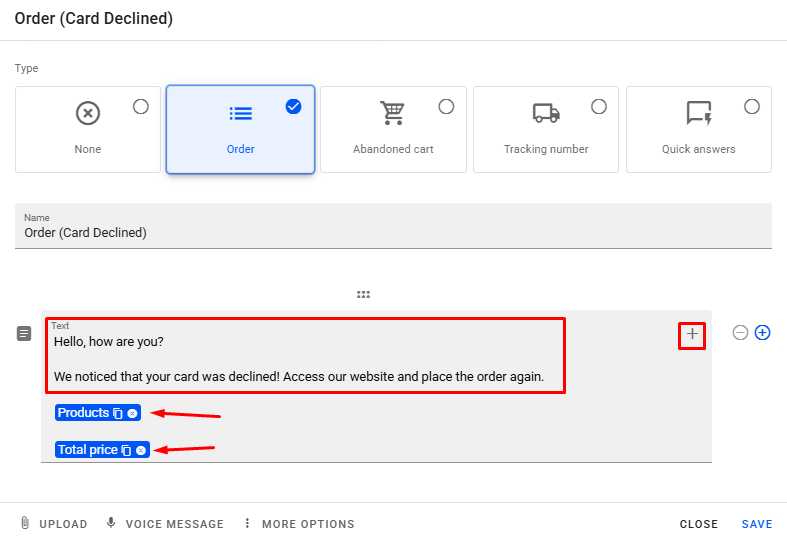
Note: Orders do not have a Checkout link because in this case, the checkout has already been completed and the order has been generated. We recommend that you create a message instructing the customer to make the purchase again on your website.
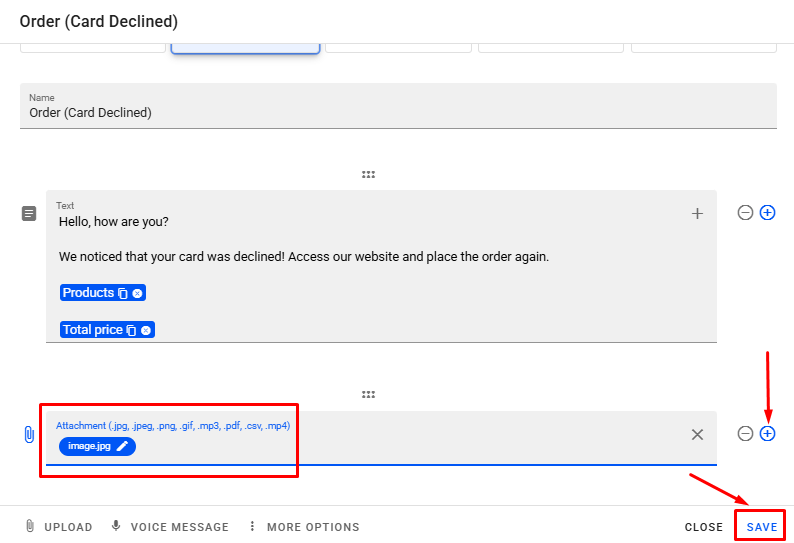
- By clicking on the + icon in blue, you can also add an attachment with an image of the product and click Save to validate the changes made.
Note: To learn in more detail how to create WhatsApp messages, we recommend watching our tutorial Getting to know the WhatsApp Message Editor.
How to Send Semi-Automatic Messages
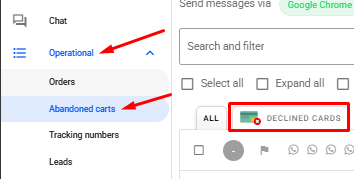
In the side menu, click on Operational → Abandoned Carts and Declined Cards.
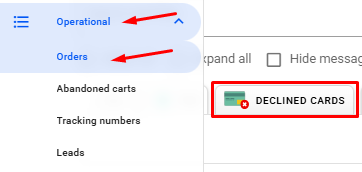
Or you can also go to the Orders tab by accessing Declined Cards.
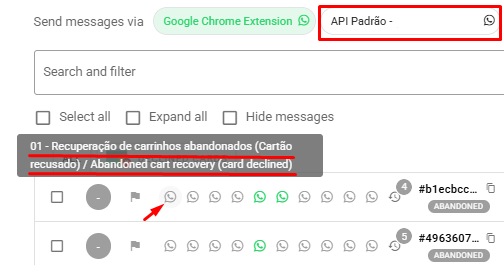
To send the message, select the WhatsApp profile that is logged into your account and click on the gray WhatsApp icon for the message you want to send.
Or select your contacts and send them all at once by clicking on Send WhatsApp.
Declined Abandoned Cart Recovery
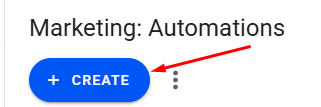
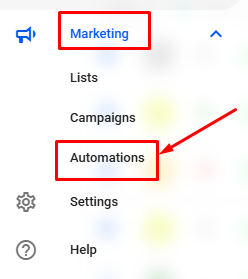
To send automatically, create an automation by clicking on Marketing → Automations in the side menu.
To do this, click on + Create and then on Create New.
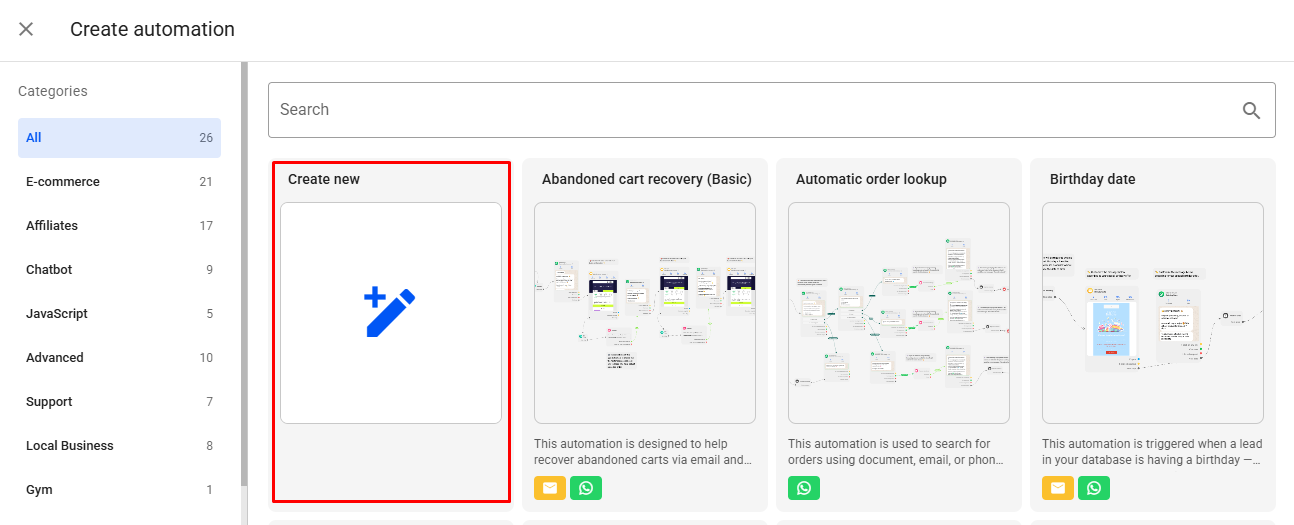
Note: You can use one of our automation templates to recover a declined card, just select it in the templates window.
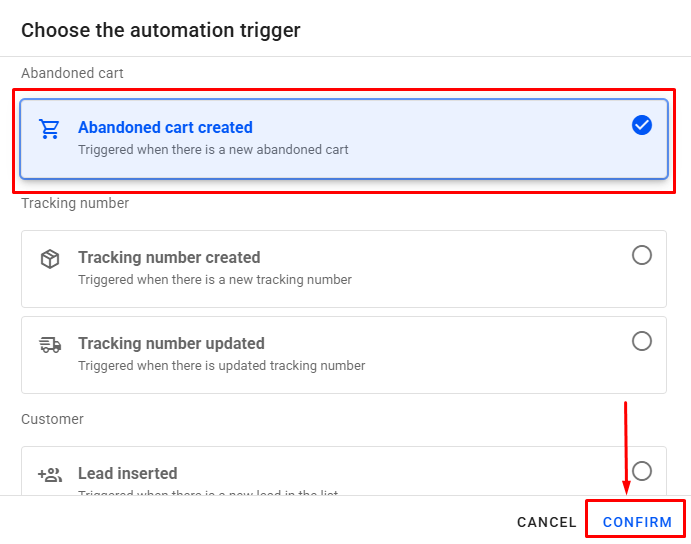
Select the trigger Abandoned Cart Created and click on Confirm.
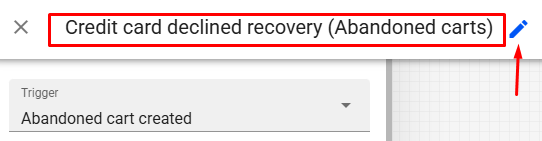
Insert a name for the automation.
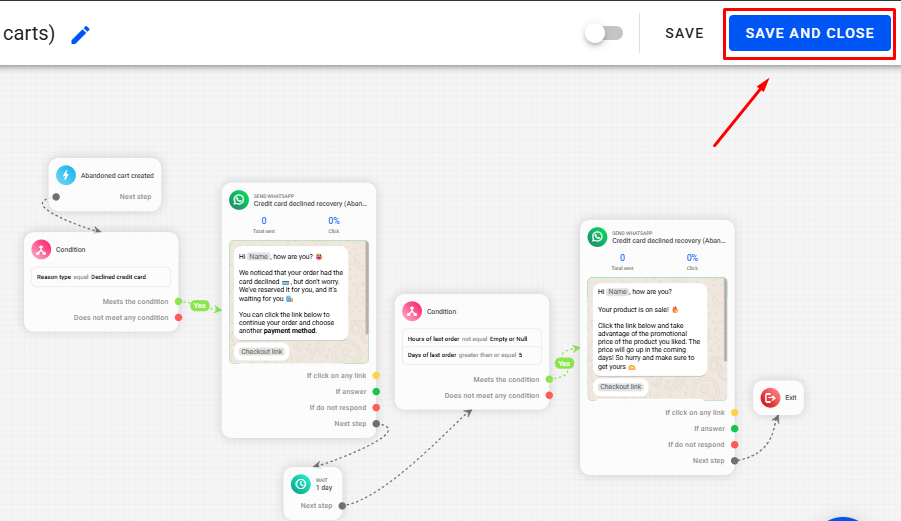
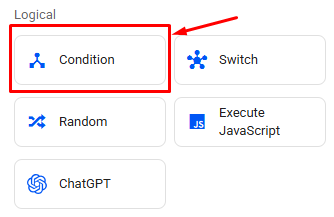
To filter those who have been refused a card, add a Condition Block.
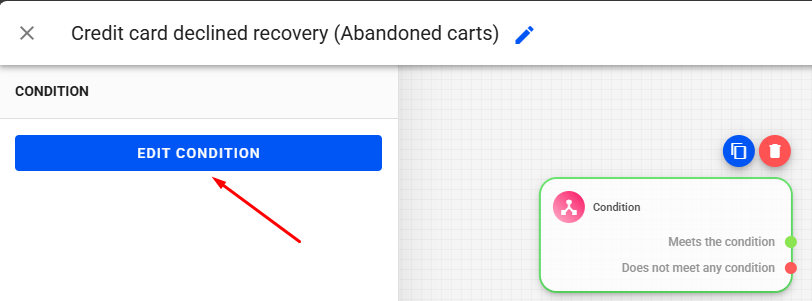
Then click on Edit Condition.
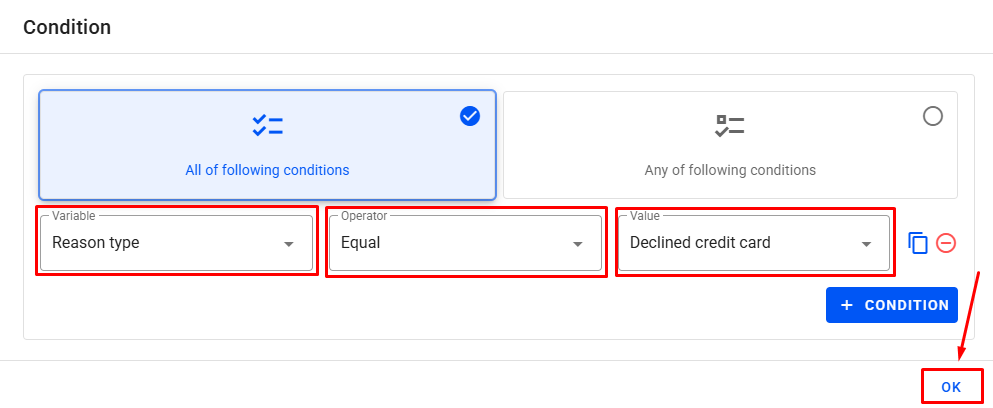
In the variable field, select Reason Type → operator Equal → value Declined Credit Card and click OK.
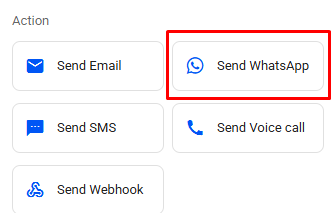
In the automation, right-click again and add a Send WhatsApp block and select the message you want to send.
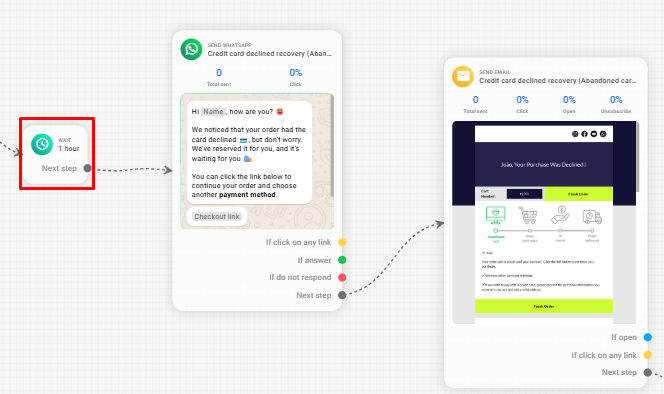
If you want to send more than one message after a while, first add a wait block with the wait time you want and connect to the next message block.
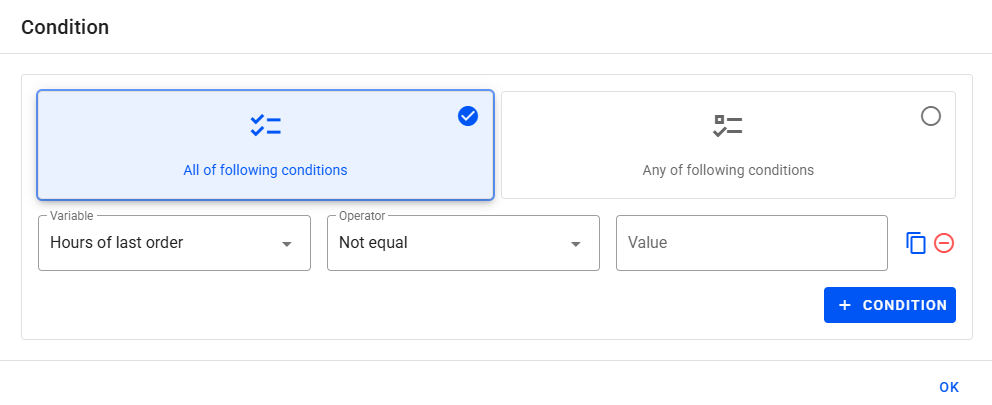
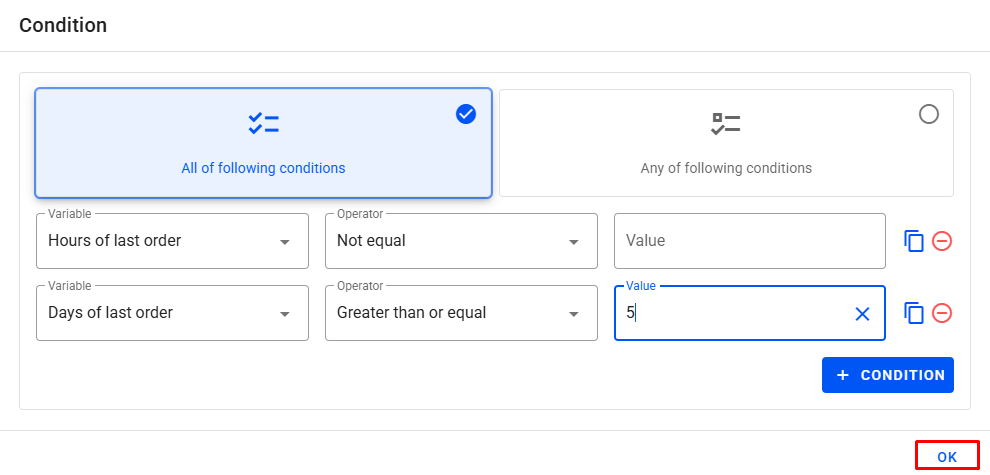
In order not to send messages to customers who have already placed an order, add a new condition block by inserting the variable Hours of Last Order → operator Nnot Equal → value Empty or Null, which means that there has been an order.
Then click on + condition to add Days of Last Order → Greater Than or Equal → 5, which will check that the customer has not placed any orders in the last five days.
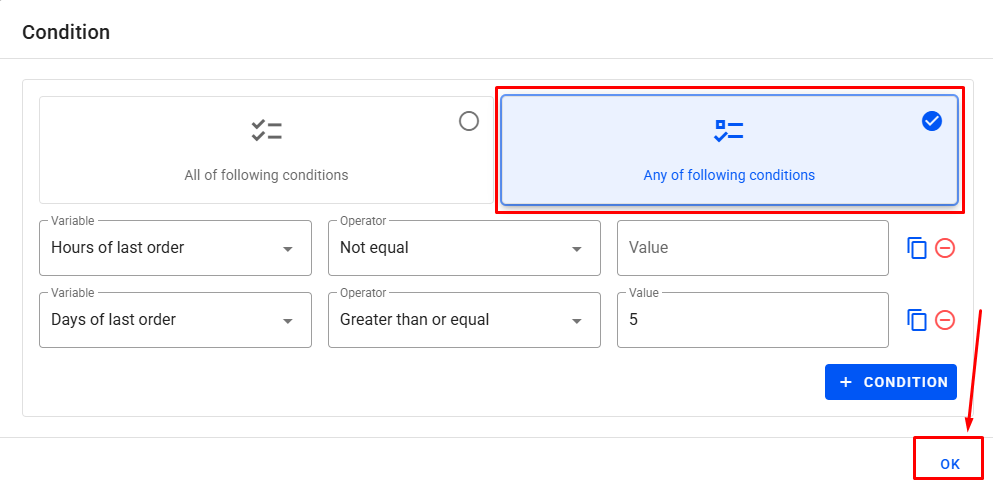
Change the terms to Any of Following Conditions and to validate the changes, click Ok.
Add the next message and make the connections. Click on save and close to validate the changes to your automation.
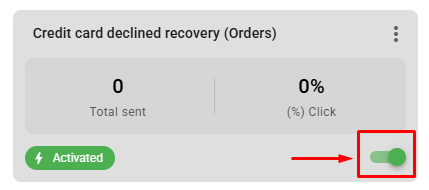
Note: Remember to activate automation for messages to be sent.
Declined Order Recovery
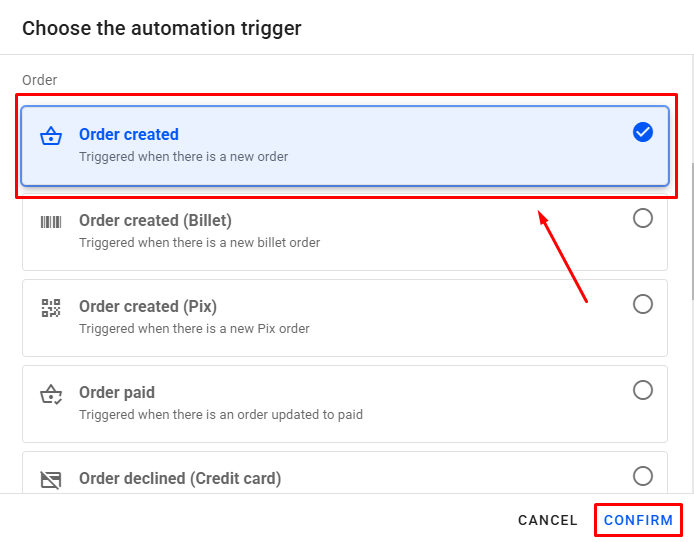
Create a new automation with the trigger type Order Created and click on Confirm.
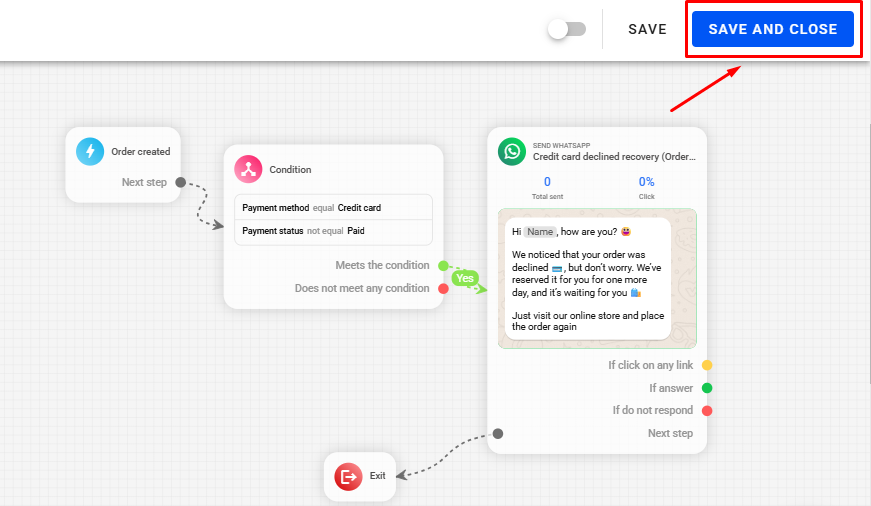
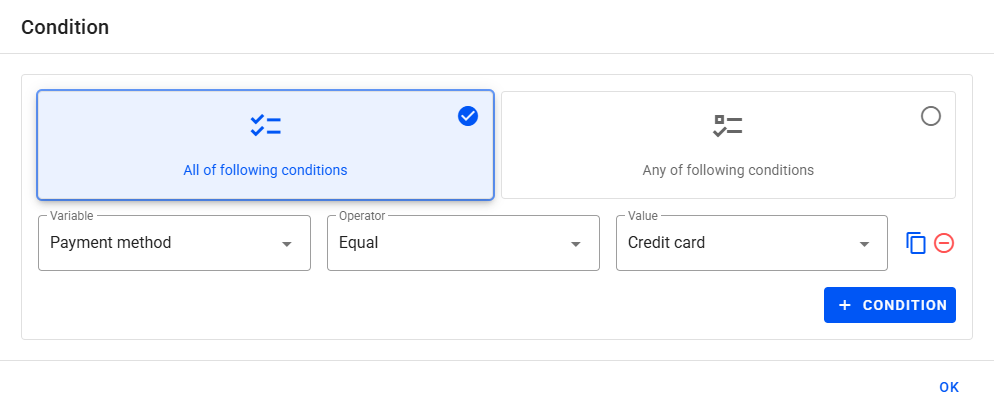
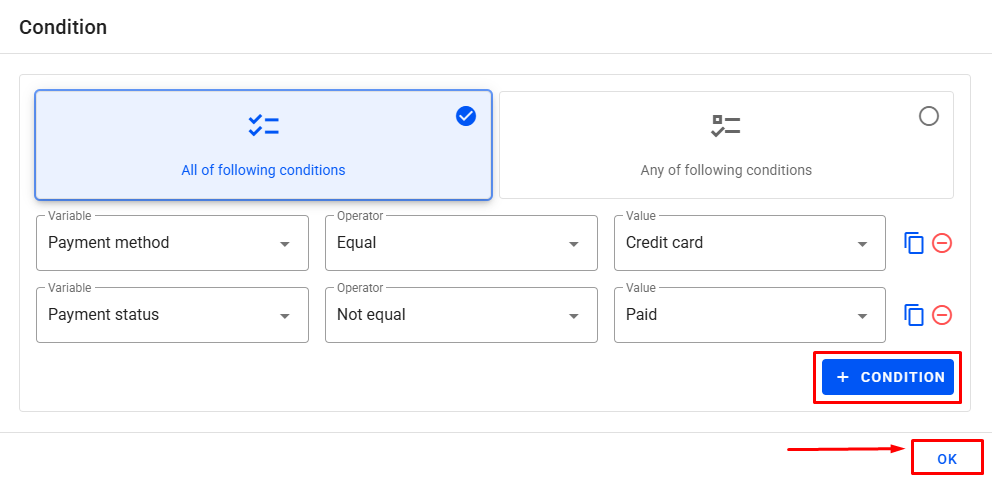
Add a condition block by inserting the variable Payment Method → operator Equal → value Credit Card
Then click on + condition to add Payment Status → Not Equal → Paid and to save the changes, click Ok.
Add the message you want to send, make the connections and click on Save and Close. Remember to activate the automation and it will start sending.
Note: To learn more about the details of how to set up automations, we recommend watching our tutorial Getting to know the Automation Editor.
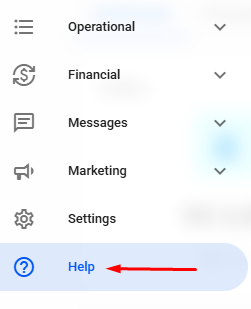
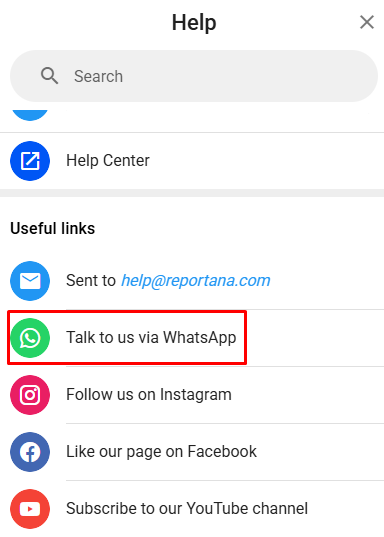
- If you have any questions or difficulties, please contact our support team by going to Help in the side menu of your account →Contact Us via WhatsApp.